Create Custom Reactors
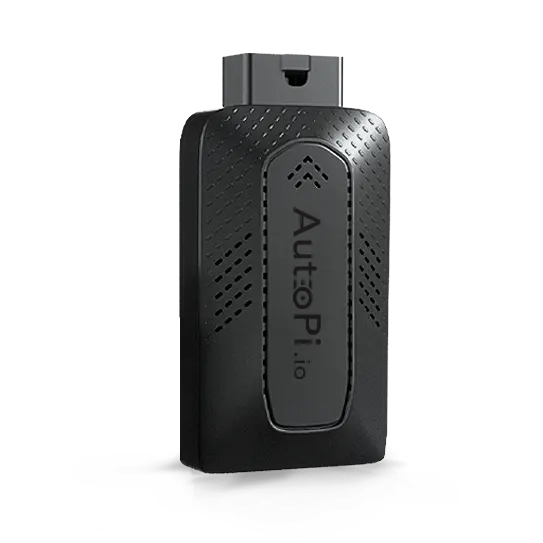
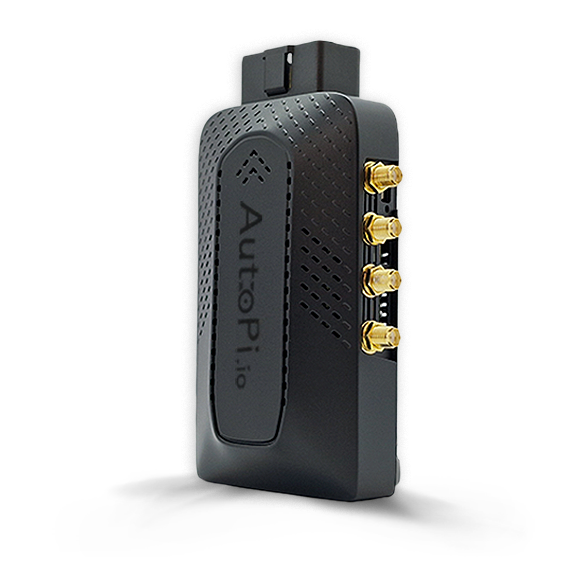
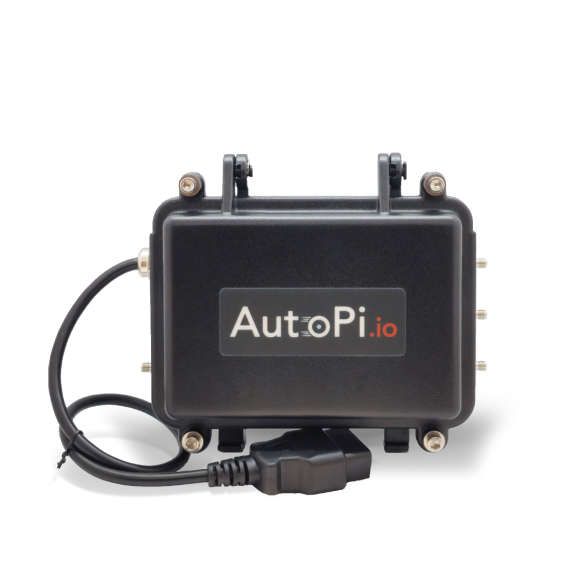
Reactors allow AutoPi TMU CM4 and CAN-FD Pro devices to respond automatically to events. A reactor listens for event names that match a regular expression (regex) and then runs one or more configured actions.
Use a reactor when the device needs to respond immediately to a change or activity, such as entering a geofence, starting a software update, or detecting a change in vehicle state. Reactors can run existing service functions or custom hooks, making it possible to control hardware, play an alert, update logging behavior, or start another on-device workflow without waiting for a response from the cloud.
This guide explains how reactors process events, how to configure and verify a custom reactor, and how to use the default reactors as references. It also walks through a practical example that plays a spoken warning when a vehicle enters a restricted geofence.
Service reactors run locally on the device. They are different from cloud-side automations, which run in the cloud.
How Reactors Work
When the device emits an event, each enabled reactor in the selected service checks the event name. The reactor runs its actions only when:
- The reactor is enabled.
- The event name matches the reactor's regex.
- All configured requirements are met.
For example, the regex ^vehicle/power/battery/low$ matches only an event named vehicle/power/battery/low. The ^ and $ characters ensure that the entire event name must match.
Before creating a reactor, identify:
- The service that should respond to the event. Read more about specific services here: Services.
- The exact event name or group of event names to match. Check the Events tab for events generated from the device.
- The action the device should run when the event occurs.
- Any additional requirements that must be met before the action runs.
Create a Custom Reactor
-
Navigate to Device > Services.
-
Select the service where you want to run the reactor.
-
Open the Reactors tab.
-
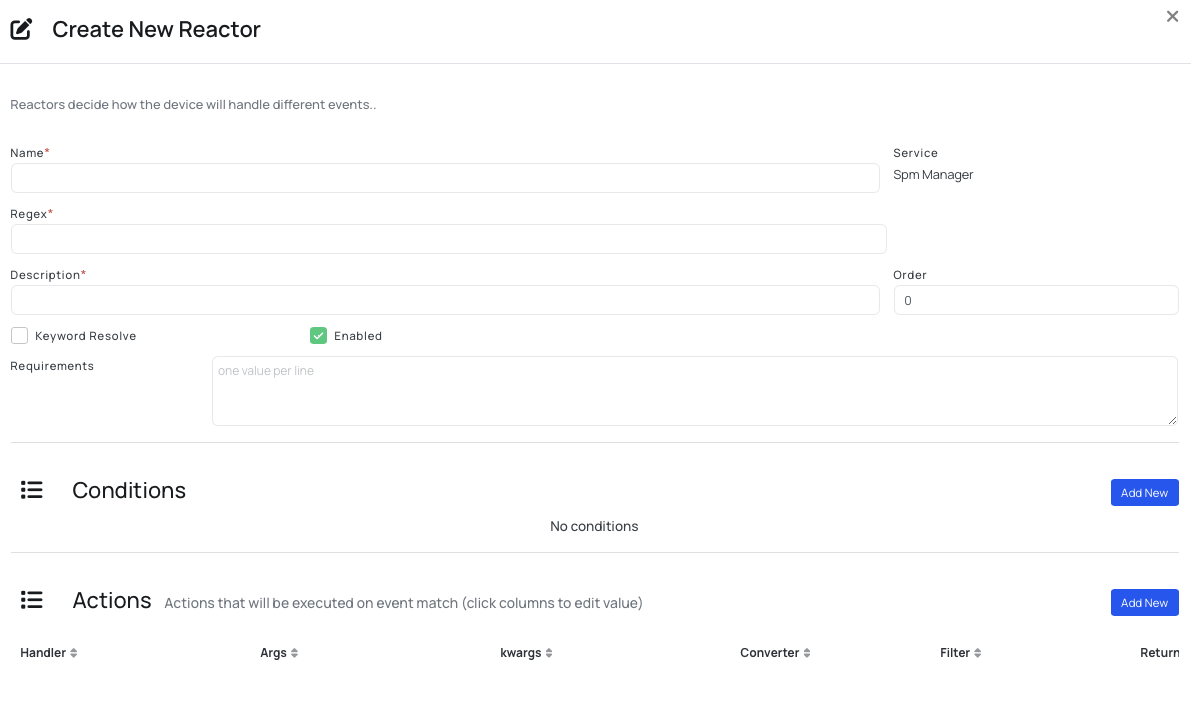
Click Create and this window pops up.
-
Configure the reactor fields:
Field What to Enter Notes Name A clear, unique reactor name. Example: battery_voltage_critical_alertRegex A regex that matches the event name. Use a specific pattern, such as ^vehicle/power/battery/low$, to avoid matching unrelated events.Description A short explanation of the reactor's purpose. Describe both the event and the resulting action. Keyword Resolve Enable keyword resolution if captured values from the event name are needed by a requirement or action. Leave disabled for a fixed event name. Enabled / Disabled Whether the reactor can respond to events. Keep disabled while configuring the reactor, then enable it when it is ready to use. Requirements Optional conditions evaluated after the regex matches. Leave empty if matching the event name is sufficient. Order The reactor's execution priority. Reactors with lower order values run first. -
Add any Requirements that must be met before the reactor runs. Requirements are optional.
-
Add one or more Actions. Actions run in their configured order after the event and requirements match. If the action uses custom code, first register the custom function as a hook on the service.
-
Save the reactor.
-
Click Sync to apply the configuration to the device. If the device is offline, the changes are applied the next time it comes online.
Use and Verify a Reactor
After syncing the configuration:
- Cause the matching event to be emitted by a worker, trigger, or other service logic.
- Confirm that the configured action runs.
- Check the device logs for execution details or errors. If the event is sent to the cloud, you can also check it under Device > Events in the AutoPi Cloud.
You can inspect configured reactors at runtime with:
reactor.manage reactor list
reactor.manage reactor show <name>
The first command lists the available reactors. The second displays the configuration of a specific reactor.
Default Reactors
AutoPi devices include several reactors that are enabled by default. These reactors support built-in device behavior, such as responding to software updates, power events, motion events, or changes in connectivity. The available default reactors depend on the device model and its configuration.
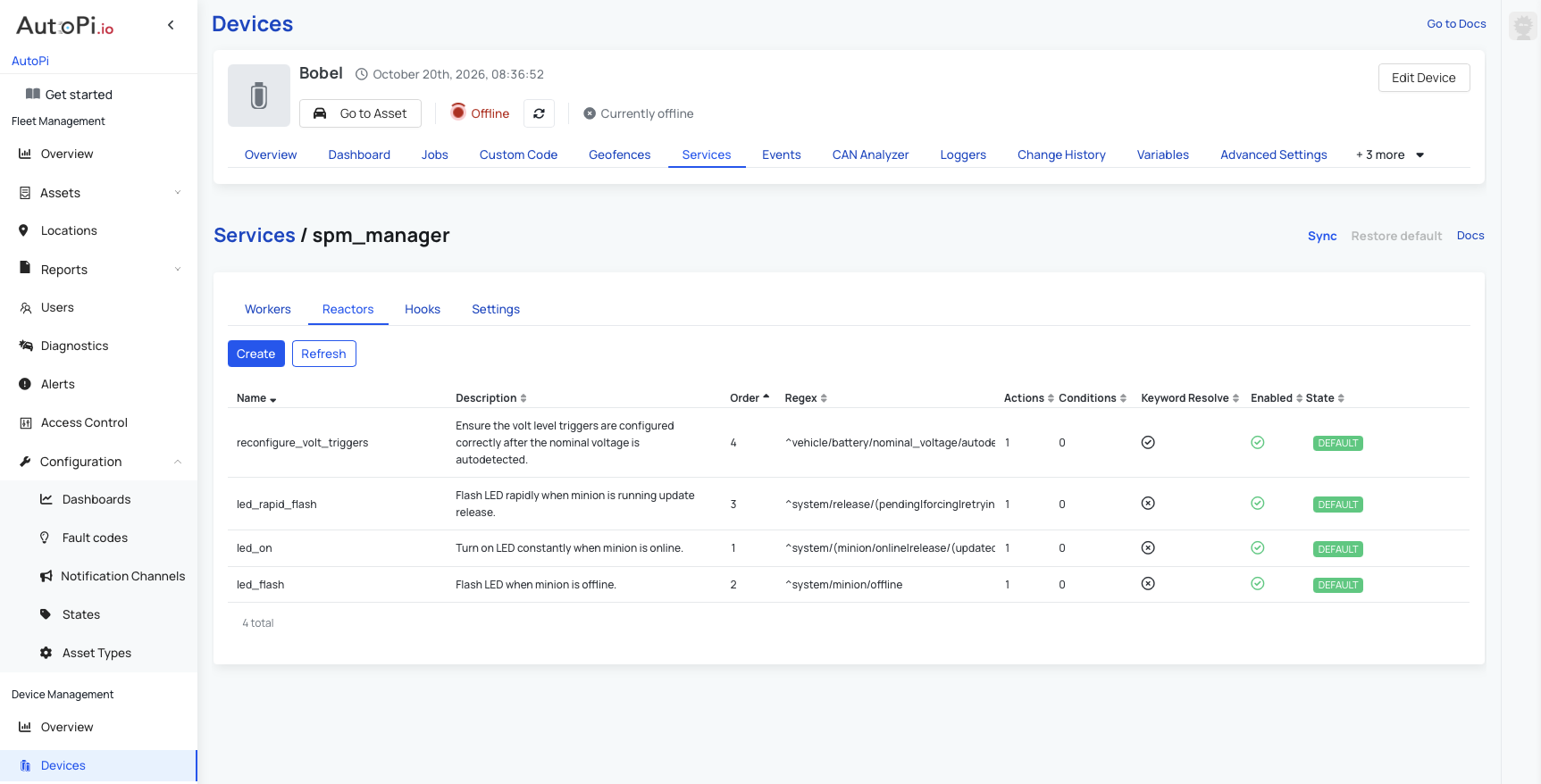
You can view them in the AutoPi Cloud by navigating to Device > Services, selecting a service, and opening its Reactors tab. Default reactors are distributed across the services responsible for their actions. The following spm_manager reactor is one example.
Rapid LED Flash During an Update
TMU CM4 and CAN-FD Pro devices include the led_rapid_flash reactor under Device > Services > spm_manager > Reactors by default. This reactor makes the device LED flash rapidly while the Salt minion is installing or retrying a software release update.
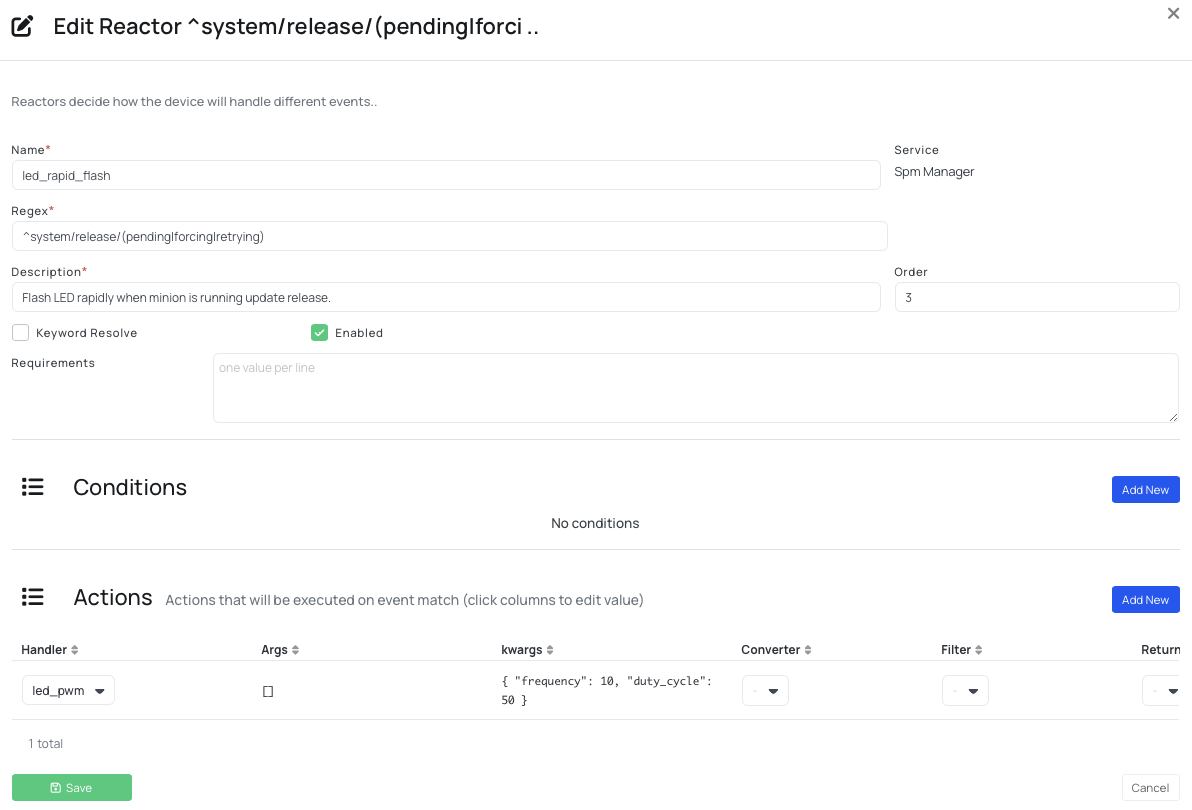
It listens for the following regex:
^system/release/(pending|forcing|retrying)
The pattern matches these device events:
system/release/pending: The latest release is being installed.system/release/forcing: The latest release is being force installed.system/release/retrying: The device is retrying the release installation.
When one of these events is emitted, the reactor runs its configured SPM Manager LED action. This is a useful reference when creating a custom reactor: one regex can match several related events, and the action provides immediate feedback on the device.
Open the led_rapid_flash reactor to see a working reactor configuration before creating your own. Avoid changing or deleting this default reactor unless you intend to change the LED behavior during software updates.
Custom Reactor Example: Warn When Entering a Restricted Geofence
This example uses the event_reactor service to play a spoken warning when the vehicle enters a geofence named Restricted Zone. It follows the same pattern as the default speak_events reactor: match an event, then run an audio action on the device.
Before you begin, create and assign the Restricted Zone geofence to the vehicle. When the vehicle enters the geofence, the device emits this event:
vehicle/geofence/Restricted Zone/enter
Register the Audio Action
A reactor action uses a hook registered on the same service. Create the hook before creating the reactor:
- Navigate to Device > Services > event_reactor > Hooks.
- Click Create.
- Set the hook type to Handler.
- Give the hook a descriptive name, such as
restricted_zone_warning. - Select
audio.speakas the function. - Add the text to speak as an argument, for example
Warning. The vehicle has entered a restricted area. - Save the hook.
Create the Reactor
Navigate to Device > Services > event_reactor > Reactors, click Create, and use the following configuration:
| Field | Value |
|---|---|
| Name | warn_on_restricted_zone_entry |
| Regex | ^vehicle/geofence/Restricted Zone/enter$ |
| Description | Plays a spoken warning when the vehicle enters the Restricted Zone geofence. |
| Keyword Resolve | Disabled |
| Enabled / Disabled | Enabled |
| Requirements | None |
| Order | 100 |
| Actions | Add a workflow with restricted_zone_warning as the handler. |
Save the reactor and sync the changes to the device. To test it, enter the geofence and confirm that the warning plays. You can also check Device > Events for the matching geofence event and review the device logs if the action does not run.
The device must support audio output, and its volume must be high enough to hear the warning. The event name must contain the geofence name exactly as configured, including spaces and capitalization.
Best Practices
- Use specific regex patterns to avoid matching unrelated events.
- Use requirements for additional conditions, not as a replacement for event matching.
- Start with one action and verify it before adding more actions.
- Use names and descriptions that explain both the event and the response.
- Test the reactor on one device and review its logs before deploying it to multiple devices.
 Shop AutoPi devices
 Compare devices
 Contact sales
 Contact support