Introduction
This guide will walk you through accessing and managing device events in AutoPi Cloud. View the complete history of system and vehicle events, filter events by time, type, and custom tags, and use events as the foundation for triggers, alerts, automation, and troubleshooting. Learn how to configure trip detection using events and create custom events for advanced workflows.
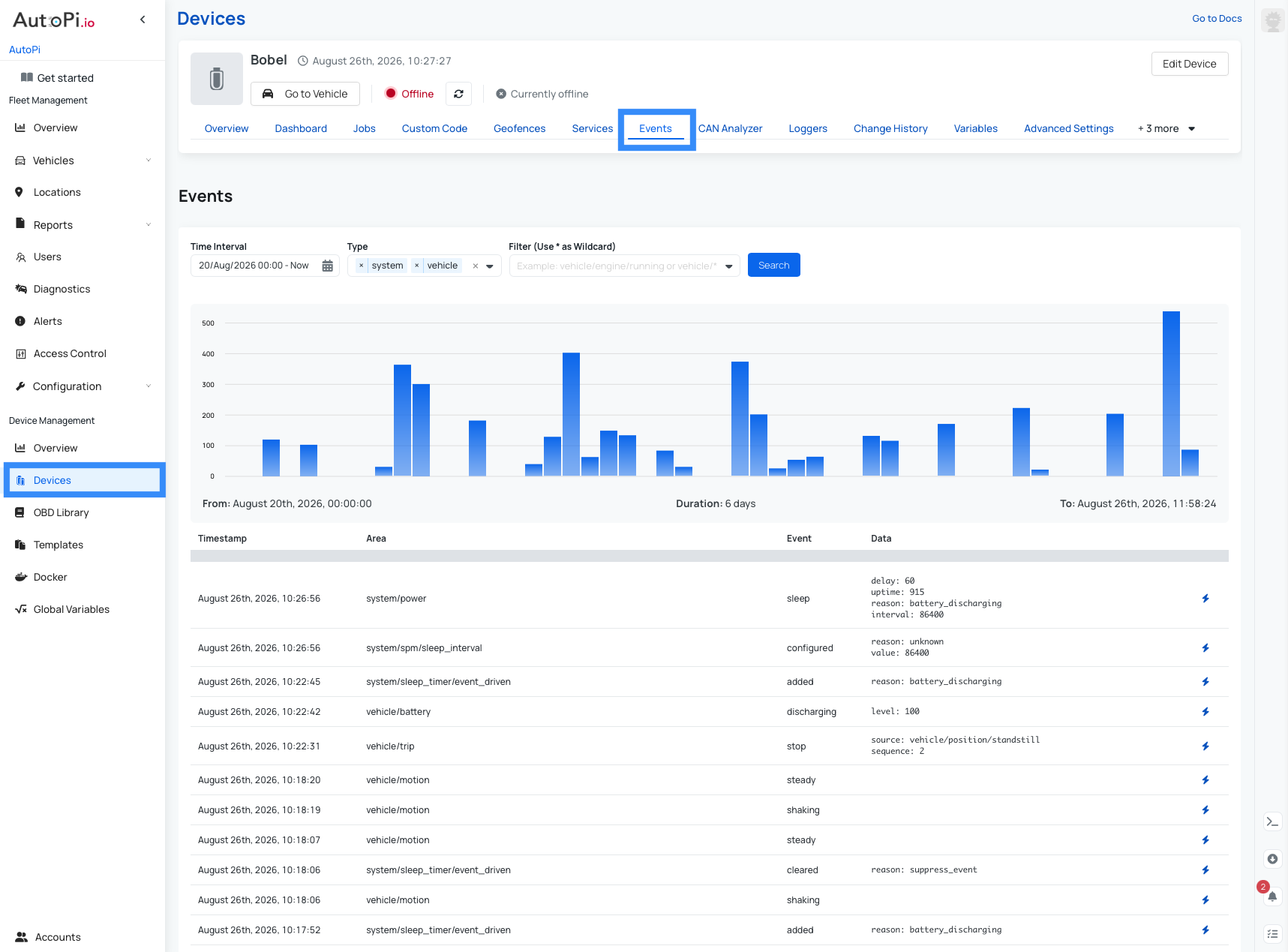
What you'll learn:
- How to view the complete event history from your device.
- How to filter events by time interval, event type (System/Vehicle), and event tags.
- How to use wildcard filters to find specific event patterns.
- How to leverage events for troubleshooting and historical analysis.
- How to configure trip detection using event tags.
- How to create custom events for advanced automation workflows.
- How to integrate events with triggers, alerts, and operational reporting.
To learn more about how the Event Reactor works, see Event Reactor.
Event Filters
You can filter events in three ways to quickly focus on what matters:
- By time interval
- By type (System, Vehicle, or both)
- By event tag, including wildcard filters (for example, use
*trip*to find all trip-related events such as trip start and trip stop)
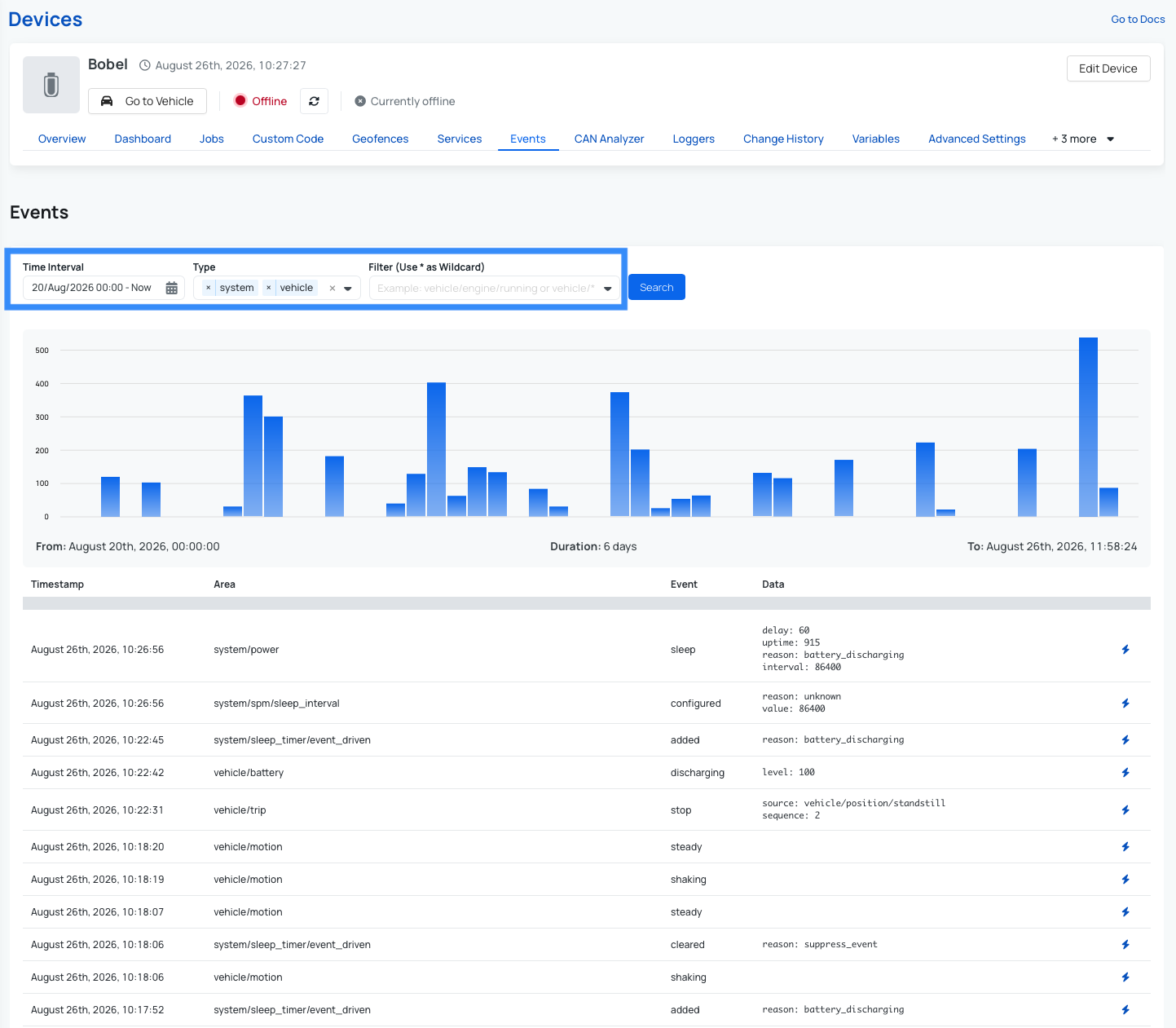
This makes the Events tab especially useful for troubleshooting, because you can review exactly what happened around the time an issue occurred and identify errors captured by the device.
When troubleshooting, start with a broader time range and then narrow results by event type and tag to find relevant events faster.
Event Types
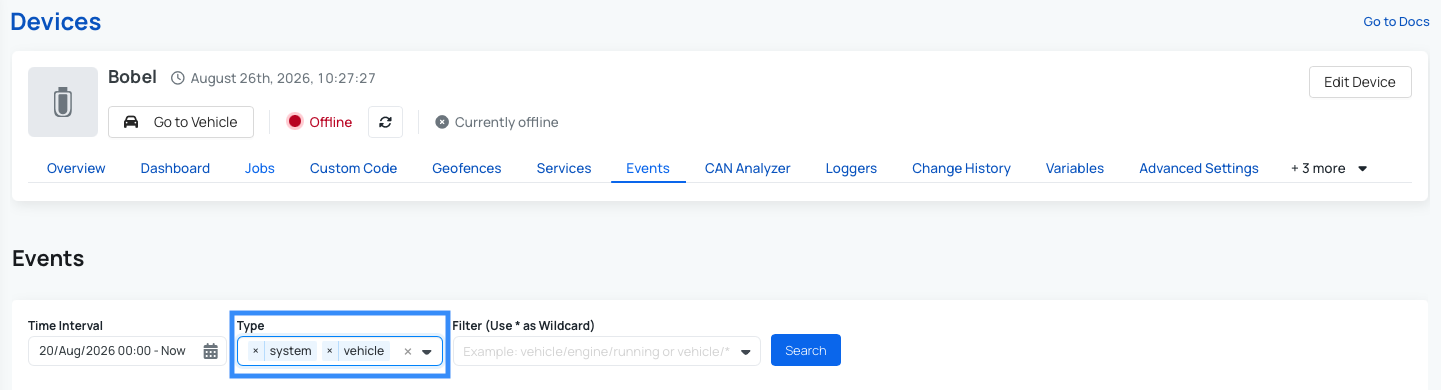
Events are grouped into two types:
- System events: device and platform-level events, such as connectivity, power, and service state changes. For a full overview of available system events, see System Events.
- Vehicle events: vehicle-related events, such as ignition state changes, movement, and CAN/OBD-based signals. For a full overview of available vehicle events, see Vehicle Events.
In Device Management under Events, you can view both System and Vehicle events:
For detailed information about event categories and settings, see:
These guides list all available events, including each event tag and description, so you can understand what each event represents and how to use it.
What events can be used for?
Events are often used as building blocks for automation and monitoring. Common examples include:
- Triggers and automations: start an action when an event is received. For example, if the engine starts between 01:00 and 06:00 (when the vehicle is expected to be parked), you can use an engine-running event and configure a trigger to send an email notification. See more examples in Example condition use cases.
- Alerts and notifications: send alerts when specific event conditions occur (for example, low battery, disconnect, or unexpected movement).
- Historical analysis: each event includes a timestamp, name, event, and data row with more detail about what happened. This historical overview is especially useful for troubleshooting. If you know when an issue started, filter that time range and check whether any errors were present.
- Operational reporting: use event streams for fleet activity tracking, uptime checks, and rule compliance monitoring.
- Trip detection: use event tags for detection of trips.
- and more...
Using events for Trips
Trips are also built on events. Our devices include predefined trip start and trip stop events, with defaults selected based on whether the vehicle is EV or ICE.If you want to learn more about trips, see Trips.
If trips are missing or look incorrect, you can tune the trip detection by changing which events are used. Navigate to Device > Advanced settings > Trip > Primary Event and set the start and end event tags.
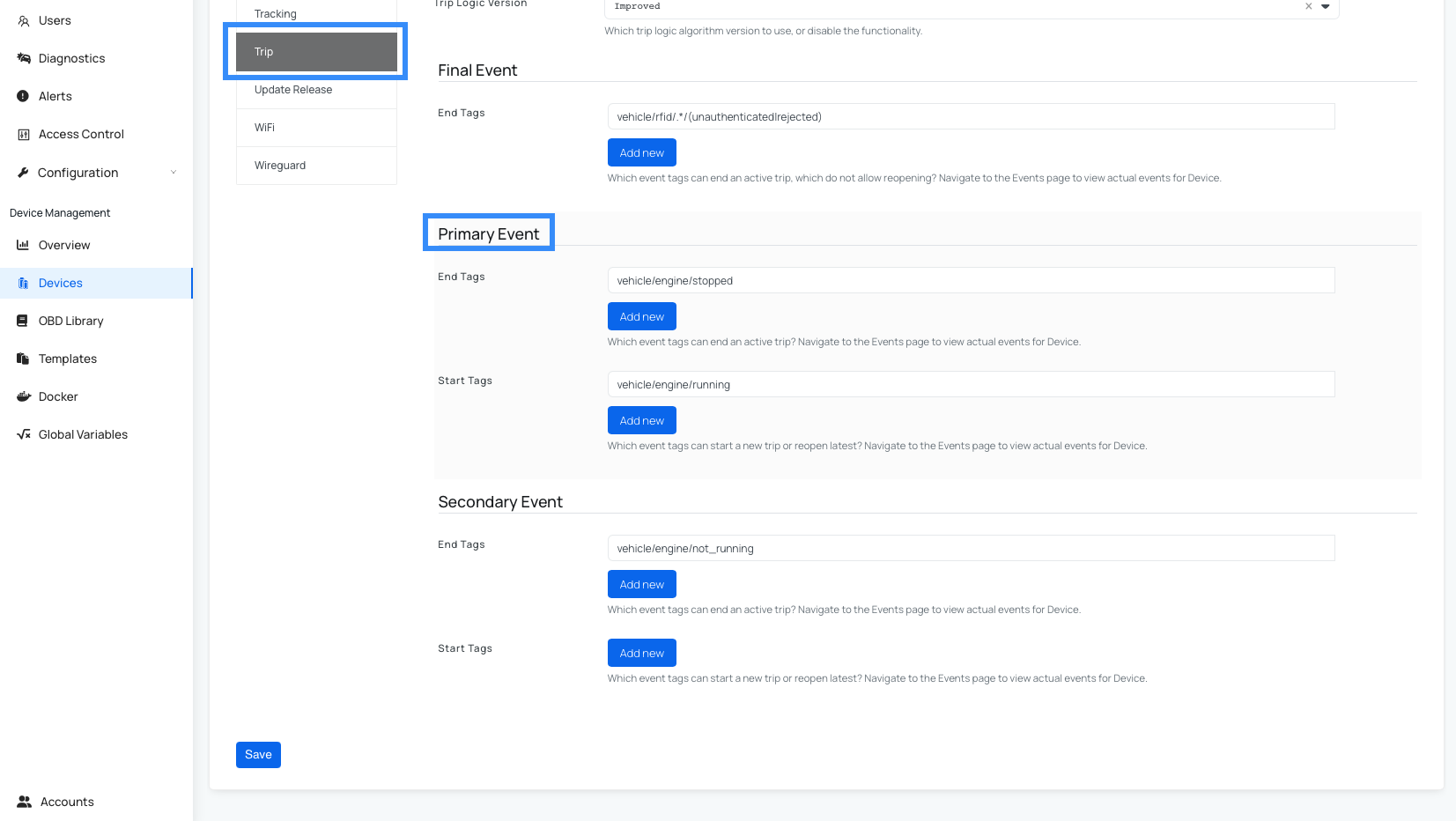
Use the Events tab to find tags that best match your vehicle behavior, then copy those tags into the Trip Primary Event settings. For example, if an ICE vehicle creates trips too late, open the Events tab and compare candidate tags around real drive sessions. If you see that vehicle/ignition/on matches the actual start and vehicle/ignition/off matches the actual end more accurately than the current setup, use those tags as the trip start and end events.
Then verify the next few trips and adjust again if needed.
Custom events
You can also create your own custom events. Once emitted, they will appear in this Events section alongside standard events, making them available for the same trigger, alert, and history workflows. To learn more, see: How to create custom event for custom logger.
Note: Custom events are not available for AutoPi Mini devices.
Summary
You now have an introduction to the Events page and the core event workflows available out of the box. You should be able to:
- View the complete event history from your device.
- Filter by time interval, event type, or event tag (including wildcards).
- Use events for triggers, alerts, reporting, and troubleshooting ...
- Extend your setup with custom events (not available on AutoPi Mini).
As always, we provide the foundation, and you can build on top of it to match your own use case If you run into issues, contact us at support@autopi.io. If you think an event type is missing, we would love to hear your ideas.
 Shop AutoPi devices
 Compare devices
 Contact sales
 Contact support