Custom Event for Your Custom Logger
This guide will walk you through creating a custom event for your own logger script. Custom events enable your AutoPi device to autonomously react to specific conditions and trigger actions based on your defined parameters—such as detecting trip start/end conditions, monitoring battery voltage thresholds, or responding to real-time sensor data.
Common use cases:
- Threshold Monitoring — trigger events when sensor values exceed specified limits.
- Battery Management — react to high-voltage battery state changes.
- Data Processing — pre-process logger output before indexing to reduce data storage.
Prerequisites:
- Access to your AutoPi device's Custom Code section.
- Understanding of basic Python programming.
- Familiarity with the OBD Manager and CAN Logger configuration.
- Knowledge of AutoPi's event system and data structures.
Step 1: Create a Custom Execution Script
Start by creating a new custom module. In this example, we’ll call it custom_event.
- Navigate to Devices and click on the device you want this change to be applied to.
- Click on Custom Code tab and click "Create".
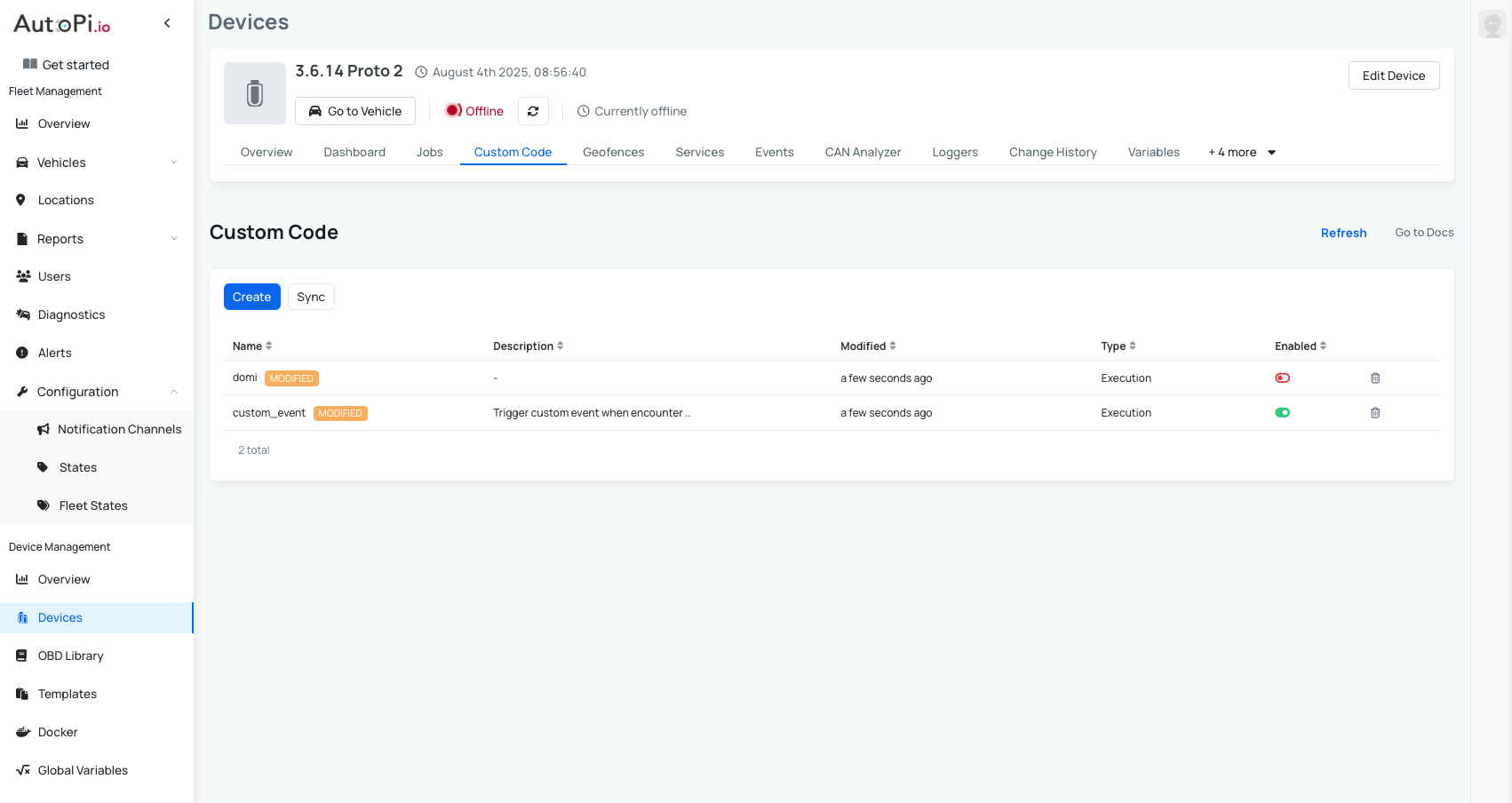
Here’s what the script looks like:
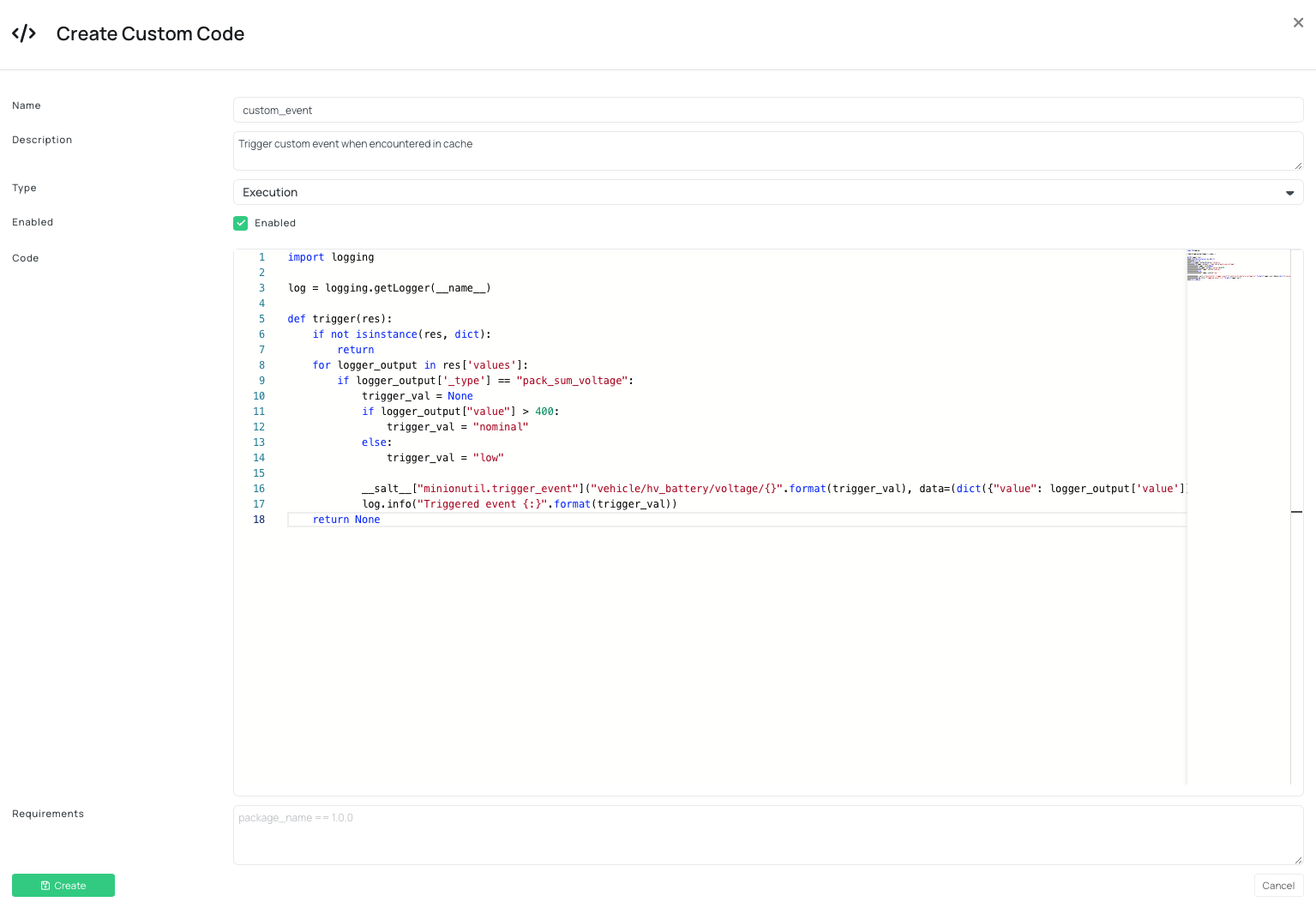
Here is the code example:
import logging

log = logging.getLogger(__name__)

def trigger(res):
    if not isinstance(res, dict):
        return
    for logger_output in res['values']:
        if logger_output['_type'] == "pack_sum_voltage":
            trigger_val = None
            if logger_output["value"] > 400:
                trigger_val = "nominal"
            else:
                trigger_val = "low"

            __salt__["minionutil.trigger_event"]("vehicle/hv_battery/voltage/{}".format(trigger_val), data=(dict({"value": logger_output['value']}, **{"_alternating_cache_event_filter.skip": True})))
            log.info("Triggered event {:}".format(trigger_val))
    return None
Explanation
You have created a new function that is called trigger, and it takes one input argument res.
resis a dictionary passed from theobd.manager.- The _type attribute of the res dict is the name of the logger we want to react to. Here you can set up some conditionals for 2 different event types:
- Preferably, limit the event types to limit the amount of indexing elastic_search has to do.
- The data parameter will usually be the data we react to - which is the value parameter of the logger_output we are looking at.
- We use the alternating_cache_event_filter.skip to ensure that we limit the amount of events, if the events do no change.
Step 2: Add the Script as a Trigger in the OBD Manager
- Navigate to Services tab.
- Select OBD Manager.
- Navigate to the Hooks tab.
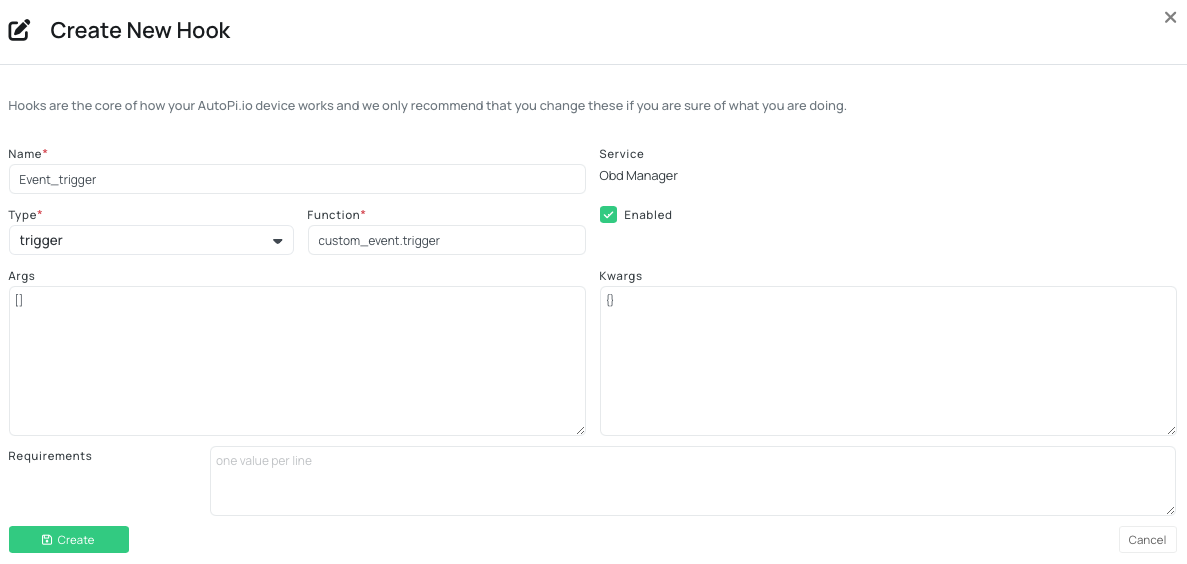
- Click Create Hook.
- Fill in the fields:
- Name: Choose a descriptive name (e.g., event_trigger)
- Type: Select trigger from the dropdown
- Function: Use the format custom_event.trigger
- Enabled: Make sure this toggle is turned on
- Click Save.
Step 3: Assign the Trigger to a Logger
- Navigate to the Workers tab.
- Select the CAN Logger you want to apply the trigger to.
- In the logger settings, find the Trigger dropdown.
- Select your newly created trigger (e.g., event_trigger).
- If your new trigger doesn't appear immediately, try clearing any pending syncs and refreshing the page.
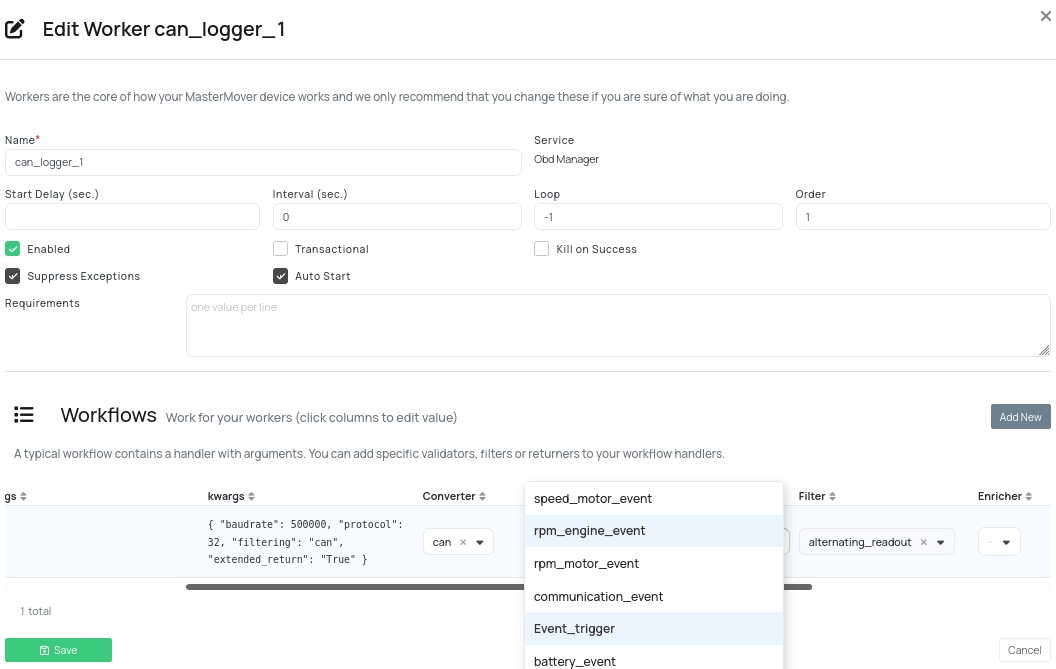
You now have a custom trigger configured for your custom logger. Your AutoPi device will automatically evaluate the logger output and trigger events based on your defined conditions.
 Shop AutoPi devices
 Compare devices
 Contact sales
 Contact support