Setting Up a Device with Verizon Wireless
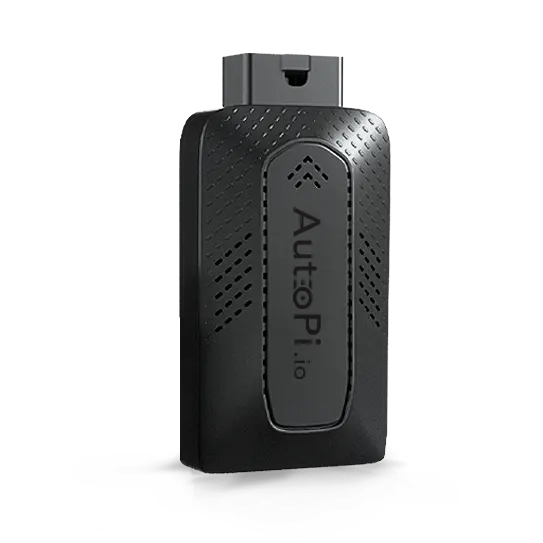
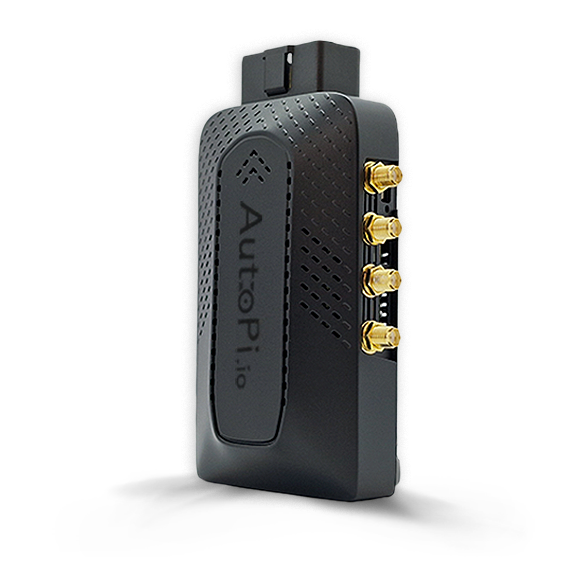
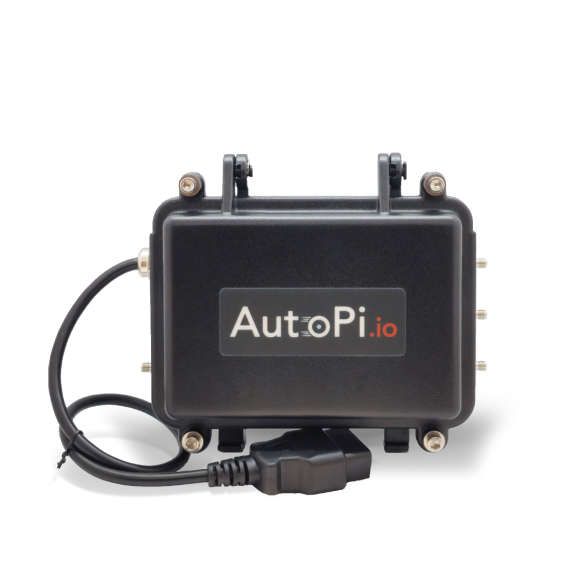
This guide will walk you through setting up your AutoPi device with Verizon Wireless. Verizon requires IMEI number registration for SIM activation, which can present challenges since the AutoPi's IMEI is not recognized by Verizon's system. This guide provides a verified method to work around this limitation and successfully activate your device on Verizon's network.
Setup steps:
- Register the SIM with Verizon using a compatible device (smartphone or tablet).
- Insert the SIM into your AutoPi device.
- Configure the APN settings for Verizon.
- Complete device setup and verification.
Setup Instructions
Step 1: Register SIM with Verizon
If you have a brand-new SIM card, you must first register it with Verizon using a different device:
- Use a smartphone or tablet with a recognized IMEI.
- Register the SIM using that device's IMEI.
- This ensures the SIM is properly activated on Verizon's network.
If your SIM is already registered on Verizon's network, you can proceed directly to Step 2.
Step 2: Insert SIM into AutoPi Device
Follow the SIM insertion procedure documented in the AutoPi Getting Started guide.
Step 3: Configure APN Settings
When setting up your device, use the following APN configuration instead of the preselected default:
APN String: vzwinternet
Step 4: Complete Setup
After configuring the APN, complete your device setup and verify that your AutoPi device successfully connects to Verizon's 4G network.
Verification
Once setup is complete, your AutoPi device should be able to communicate with Verizon's network and begin transmitting data through AutoPi Cloud.
 Shop AutoPi devices
 Compare devices
 Contact sales
 Contact support