Local Development Workflow
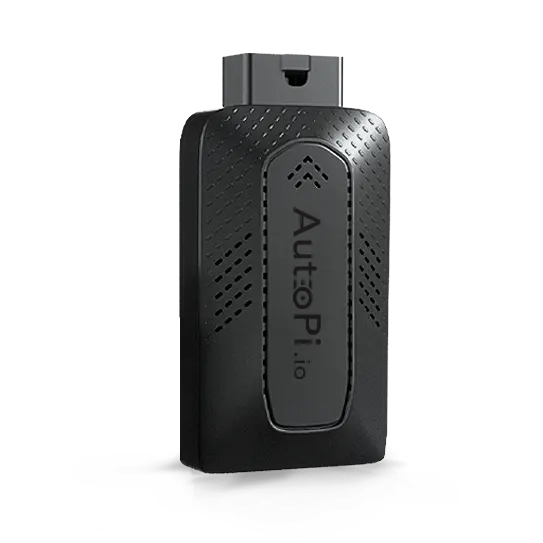
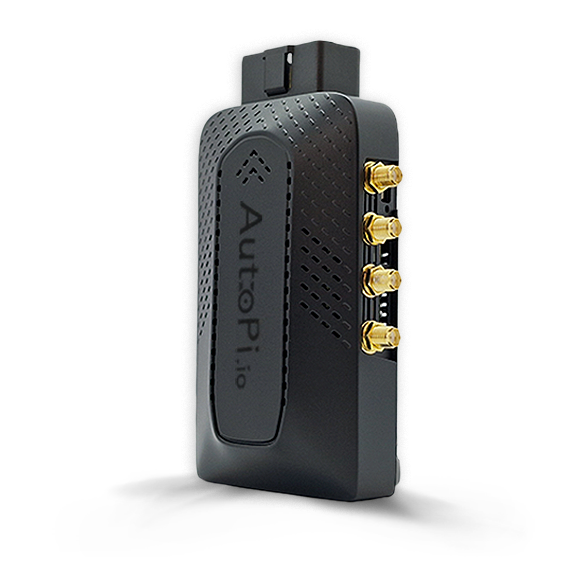
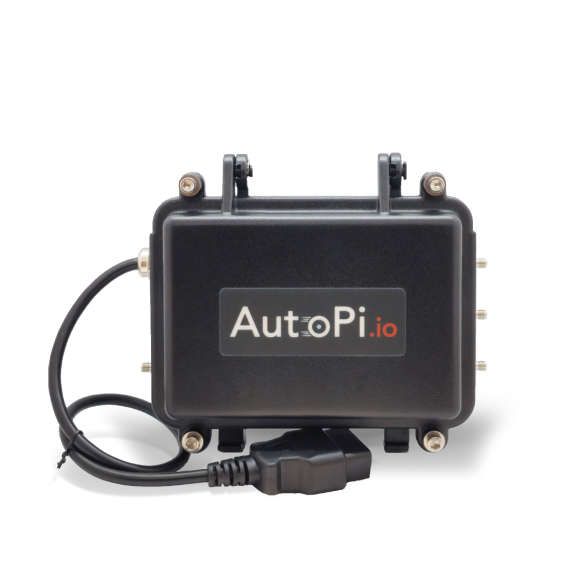
This guide will walk you through establishing an efficient local development workflow for building and debugging AutoPi modules. You'll learn when to use cloud versus local development approaches, how to edit and test code directly on your device via SSH, how to sync changes from your local machine to the device, and how to optimize your feedback loop for rapid iteration.
While cloud-based workflows are ideal for reliable fleet management and final deployments, local development provides significantly faster iteration cycles. This guide demonstrates two complementary approaches: developing directly on the device and developing locally with automated sync to the device.
What you'll learn:
- When to use cloud versus local development workflows.
- How to develop and test directly on the device over SSH.
- How to develop locally and sync changes efficiently (recommended approach).
- When to refresh modules versus restart the minion service.
Recommended workflow: use the AutoPi Cloud for fleet management, configuration, and final rollouts. Use local or SSH-based workflows for rapid iteration, debugging, and testing.
Before you begin
Make sure you have the following:
- SSH access to the device, see: How to SSH to Your Device.
- A local development environment (recommended).
- Basic familiarity with AutoPi modules and Salt structure.
When syncing from the Cloud, the modules will be put in the following directories, based on the type:
/opt/autopi/salt/modules/opt/autopi/salt/returners/opt/autopi/salt/utils/opt/autopi/salt/engines/opt/autopi/salt/states
Cloud sync can overwrite local edits on the device without prompting. If you develop directly on the device, keep backups or version-control your files locally.
Option 1: Edit directly on the device (SSH)
This is the fastest setup for small fixes or quick validation.
You can connect to your AutoPi device in several ways, depending on your setup:
- Connect Screen and Keyboard to Device.
- Connect to the device hotspot: Connect to the hotspot of your AutoPi device.
- Connect through your local Wi-Fi network: Connect through your home Wi-Fi to AutoPi device.
- Connect using Tailscale: Connect to Tailscale on your AutoPi device.
- Connect using WireGuard: Connect to WireGuard on your AutoPi device.
Steps for development through SSH:
- SSH into the device.
- Edit files in the relevant
/opt/autopi/salt/...directory. - Reload modules or restart the minion.
- Run your test command and validate the result.
To apply changes after editing:
-
Faster method (may not pick up every change):
autopi saltutil.refresh_modules -
More reliable method during development:
autopi minionutil.restart
Option 2: Remote development - develop locally and sync to device
Alternatively, another workflow can be to have a script on your development machine that copies the files to the device via scp, that way you can make the changes in your favorite editor. This usually provides the best productivity: local editor, version control, and fast deployments.
Example deployment script
Create a small script on your development machine to copy files and restart services:
#!/usr/bin/env bash
set -euo pipefail

DEVICE_HOST="pi@local.autopi.io"
LOCAL_FILE="./my_module.py"
REMOTE_FILE="/opt/autopi/salt/modules/my_module.py"

scp "$LOCAL_FILE" "$DEVICE_HOST:$REMOTE_FILE"
ssh "$DEVICE_HOST" "autopi minionutil.restart"
You can extend this script to sync multiple files and run a smoke test command after deployment.
Suggested iteration loop
- Edit code locally.
- Run local quality checks (lint/tests where applicable).
- Deploy with your sync script.
- Restart the minion or refresh modules.
- Execute and verify behavior on the device.
Keep in mind
Choosing between refresh and restart:
- Use
autopi saltutil.refresh_modulesfor faster reloads when changing simple module code. - Use
autopi minionutil.restartwhen behavior is inconsistent or when changing deeper dependencies.
If you are unsure, restart the minion service for a clean reload. You can also read more here: Minionutil Commands.
Common pitfalls:
-
- Issue: Local changes disappear after cloud sync.
- Solution: The cloud-synced version has replaced your device-local file. Keep local backups, use version control, and avoid editing the same files directly on the device right before a cloud sync.
-
- Issue: Changes do not apply immediately after editing.
- Solution: Reload modules with
autopi saltutil.refresh_modulesor runautopi minionutil.restartfor a clean reload.
-
- Issue: The development loop feels slow.
- Solution: Reduce manual cloud sync steps during active coding. Develop locally, sync with a script, and use cloud deployment only once changes are stable.
When to switch back to cloud deployment?
Once development is stable:
- Commit and review your code.
- Push via your standard cloud workflow.
- Validate on target devices.
For additional implementation support, see our Development Voucher.
 Shop AutoPi devices
 Compare devices
 Contact sales
 Contact support