Getting Started
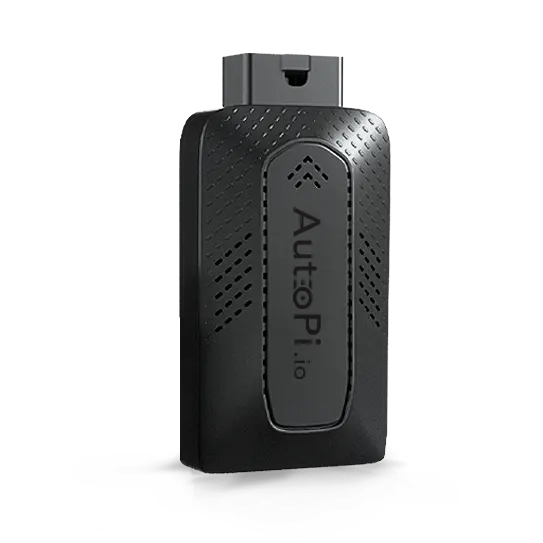
Welcome to AutoPi Setup
This guide walks you through setting up an AutoPi TMU CM4 4G/LTE Edition, from creating an account to connecting the device to the AutoPi Cloud.
Quickstart
Complete the steps in order. If your device includes an AutoPi Cloud subscription and a pre-installed SIM card, you can skip the SIM installation and APN configuration steps.
- Create and configure your AutoPi Cloud account.
- Register your device on the AutoPi platform.
- Verify SIM connectivity (if required).
- Locate and prepare your vehicle's OBD port.
- Physically install the device for optimal performance.
- Connect to the device's Wi-Fi hotspot.
- Open Local Administration and configure the APN (APN) for 4G/LTE connectivity.
- Verify the device's internet and cloud connectivity.
- Change the default Wi-Fi password and finalize the setup.
Important Safety and Setup Requirements
The AutoPi device connects directly to your vehicle's ECU. Follow these requirements before continuing:
- Turn off the vehicle: make sure the vehicle is completely powered off before connecting the device for the first time.
- Park before making changes: install or configure the device only while the vehicle is parked.
- Keep the device connected while driving: never disconnect the AutoPi device while the vehicle is moving.
- Use the OBD-II power source: power the device only through the OBD-II connector. Powering the Raspberry Pi directly is not supported and may damage the device.
- Change advanced settings carefully: incorrect settings may affect vehicle performance or battery life.
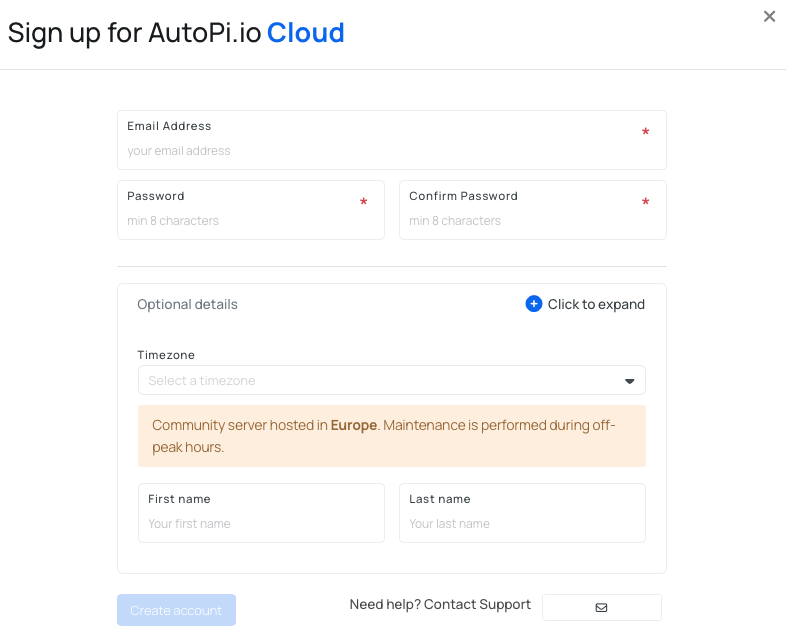
1. Set Up Your User Account
- Go to my.autopi.io.
- Select Sign up.
- Enter your email address and create a password.
- Optionally, expand the form and add your name and country. You can also add these details later.
- Select Create account.
2. Register Your Device
After creating an account, you can access the Cloud Platform features for fleet and device management. The next step is to register your device to unlock the platform’s full potential.
To add a device to your account, follow one of these methods:
Option 1: Via Device Management
- See the “Device Management” section of the Platform.
- Click on “Devices”.
- Find and click the “Register Device” button in the upper right corner.
Option 2: Via the Accounts Tab
- Navigate to the “Accounts” tab at the bottom of the left side menu on the Platform.
- Select “Devices”.
- Locate and click the “Register Device” button in the upper right corner.
After clicking the “Register Device” button, the registration tab will appear. Enter all necessary information:
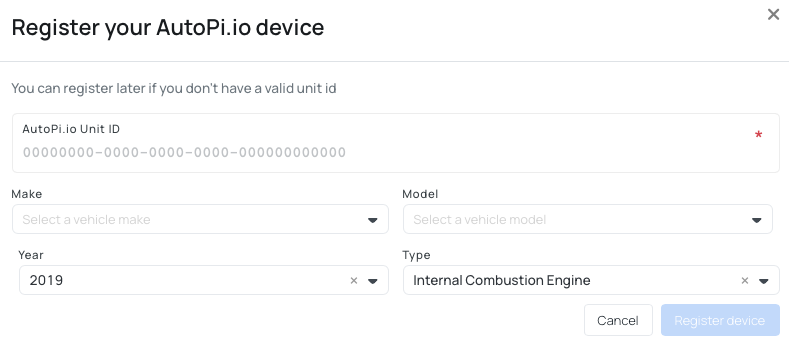
- Unit ID: find this number on the side of the device or in the document attached to your shipping email.
- Vehicle information: optionally enter the vehicle's make, model, and year.
- Vehicle type: select ICE, battery electric, hybrid electric, or plug-in hybrid electric.
The device should now appear under Fleet Management > Vehicles and Device Management > Devices.
3. Ensure SIM Connectivity
If you purchased an AutoPi TMU CM4 with a monthly cloud subscription, the SIM card is already installed. Continue to Step 4.
The hardware-only version requires a nano-SIM card that supports IPv4. Install the SIM card before connecting the AutoPi device to the vehicle:
- Locate the SIM card slot shown below.
- Hold the SIM card with the printed side facing up and the angled end pointing into the device.
- Gently insert the card until it clicks into place. Do not force it.
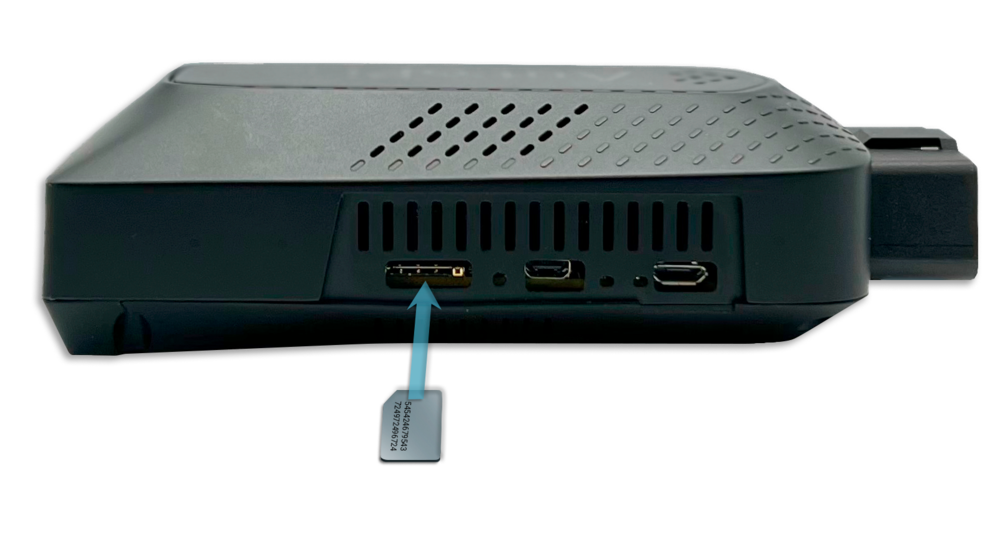
Inserting the SIM card in the wrong orientation or forcing it into or out of the slot may damage the device. Confirm the orientation before insertion.
Recommended US-based SIM providers include:
- AT&T
- T-Mobile
- An MVNO that uses either the AT&T or T-Mobile network
4. Locate OBD Port
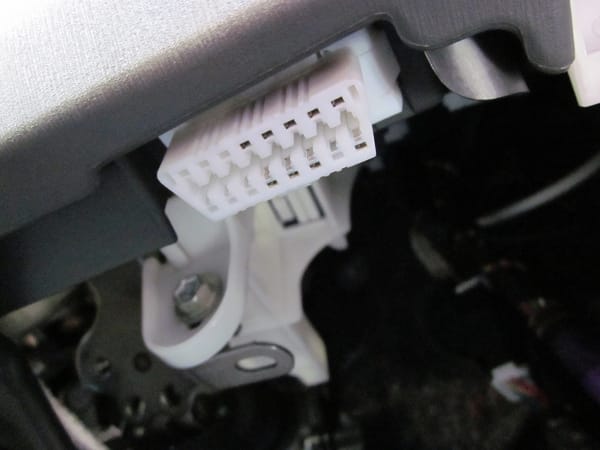
Next step is to locate your OBD port in your car, it is usually found underneath the dashboard and looks something like this:
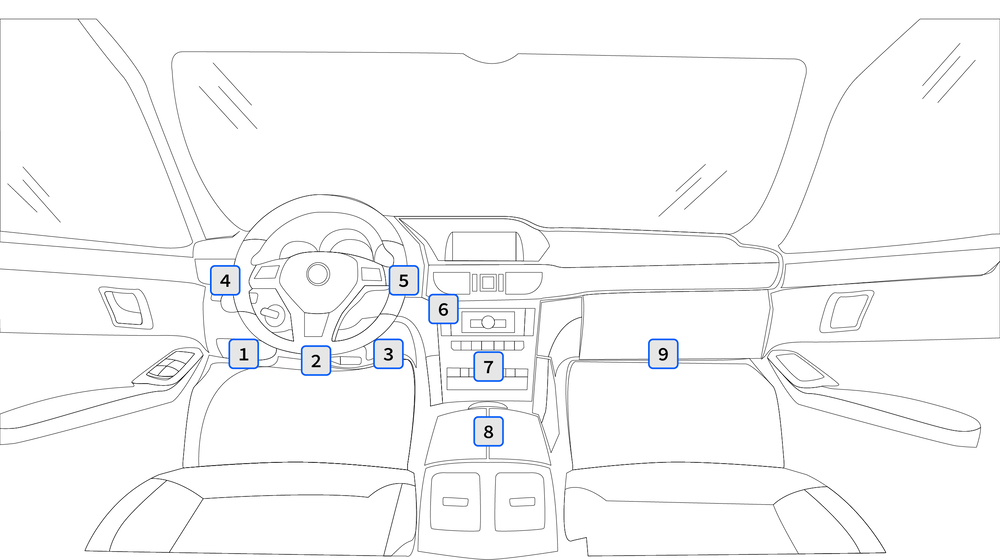
The location of the OBD port varies from make and model, but is typically fund in one of the locations shown below:
5. Installation
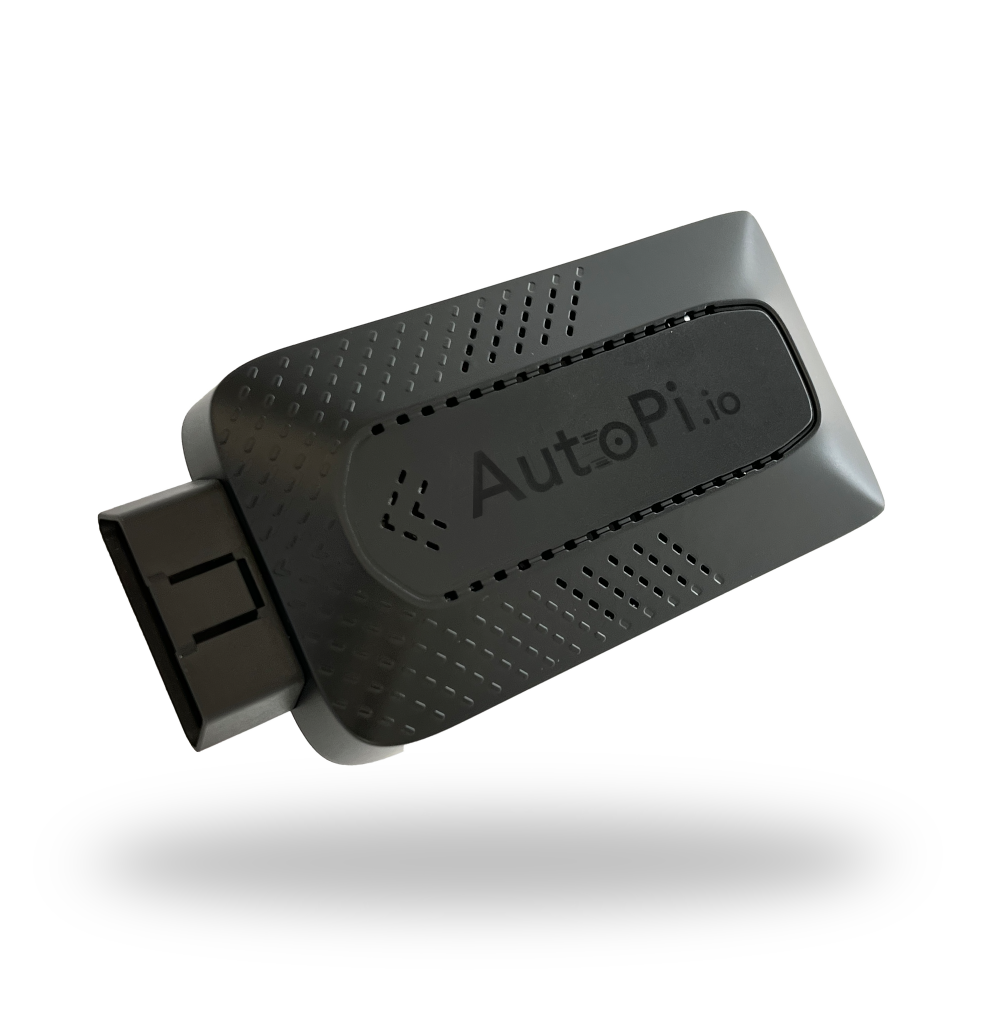
When installing the AutoPi, always make sure that the device is positioned with the logo facing upwards towards the sky. This orientation is crucial because the GPS antenna is located within the device, and incorrect positioning may result in a weak GPS signal.
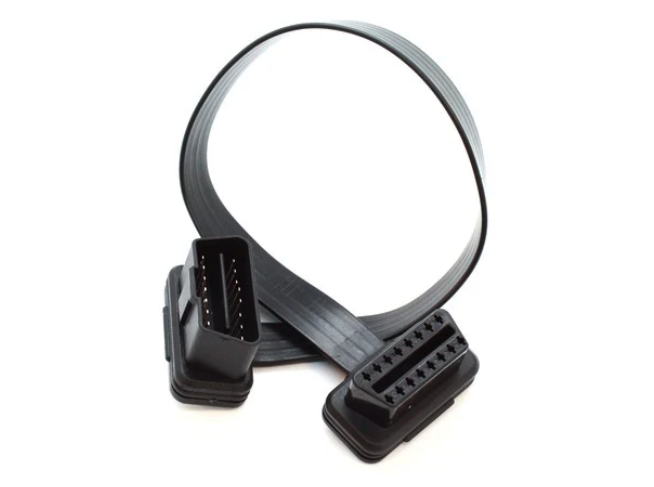
If the OBD port is in an inconvenient spot or gets in the way, you can buy an extension cable to move your AutoPi to a better location. You can also use a holder or a velcro strip to secure it on the side or underneath — just make sure the logo is still facing upwards.
This is the OBD-II extension cable:
Velcro Strip:

- Make sure that the AutoPi logo is facing the sky.
- Try to avoid installing the device in direct sun. Direct sun will heat up the device and, in the summertime, this can cause the CPU to throttle down, if the temperature gets too hot.
- The device contains a GPS antenna inside. Make sure there is no metal covering the device as this can affect its performance.
- When powering the device, make sure you only power it through the OBD connector. The device cannot be powered through any of the other ports.
6. Connect to the Device's Wi-Fi Hotspot
After installing the AutoPi device, temporarily connect a phone or computer to its Wi-Fi hotspot. This connection allows you to access Local Administration and configure the device in the next step.
Find the Hotspot Credentials
The default hotspot credentials are:
- Network name (SSID):
autopi-XXXX, whereXXXXis the unique ID of your device. - Password: the first 13 characters of your Device ID.
You can find the Device ID in either of these locations:
- In the document attached to your shipping email.
- In the AutoPi Cloud under Devices > Select your device > Overview > Device specifications widget.
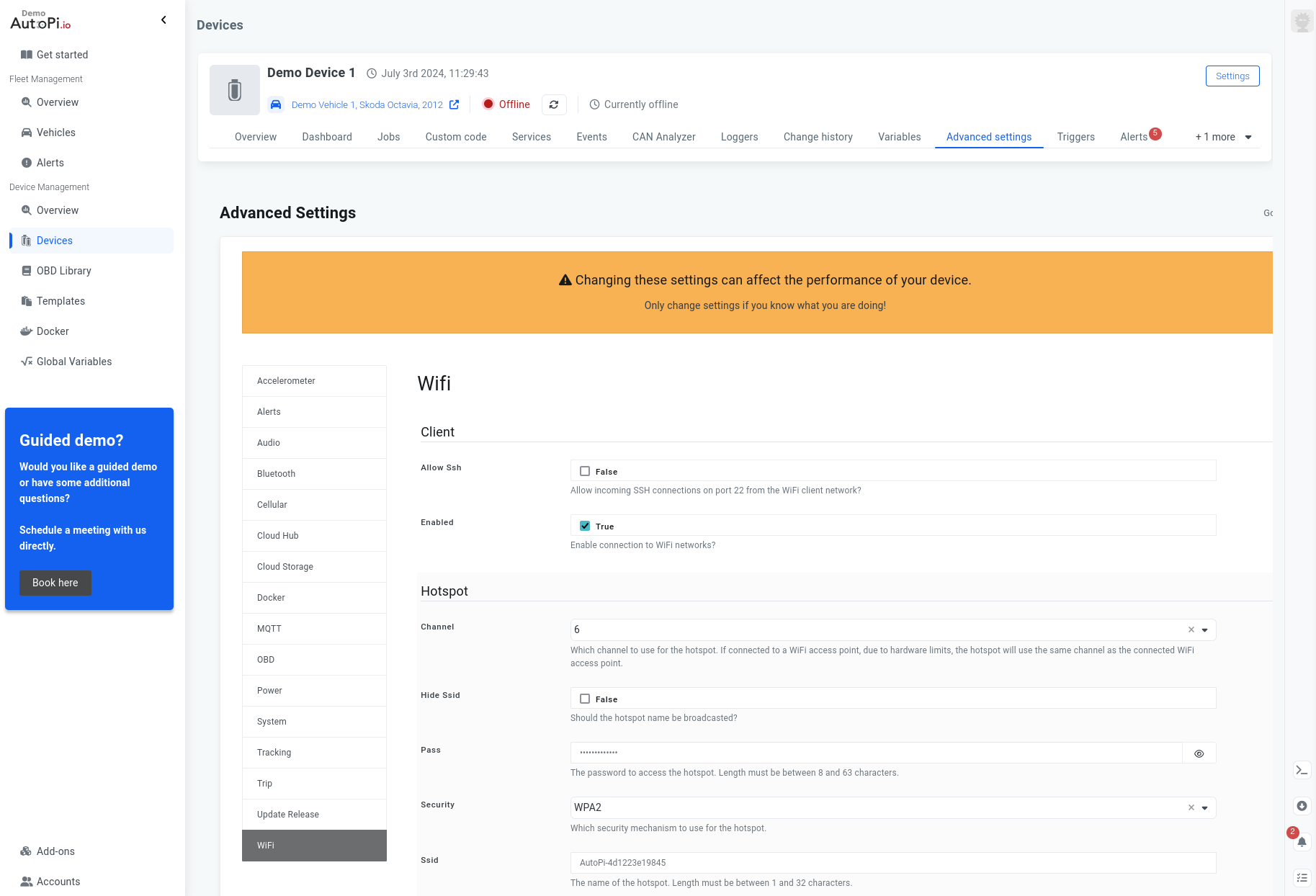
You can also view the hotspot name and password under Devices > Select your device > Advanced Settings > Wi-Fi.
Connect to the Hotspot
- Turn on the vehicle to supply power to the AutoPi device.
- Wait for the blue status light to appear. This indicates that the device has power.
- Open the Wi-Fi settings on your phone or computer.
- Select the
autopi-XXXXnetwork. - Enter the hotspot password.
- Confirm that your phone or computer is connected to the hotspot.
Your phone or computer may report that the Wi-Fi network has no internet connection. Remain connected so you can access Local Administration in the next step.
Check the Status Lights
- A blue light indicates that the device has power.
- A green light indicates that the device is connected to the AutoPi Cloud.
- A flashing green light indicates that the device has not yet connected to the AutoPi Cloud.
For more information, see the status LED descriptions.
7. Configure the APN in Local Administration
If your AutoPi TMU CM4 includes a monthly cloud subscription, its SIM card and APN are already configured. The APN string for the pre-installed SIM card is nxt20.net. You can skip the configuration steps below and continue to Step 8.
The pre-installed SIM card has a monthly data limit. Avoid using the AutoPi hotspot for regular internet access from a phone or computer.
If you use a Verizon Wireless SIM card, follow the dedicated setup guide: Setting Up Your Device with Verizon Wireless.
If you installed your own SIM card, ask your mobile provider for the correct APN string before continuing. APN settings vary by provider, and an incorrect value will prevent the device from establishing a cellular connection.
Open Local Administration
Remain connected to the AutoPi Wi-Fi hotspot from Step 6, then:
- Go to my.autopi.io. If you are already signed in, sign out.
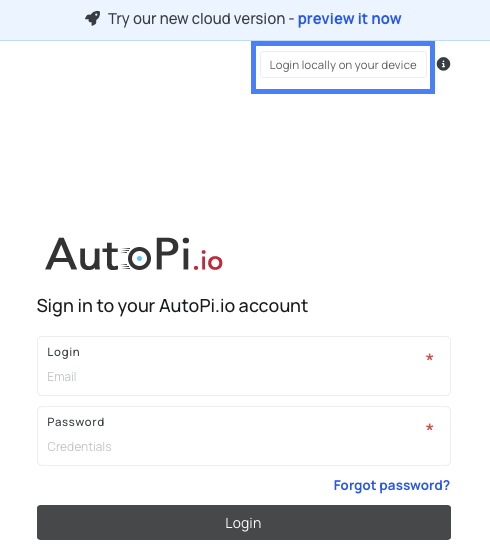
- Select Login locally on your device in the upper-right corner. Alternatively, go directly to local.autopi.io.
- Confirm that the page indicates you are connected to a local device as shown on the screenshot below:
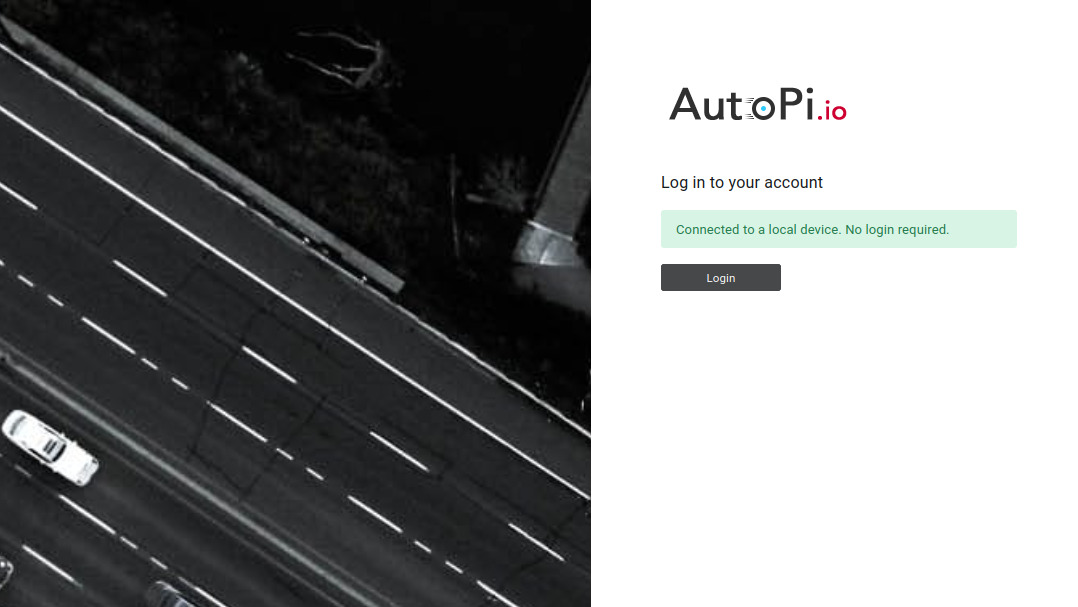
- Select Login. A username and password are not required for local access.
Configure the 4G/LTE Settings
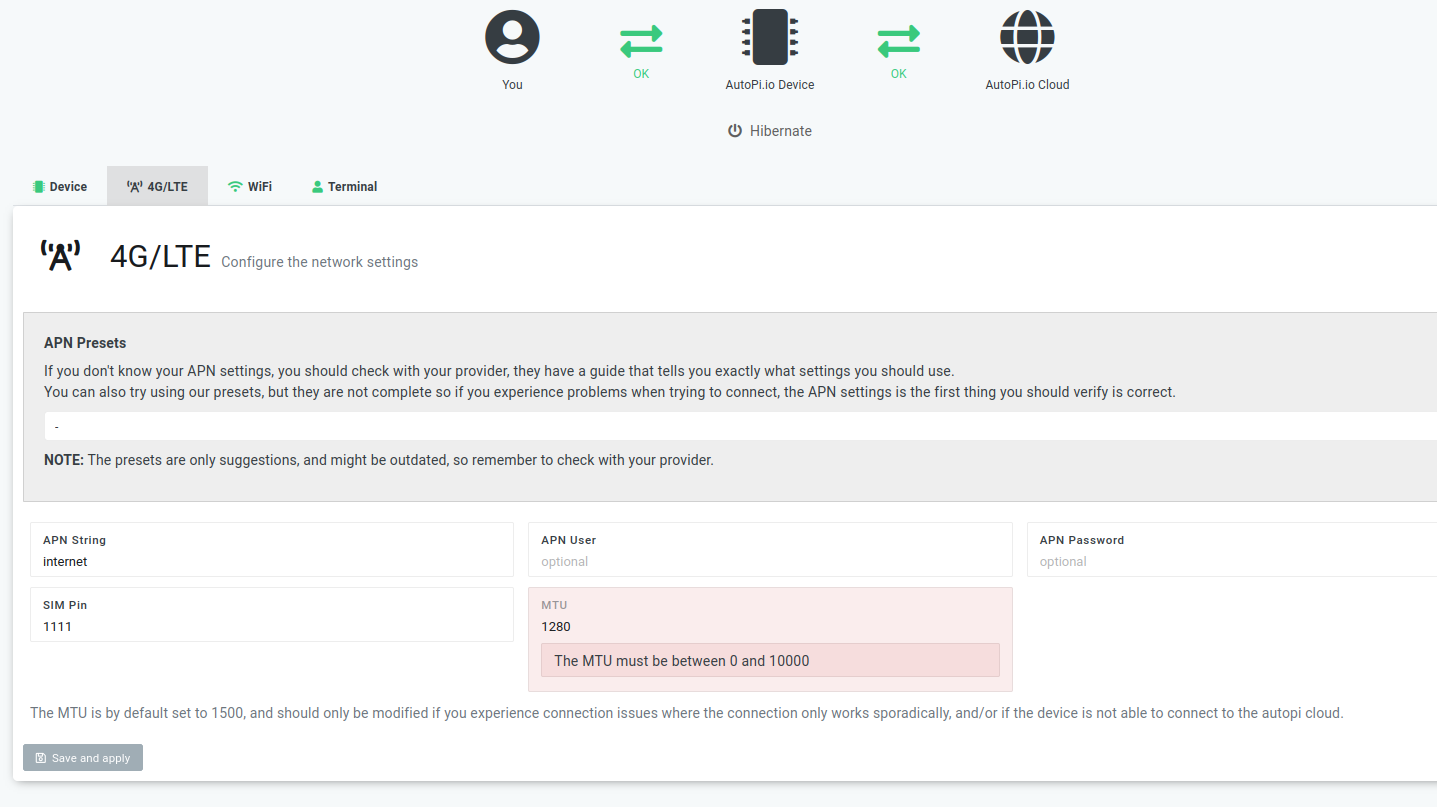
- Open the 4G/LTE tab.
- In the APN String field, replace the existing APN string with the value provided by your mobile provider.
- If the SIM card has a PIN, enter it in the SIM PIN field. Otherwise, leave this field empty.
- Keep MTU set to its default value of 1280.
- Select Save and apply.
- Wait for the success notification before leaving the page.
- Continue to Step 8 to verify the connection.
Optional: Use an APN Preset
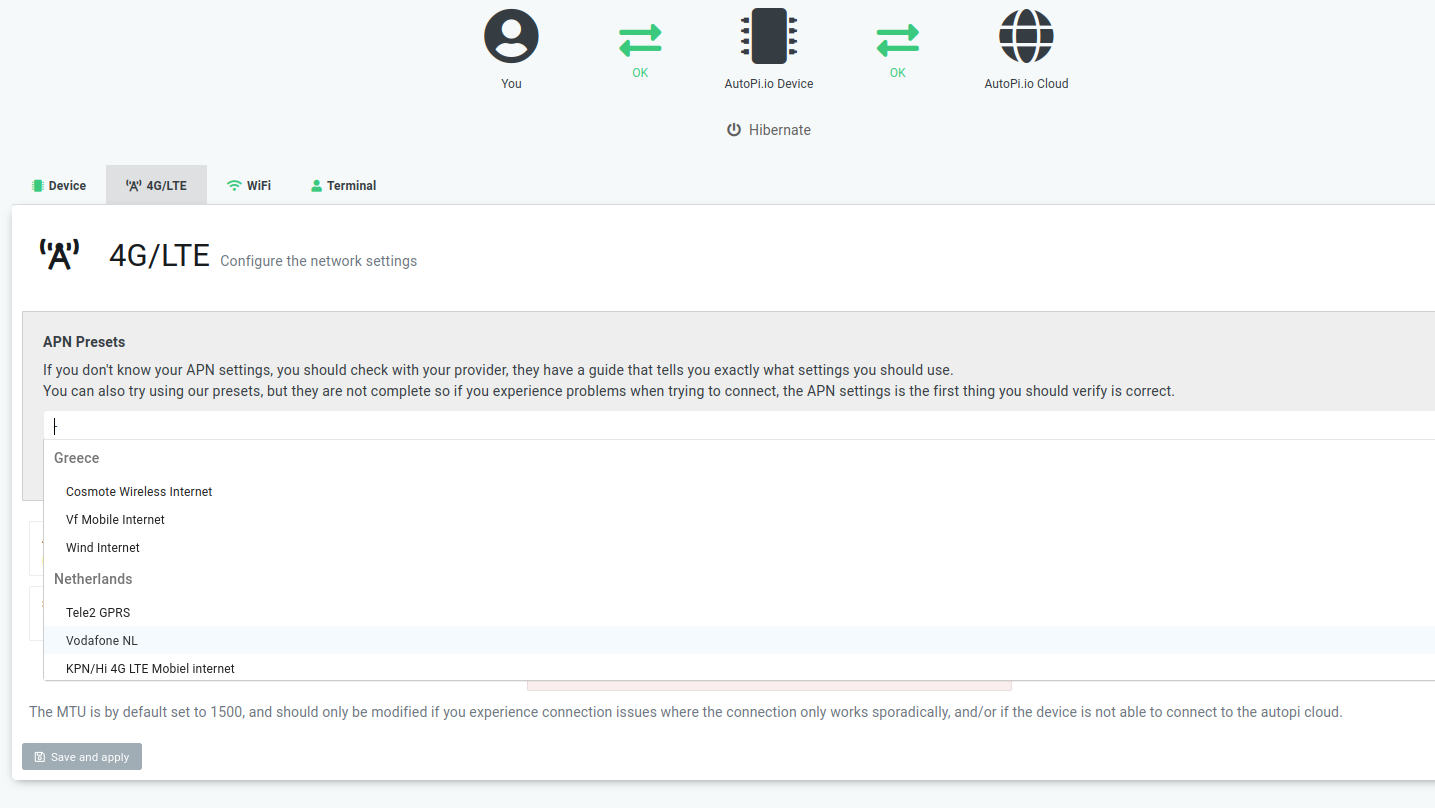
You can select a provider from APN Presets at the top of the 4G/LTE tab. Presets are provided for convenience, but they are not guaranteed to work for every SIM card or subscription. Confirm the APN string with your mobile provider and verify that the preset entered the correct value.
8. Verify Connectivity
Verify both the cellular internet connection and the AutoPi Cloud connection:
- Keep your phone or computer connected to the AutoPi Wi-Fi hotspot.
- Open a browser and visit a public webpage.
- Confirm that the webpage loads. This verifies that the APN settings are correct and the device has internet access.
- Check the green status light on the AutoPi device:
- A steady green light indicates that the device is connected to the AutoPi Cloud.
- A flashing green light indicates that the device has not yet connected to the AutoPi Cloud.
- Sign in to the AutoPi Cloud and confirm that the device appears online.
The first cellular connection may take a few minutes. If a webpage does not load or the device does not appear online, confirm the APN string and SIM PIN with your mobile provider. Then return to Step 7, update the settings, and test the connection again.
9. Finalize the Setup
After verifying connectivity, replace the default Wi-Fi hotspot password:
- In the AutoPi Cloud, open Device.
- Go to Advanced Settings > Wi-Fi.
- Enter a secure password in the Pass field.
- Save and apply the change.
- Store the new password in a secure location.
Your phone or computer may disconnect from the hotspot after the password changes. Use the new password if you need to connect again.
To avoid unnecessary cellular data usage, disconnect phones, tablets, and computers from the AutoPi hotspot after completing the setup.
Setup Complete
Your AutoPi device is now connected to the AutoPi Cloud and ready to collect and transmit vehicle data. Take the vehicle for a drive to begin gathering trip data.
For a TMU DIY Edition, see Set Up Your TMU DIY Edition.
For an older Generation 2 device, see Set Up Your Gen 2 Edition.
What's Next?
Now that your device is up and running, here are a few suggestions to help you get the most out of your AutoPi experience:
- Explore the AutoPi Cloud: dive into the AutoPi Cloud platform to explore all the features available to you, such as real-time vehicle monitoring, advanced analytics, and customizable alerts.
- Check Out Our Documentation: our documentation page is a great resource for learning more about advanced features, troubleshooting, and getting the most out of your device.
- Build your Nested Accounts and Invite New Users: AutoPi Cloud uses a multi-tenant architecture, which means multiple accounts (tenants) share the same platform and infrastructure, while all data, configurations, and user access remain securely isolated. You can read more here: Account management.
 Shop AutoPi devices
 Compare devices
 Contact sales
 Contact support