4G Internet Setup Troubleshooting

If your AutoPi device is unable to connect to the internet, this guide provides a systematic troubleshooting approach to diagnose and resolve common 4G connectivity issues. Follow the steps in the order presented to identify the root cause and restore connectivity.
What You'll Learn
By following this guide, you will:
- Verify SIM card compatibility, orientation, and physical condition.
- Confirm modem detection and hardware status.
- Check and configure modem settings (PDP context and firmware).
- Validate and configure APN settings for your carrier.
- Diagnose and manage
qmi-managerservice status. - Restart and troubleshoot the network interface (
wwan0). - Tune MTU settings for optimal connectivity.
- Test internet and cloud connectivity.
- Collect diagnostic logs for support when needed.
Prerequisites
Before starting, complete the initial setup guide.
If you need assistance after following these steps, contact support@autopi.io and include all command outputs and logs collected during troubleshooting.
Check SIM Card
-
Confirm that your SIM card is enabled for mobile data. Test the SIM in another device (for example, a smartphone) and verify that internet access works.
-
If you are using a data-only SIM, confirm with your carrier that the data plan is active and roaming is enabled when required.
-
Verify that the SIM card is not PIN-locked. If it is PIN-locked, enter the correct PIN in the device advance settings.
-
Remove and reinsert the SIM card, and inspect both the SIM and slot for physical damage. Bent contacts, debris, or a loose SIM slot can prevent modem detection.
-
Make sure the SIM orientation is correct. The text side of the SIM card must face up, and the triangle end must point into the device.
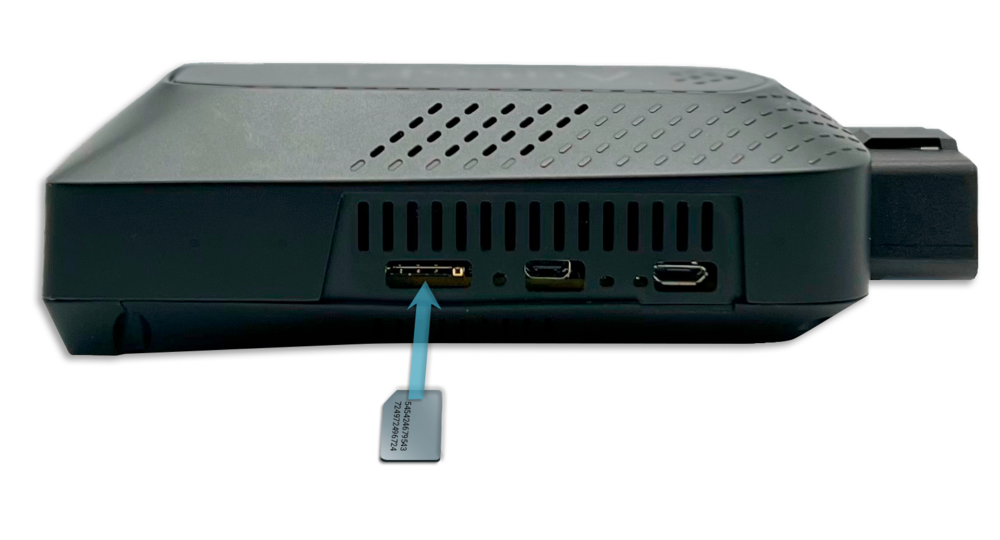
When inserted correctly, you should hear a small click as the card locks into position. Do not force the SIM card out after the click, as this can damage the slot. Always verify orientation before insertion.
Check Modem Detection (Hardware)
-
Connect to the device hotspot and open AutoPi Local.
-
Open the terminal and run:
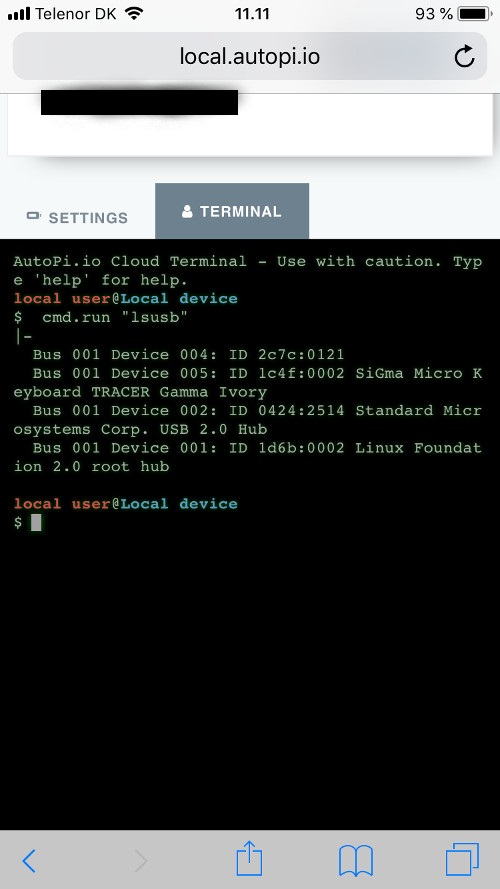
cmd.run "lsusb" -
The output should look similar to this:
-
Look for your modem in the list. The USB ID will vary depending on the modem installed in your device:
Modem Manufacturer USB ID Quectel 2c7c:0121Telit 1bc7:1031 -
If you ordered a 4G-enabled device and the modem does not appear in the list, please contact support@autopi.io.
If lsusb is unavailable, run cmd.run "dmesg | grep -i usb" to check USB detection events.
Check Modem Setup
Check PDP Context
PDP context controls how the modem connects to the mobile network. Incorrect values can prevent data sessions from starting.
For software version 1.22.7 or newer:
modem.connection pdp_context
For older versions:
modem.connection execute AT+CGDCONT?
Expected output is either:
# Single context
value:
- apn: ''
  cid: 1
  pdp_type: IPV4V6

# Dual context (includes ims)
value:
- apn: ''
  cid: 1
  pdp_type: IPV4V6
- apn: 'ims'
  cid: 2
  pdp_type: IPV4V6
If the dual-context result causes connectivity issues, reconfigure with:
cmd.run "systemctl stop qmi-manager"
modem.connection execute AT+CGDCONT=2
cmd.run "systemctl restart qmi-manager"
Run the PDP command again to confirm the result.
Check Firmware Switch
An incorrect firmware switch setting can prevent the modem from connecting to the network correctly.
For software version 1.22.7 or newer:
modem.connection active_firmware_image
The expected output looks like this:
_stamp: "<current date>"
_type: active_firmware_image
net_conf:global
storage_conf: ram
Confirm that net_conf is set to global.
For software version older than 1.22.7:
modem.connection execute AT#FWSWITCH?'
Expected output:
Data:'FWSWITCH:40:1'
If the value does not start with 40, configure it manually:
modem.connection execute AT#FWSWITCH=40,1
Restart the device and verify again.
For additional modem commands and examples, see Core Commands - Modem.
Check APN Configuration
A missing or incorrect APN can block internet access even when the modem is detected.
If you are using the AutoPi SIM card (included with monthly cloud subscription), APN is pre-configured on newly shipped devices. In most cases, you can skip this section. If you want to verify manually, APN should be set to nxt20.net.
Check the current APN:
modem.connection pdp_context
If APN is missing and your carrier requires it, set it manually:
modem.connection execute AT+CGDCONT=1,"IPV4V6","<your-apn>"
Then restart the manager:
cmd.run "systemctl restart qmi-manager"
If you do not know your APN, check your carrier documentation or support channel.
Check qmi-manager Status
qmi-manager maintains the cellular data connection.
Check status:
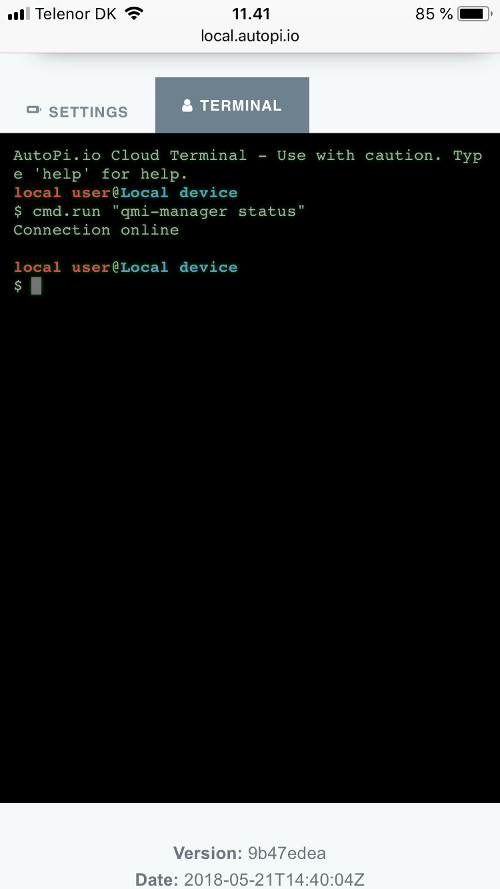
cmd.run "qmi-manager status"
Expected response:
If needed, restart it:
cmd.run "systemctl restart qmi-manager"
Restart the Network Interface
If qmi-manager is running but internet is still unavailable, cycle the interface:
cmd.run "qmi-manager down"
cmd.run "qmi-manager up"
If SIM detection fails on up, power down the device, check SIM orientation and seating, then try again.
Check interface state and IP address:
cmd.run "ip link show wwan0"
cmd.run "ip addr show wwan0"
If wwan0 has no IP address, the mobile session is not established.
Adjust the MTU Setting
If connection is unstable (drops, intermittent cloud status), tune MTU. Based on your board version, the default MTU is either 1500 or 1280.
If your default is 1280, change it to 1500 and check whether the device comes online.
If your default is 1500, change it to 1280 and check whether behavior improves.
This quick comparison helps confirm whether MTU is causing the issue.
Apply MTU:
grains.set qmi:mtu <value>
state.sls network.wwan.qmi.config
Verify:
grains.get qmi:mtu
cmd.run "cat /etc/udhcpc/qmi.override"
Confirm that both outputs match the configured MTU.
- US Verizon: start with MTU
1428. - Other carriers: start with MTU
1280.
Check Internet and Cloud Connectivity
Test internet over cellular:
cmd.run "ping -c 5 -I wwan0 google.com"
Test AutoPi Cloud access:
cmd.run "curl -v my.autopi.io"
If ping works but cloud access fails, test DNS:
cmd.run "nslookup my.autopi.io"
If DNS fails, try a temporary public DNS value:
cmd.run "echo 'nameserver 8.8.8.8' > /etc/resolv.conf"
Then re-run ping and curl.
Collect Logs for Support
If the issue persists, collect diagnostic logs before opening a support request. Follow this guide to export relevant logs: AutoPi Logs Guide
Summary
At this point, you should have verified:
- SIM compatibility, orientation, and physical condition.
- Modem detection and modem configuration (PDP and firmware switch).
- APN settings.
qmi-managerandwwan0status.- MTU tuning and DNS/cloud connectivity tests.
When Opening a Support Case - include the complete output from all commands run in this guide, along with the diagnostic logs collected using the AutoPi Logs Guide. This will help our support team diagnose the issue more quickly.
 Shop AutoPi devices
 Compare devices
 Contact sales
 Contact support