Change History

This guide will walk you through accessing and interpreting your device's complete change history. View all configuration and state changes applied to your device, verify successful deployments, identify failed updates, and maintain a comprehensive audit trail for compliance and troubleshooting purposes.
What you'll learn:
- How to access and navigate the device change history.
- How to interpret successful and failed configuration changes.
- How to track when changes were applied and their outcomes.
- How to analyze detailed change information by device type.
- How to use state results for in-depth troubleshooting.
- How to verify configuration deployments and identify issues.
- How to maintain audit trails for compliance and governance.
Change History Table
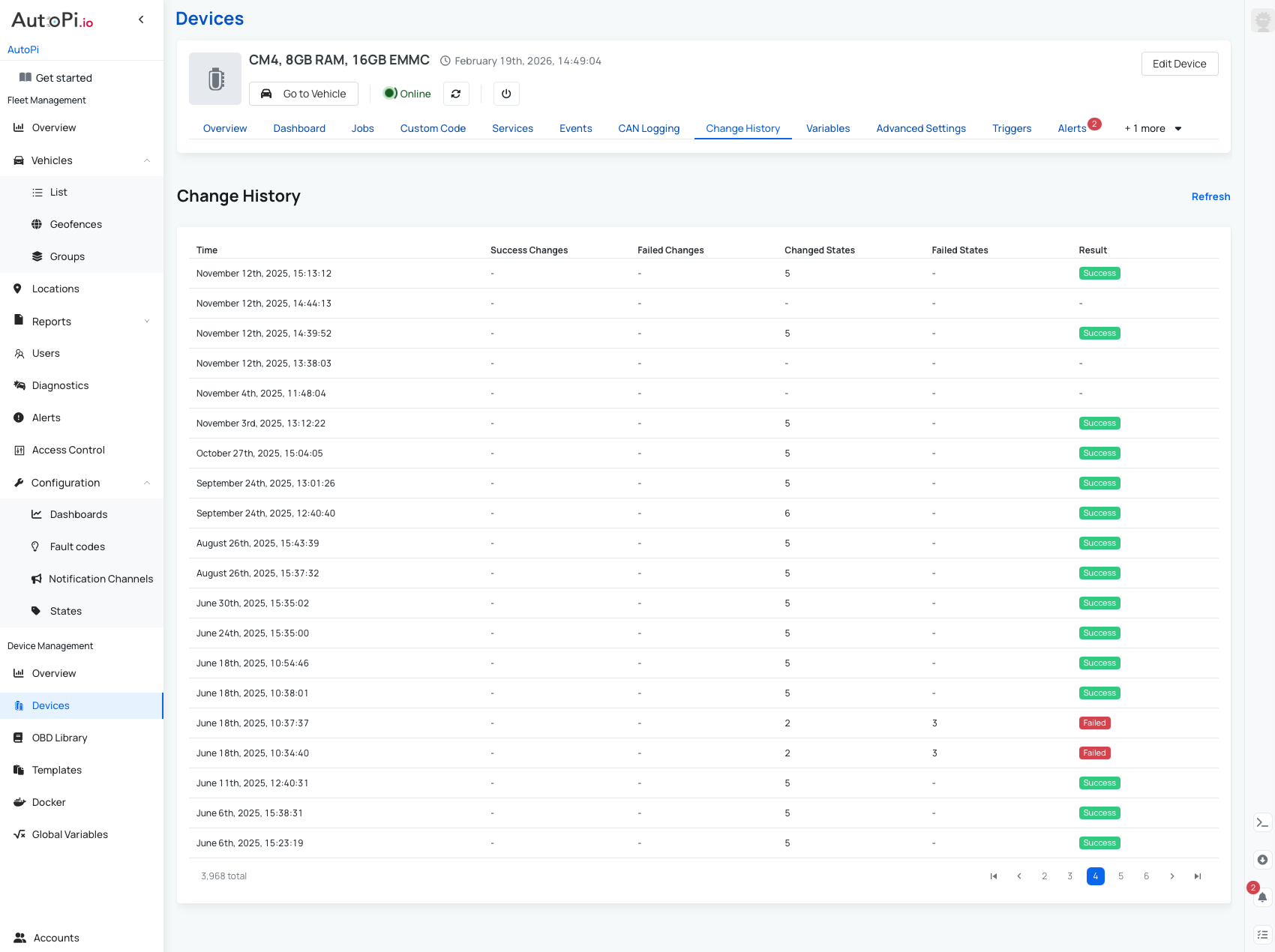
The Change History table lists all changes applied to the device. For each entry, you can see:
- Timestamp – when the change was applied to the device.
- Successful changes – number of changes successfully applied.
- Failed changes – number of changes that failed to apply.
- Changed states – number of states that were updated.
- Failed states – number of states that failed to apply.
- Result – overall outcome of the change operation:
- Success – all changes were applied successfully.
- Failed – one or more changes failed to apply.
How to Use Change History
The Change History allows you to verify:
- What changes were made to a device.
- When those changes were applied.
- Whether the changes were successful or failed.
You can click on any row in the table to view detailed information for that specific change event.
Change History for AutoPi TMU CM4 and AutoPi CAN-FD Pro Devices
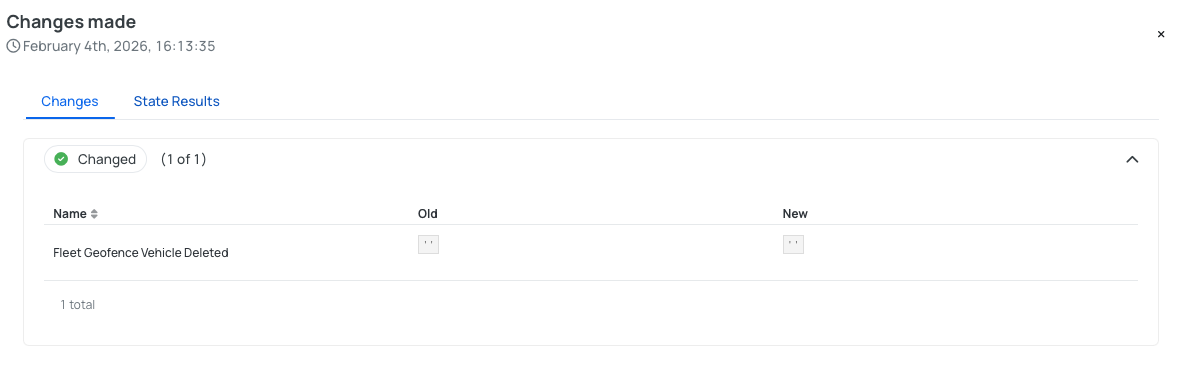
For AutoPi TMU CM4 and AutoPi CAN-FD Pro devices, clicking a row opens a detailed view for the selected timestamp. This view contains two tabs:
1. Changes - simplified overview of the applied changes:
- Changed – shows the old and new values that were successfully applied.
- Failed – shows the changes that failed to apply to the device.
2. State Results - a more detailed, raw view of all state changes, grouped into:
- Changed – states successfully applied.
- Unchanged – states that did not change.
- Failed – states that failed to apply.
Each state result includes additional technical details such as:
- Run number
- State
- ID
- Name
- Duration
- Start time
- Comment.
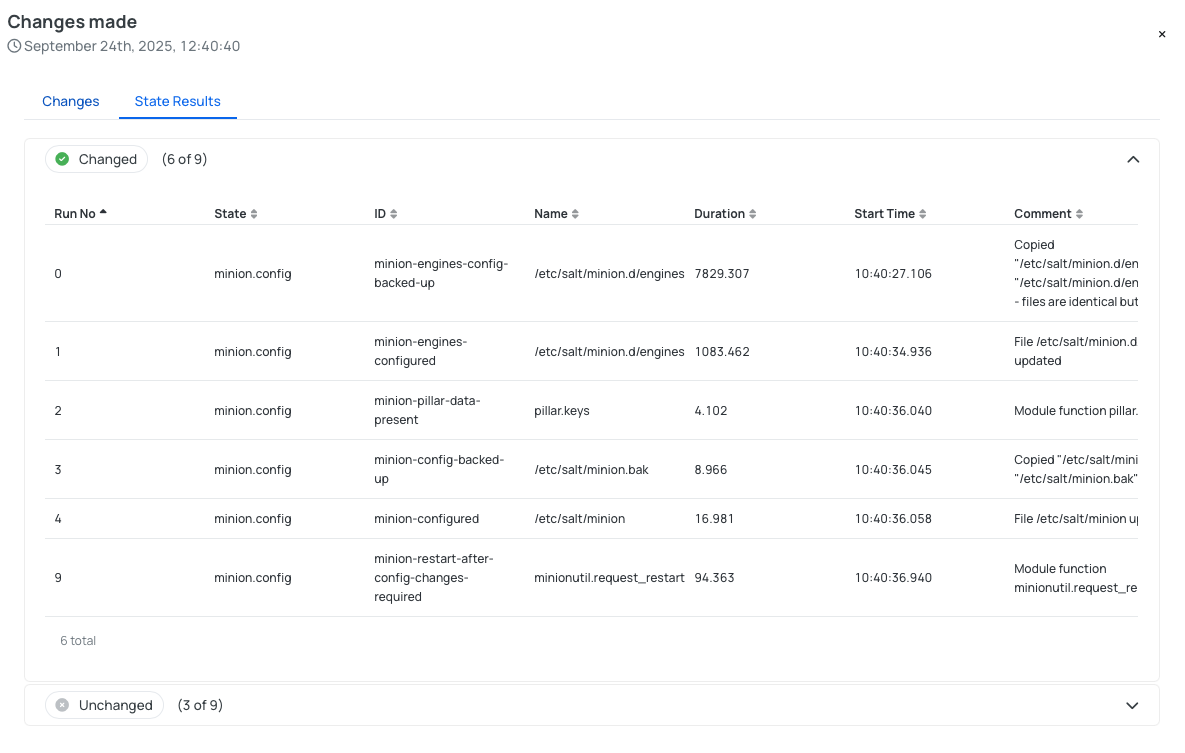
This view is especially helpful when diagnosing why certain changes did not apply as expected.
Change History for AutoPi Mini Devices
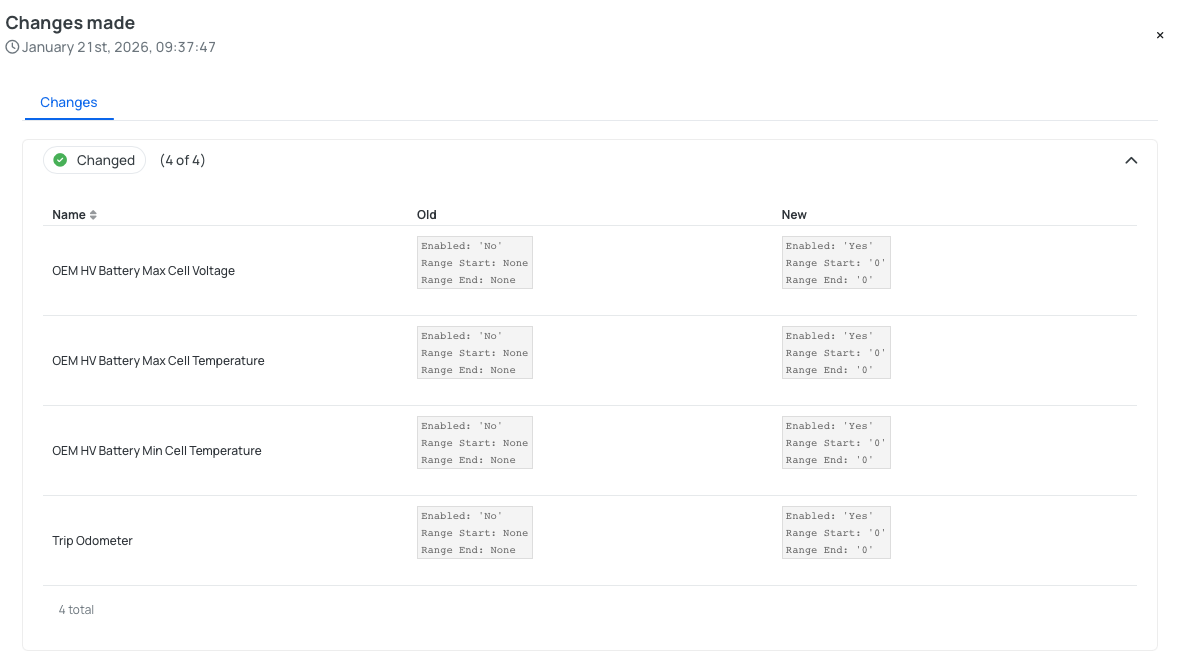
For AutoPi Mini devices, clicking a row opens a simplified Changes view:
- Changed – shows configurations that were successfully updated, including the old and new values.
- Failed – shows configurations that failed to apply to the device.
Summary
The Device Change History provides full transparency into how and when your device configuration has evolved. By reviewing successful and failed changes, you can quickly identify issues, confirm deployments, and maintain better control over your device configurations.
 Shop AutoPi devices
 Compare devices
 Contact sales
 Contact support