Devices
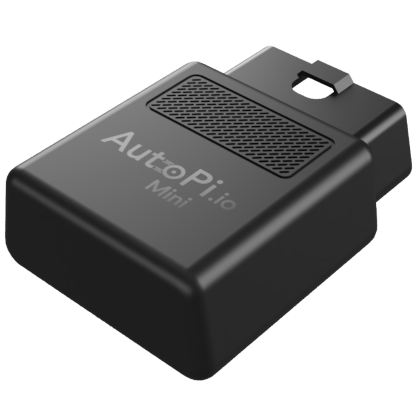

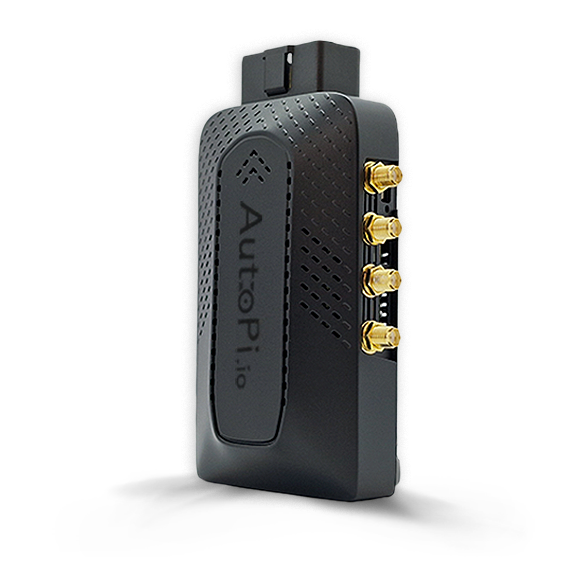
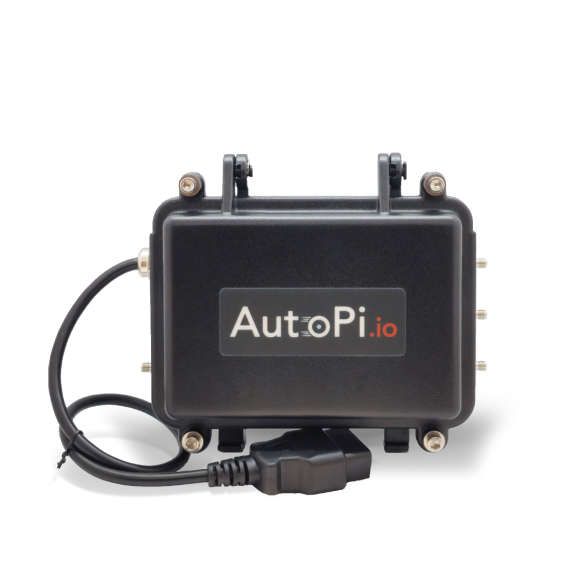
This guide will walk you through managing your AutoPi devices in the cloud platform. Access your complete device inventory, configure individual device settings, monitor device status and health metrics, and connect your devices to vehicles. Learn how to search and filter devices, customize device views, and access comprehensive device configuration options.
What you'll learn:
- How to view and manage your complete device inventory in the Devices List-
- How to search and filter devices by connectivity, status, and specifications.
- How to customize the device table view to display relevant information.
- How to access comprehensive device overview pages and status metrics.
- How to configure device settings and connect devices to vehicles.
- How to navigate device configuration tabs (Dashboard, Jobs, Services, Events, Triggers, Alerts, and more).
- How to view device specifications, metrics, and real-time status information.
Devices List
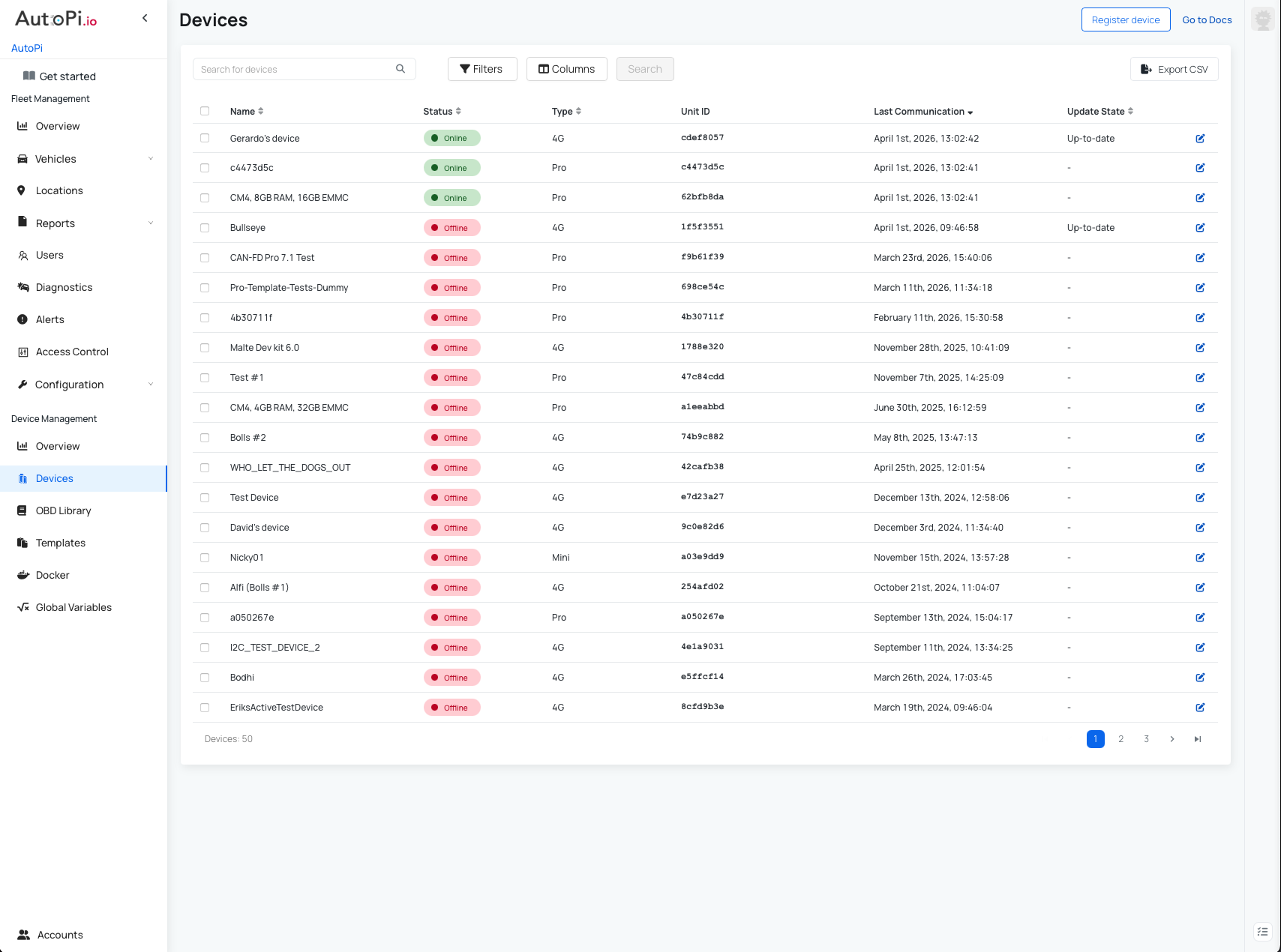
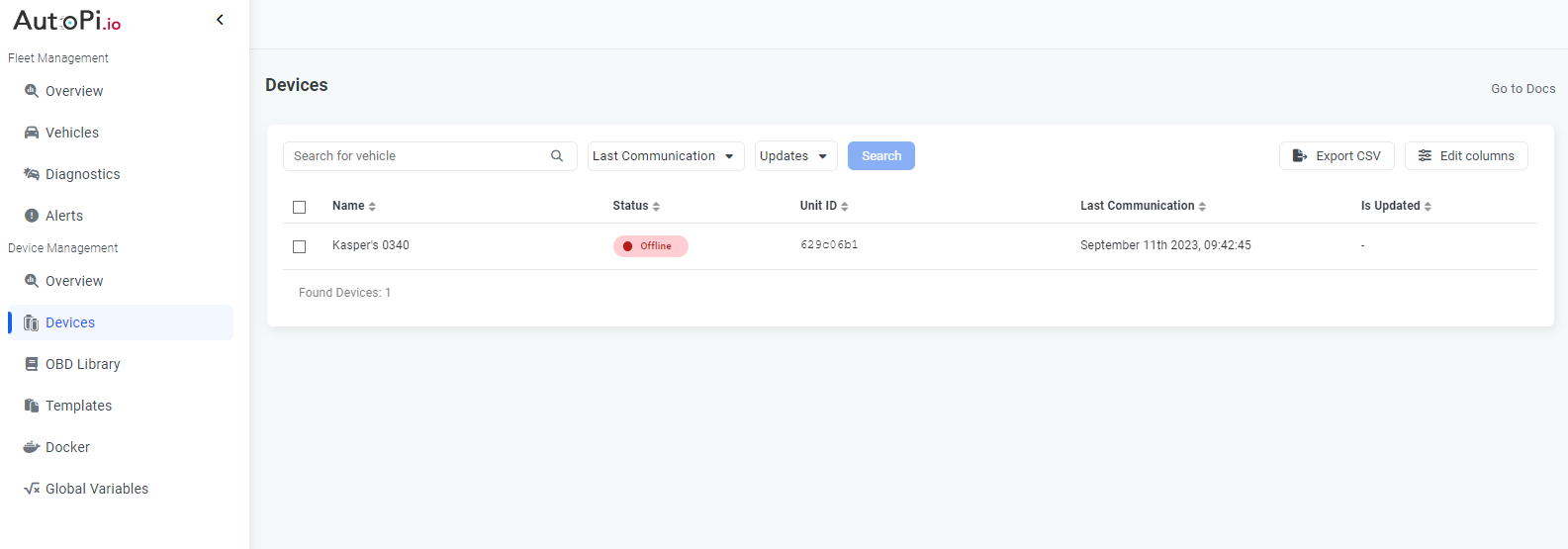
The Devices List provides a table view of all your devices, including key details such as device name, unit ID, last communication timestamp, and more.
Search and Filter Devices
To quickly find a specific device:
- Use the Search for Vehicle field at the top of the page.
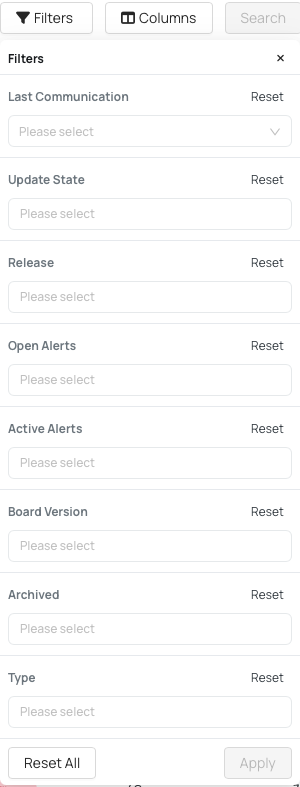
- Use Filters to refine the list based on specific criteria.
Available Filters:
- Last Communication – online now, last 15 minutes, last hour, today, last 7 days, last 30 days.
- Update State – up-to-date, awaiting update, update failed.
- Release – filter by software release.
- Open Alerts – filter by severity (low, medium, high, critical).
- Active Alerts – filter by specific active device alerts.
- Board Version – filter by device hardware version.
- Type – filter by device type: 4G - TMU CM4; Mini; Pro - CAN-FD Pro.
Customize Table View
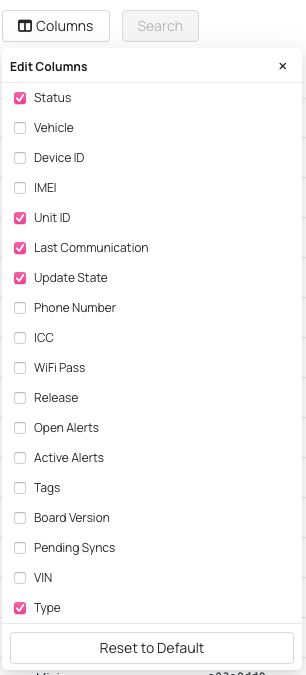
You can customize the table using Edit Columns to include additional details.
Available Columns:
- Status
- Vehicle
- Device ID
- IMEI
- UNIT ID
- Last Communication
- Update State
- Phone Number
- ICCID
- WiFi Password
- Release
- Open Alerts
- Tags
- Board Version
- Pending Syncs
- VIN
- Type.
Additional Actions
- Register Device – add a new device to your account.
- Go to Docs – open documentation for this page.
- Export CSV – export device data for reporting or sharing.

To view more details about a device, click on it to open the Device Overview page.
Device Overview
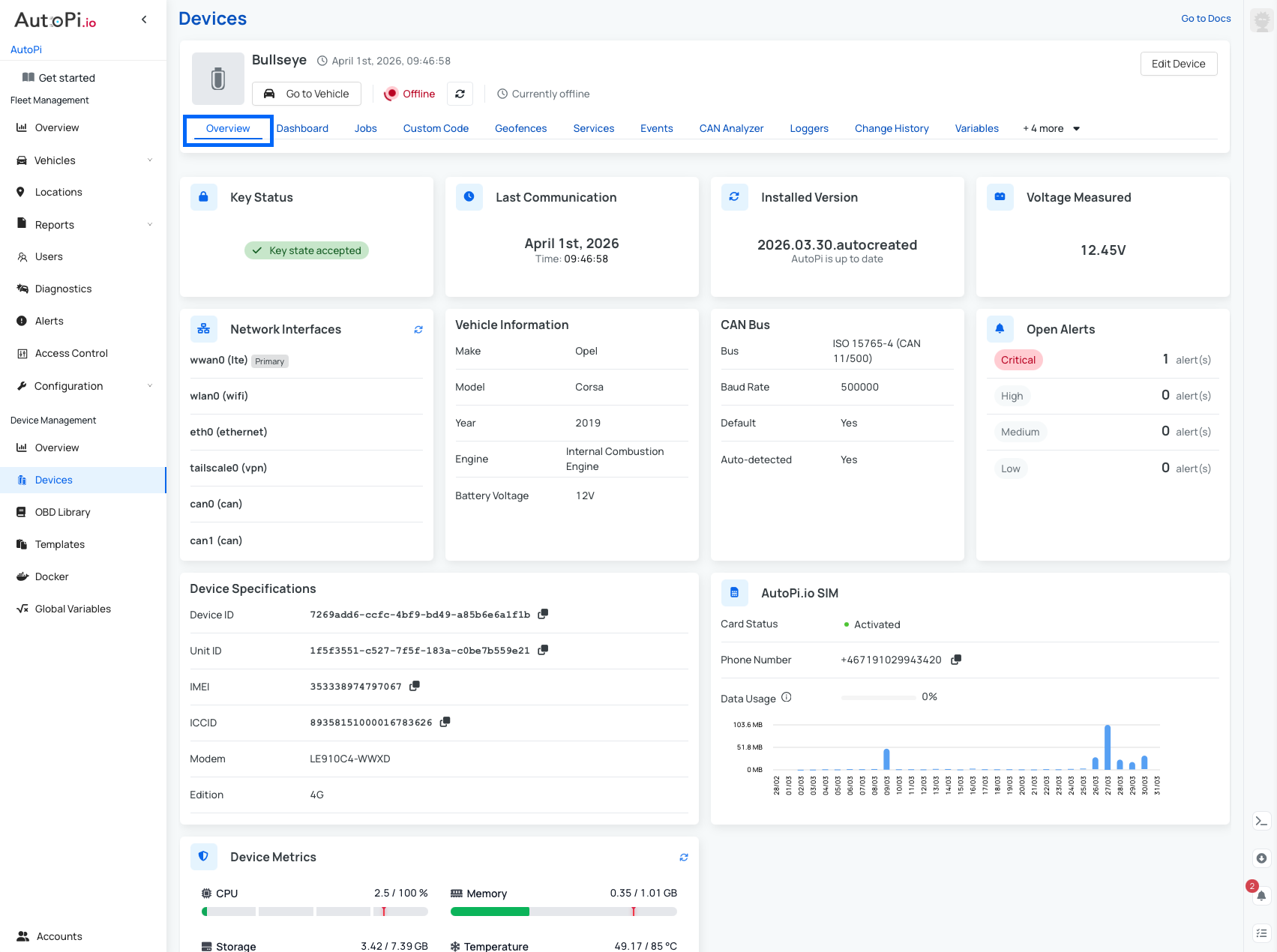
When you select a device from the list, you are redirected to its dedicated Device Overview page.
General Information
At the top of the page, you will find:
- Device name.
- Last communication timestamp.
- "Go to Vehicle" button (to view the associated vehicle).
- "Edit Device" option (top-right corner).

Other Available Tabs for Device
Each device includes multiple tabs for configuration and monitoring:
- Dashboard
- Jobs (not available for AutoPi Mini devices)
- Custom Code (not available for AutoPi Mini devices)
- Geofences (not available for AutoPi Mini devices)
- Services (not available for AutoPi Mini devices)
- Events
- CAN Analyzer (TMU CM4 only)
- Loggers / CAN Logging
- Change History
- Variables (not available for AutoPi Mini devices)
- Advanced Settings
- Triggers
- Alerts
- Software Updates
Overview Widgets
The Device Overview page includes several widgets that provide key insights:
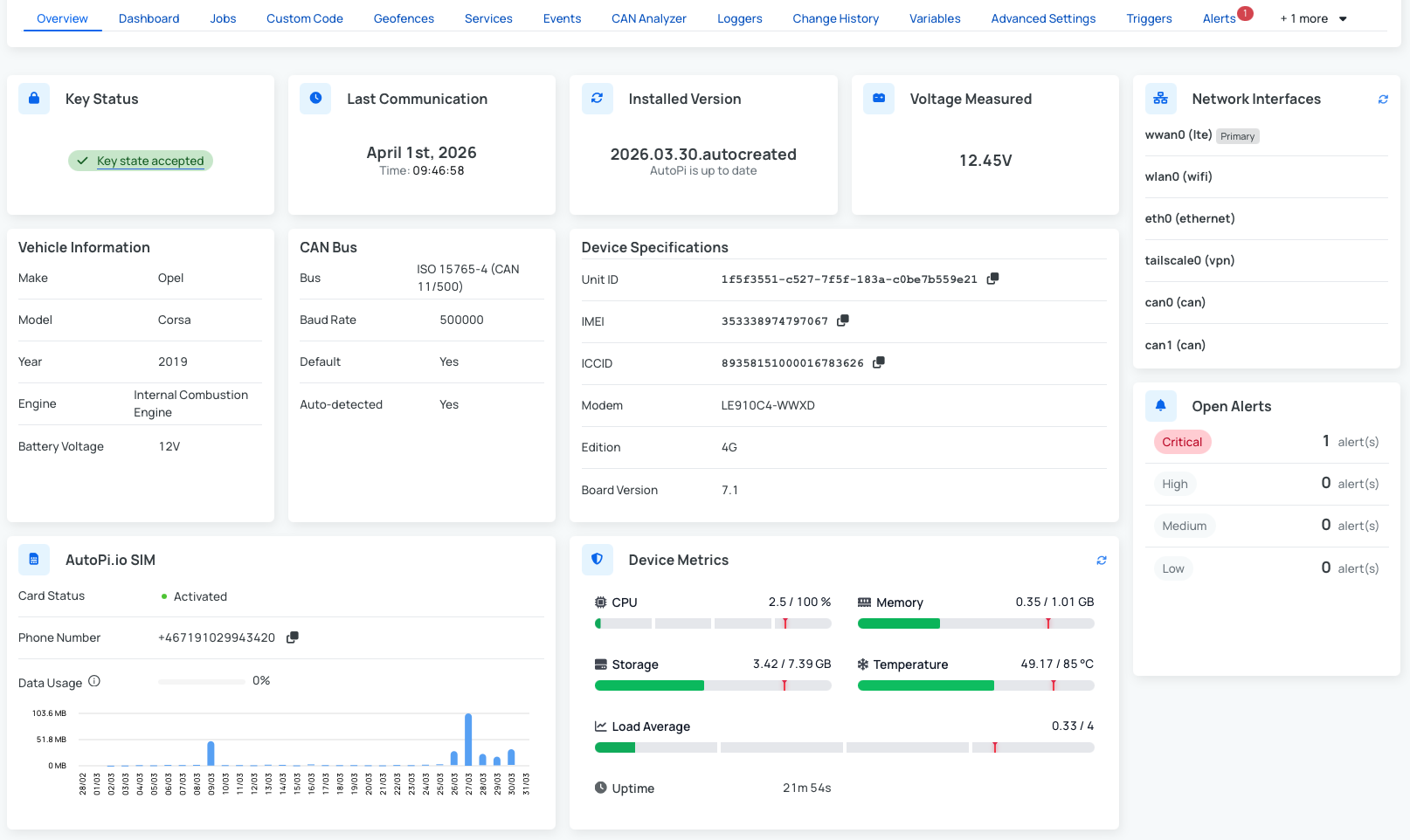
- Key Status - accepted/ denied.
- Last Communication - timestamp of the last time the device send data.
- Installed Version - backend installed version.
- Voltage Measured - the Voltage reading from the vehicle.
- Network Interfaces - basic information about network interfaces.
- Vehicle Information - Make, Model, Year, engine type.
- CAN Bus Configuration - CAN Bus protocol with Baud Rate.
- Open Alerts (by severity) - shows the count of open alerts.
- Device Specifications - information such as UNIT ID, Device ID, template, modem, board version.
- AutoPi.io SIM - if you purchased the AutoPi SIM you will be able to access: status, phone number and monthly data usage overview.
- Device Metrics - information about device metrics such as CPU, memory, storage..
These widgets provide a quick and comprehensive overview of your device’s status, configuration, and activity.
Device Control Icons
Located in the bottom-right corner of the Device Overview page, you'll find three icons that provide quick access to important device management functions:
- Terminal
- Pending Sync
- Warnings.
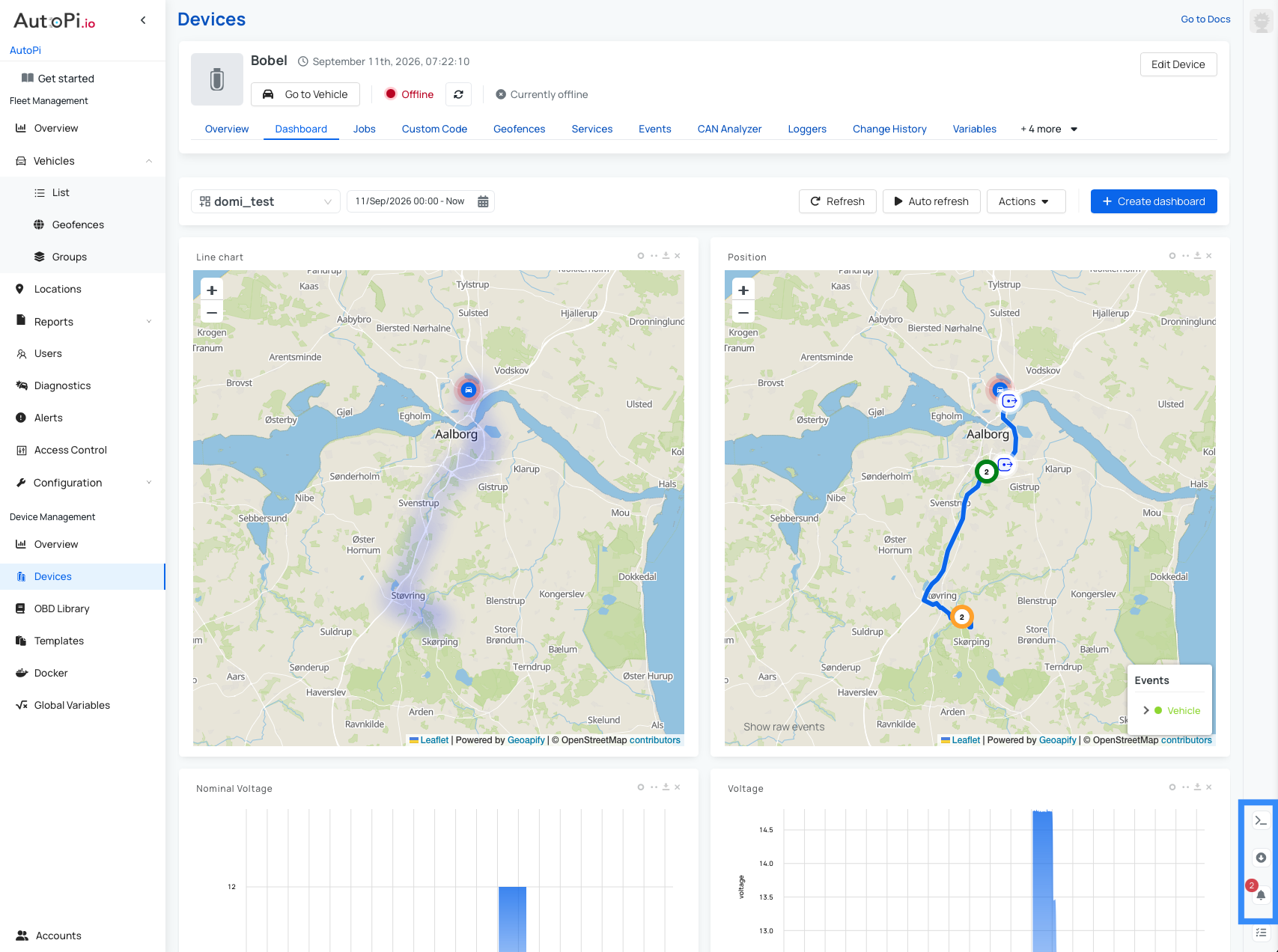
Terminal Icon
The Terminal icon provides access to the cloud's real-time terminal, allowing you to execute commands directly on your device (when it's online) and receive responses immediately. This feature is invaluable for:
- Troubleshooting issues — run diagnostic commands to identify and resolve problems quickly.
- Real-time vehicle information — query the device for current vehicle data and status.
- Device configuration — make quick adjustments and test settings without waiting for sync cycles.
- System monitoring — check device logs, performance metrics, and system status.
The terminal works only when the device is online and provides instant feedback from your AutoPi device.
For a complete list of available commands you can run, see the Commands documentation.
Pending Syncs Icon
The Pending Syncs icon shows any configuration changes awaiting application to your device. Here's how it works:
How pending syncs function:
- Any changes you make in the cloud are temporarily saved as pending syncs.
- Pending syncs are automatically applied when the device starts up, restart or reconnects.
- If the device is currently online, you can click the Sync button to apply changes immediately without waiting.
Use pending syncs when:
- You've made multiple configuration changes and want to apply them right away.
- You need to verify that changes have been successfully applied to the device by checking the empty list, while checking the Change History for complete overview of when the changes has been applied to a device.
- The device is online and you want to push updates in real time.
Warnings Icon
The Warnings icon displays important warnings that require your attention. These warnings provide insight into potential issues with your device, such as:
- Configuration problems or incomplete setup.
- Device connectivity issues.
- Software update requirements.
- Security issues.
Regularly check warnings to ensure your device is operating optimally and to prevent future issues.
Connecting Your AutoPi Device to a Vehicle
Follow the steps below to connect your AutoPi device to either a new or existing vehicle.
Step-by-Step Instructions
- Log in to the AutoPi Cloud Platform using your account credentials.
- From the main dashboard, go to the Devices tab.
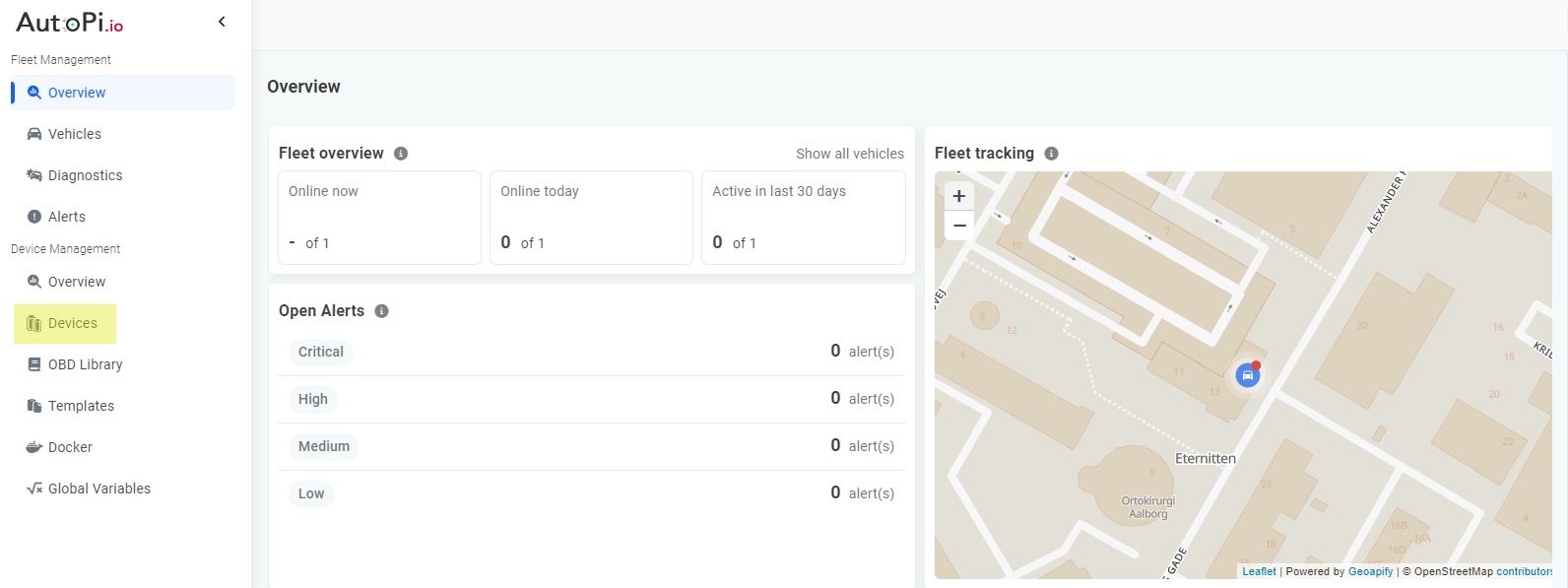
- Select the device you want to configure.
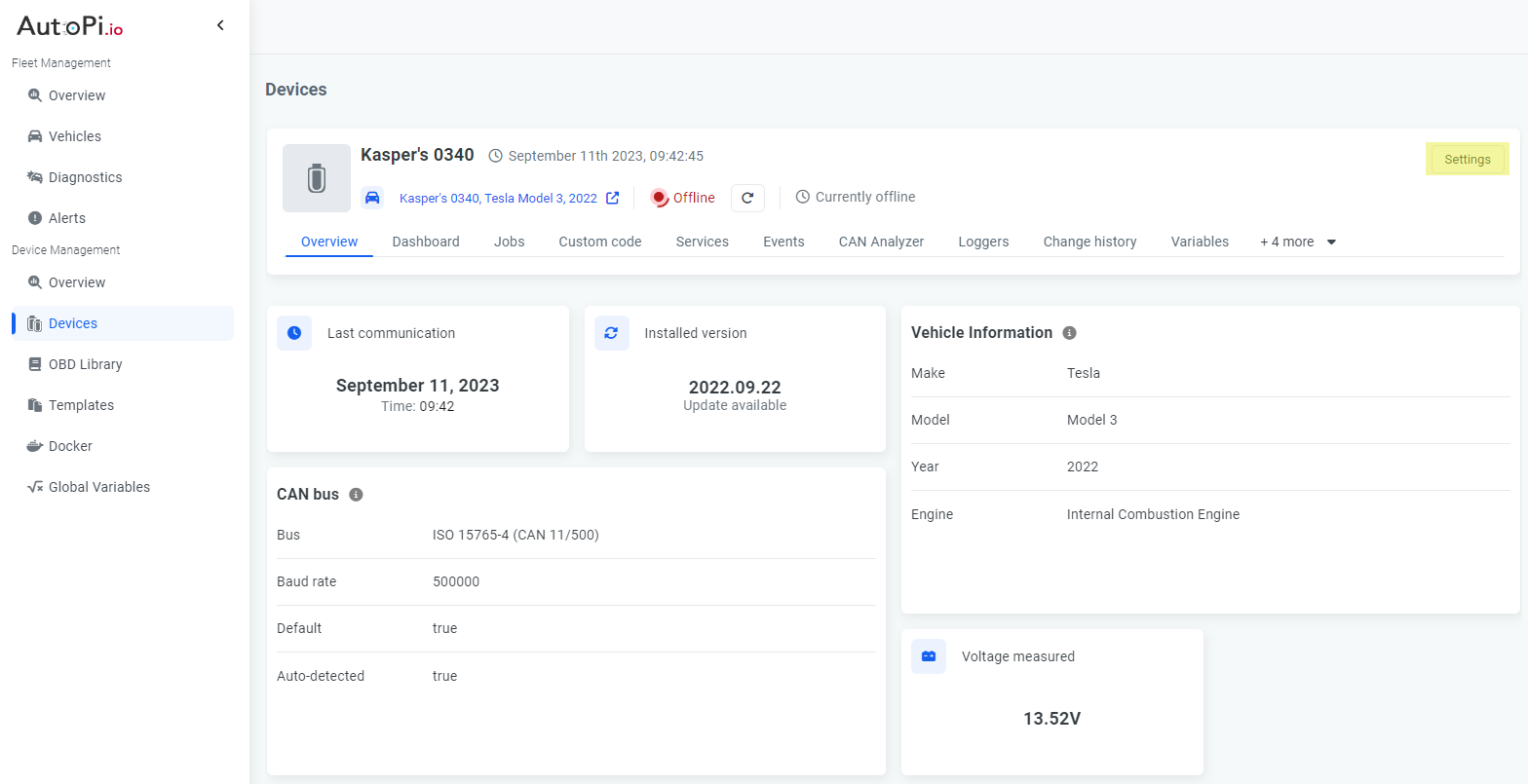
- Click the Settings button in the upper-right corner.
Option A: Pair with a New Vehicle
If you haven't created a vehicle yet, follow these steps:
- In the settings pop-up, go to the Vehicles Editor tab.
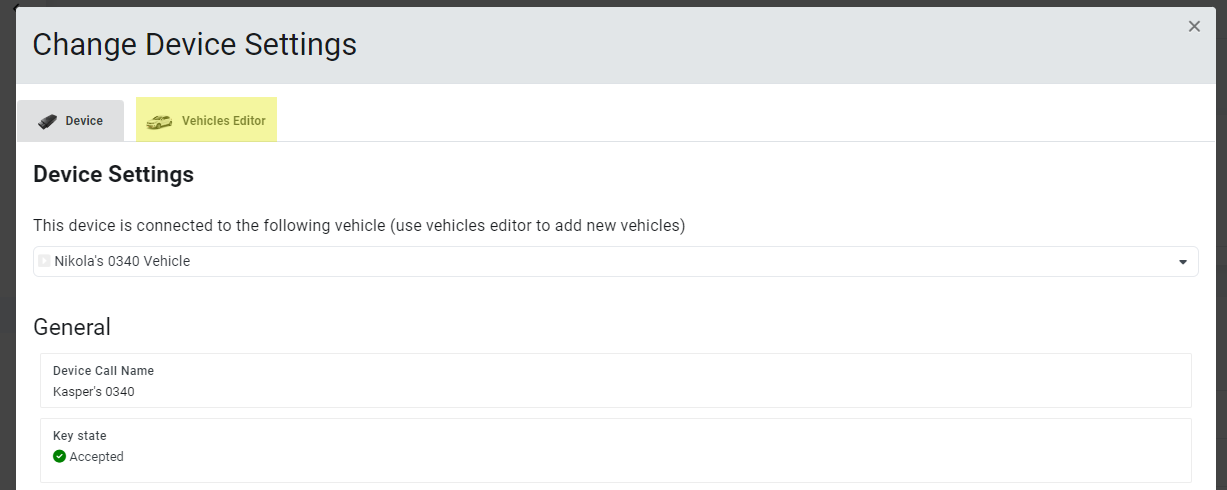
- Click the New Vehicle button.
- Fill in the required vehicle details, such as:
- Make
- Model
- Year
- Vehicle type
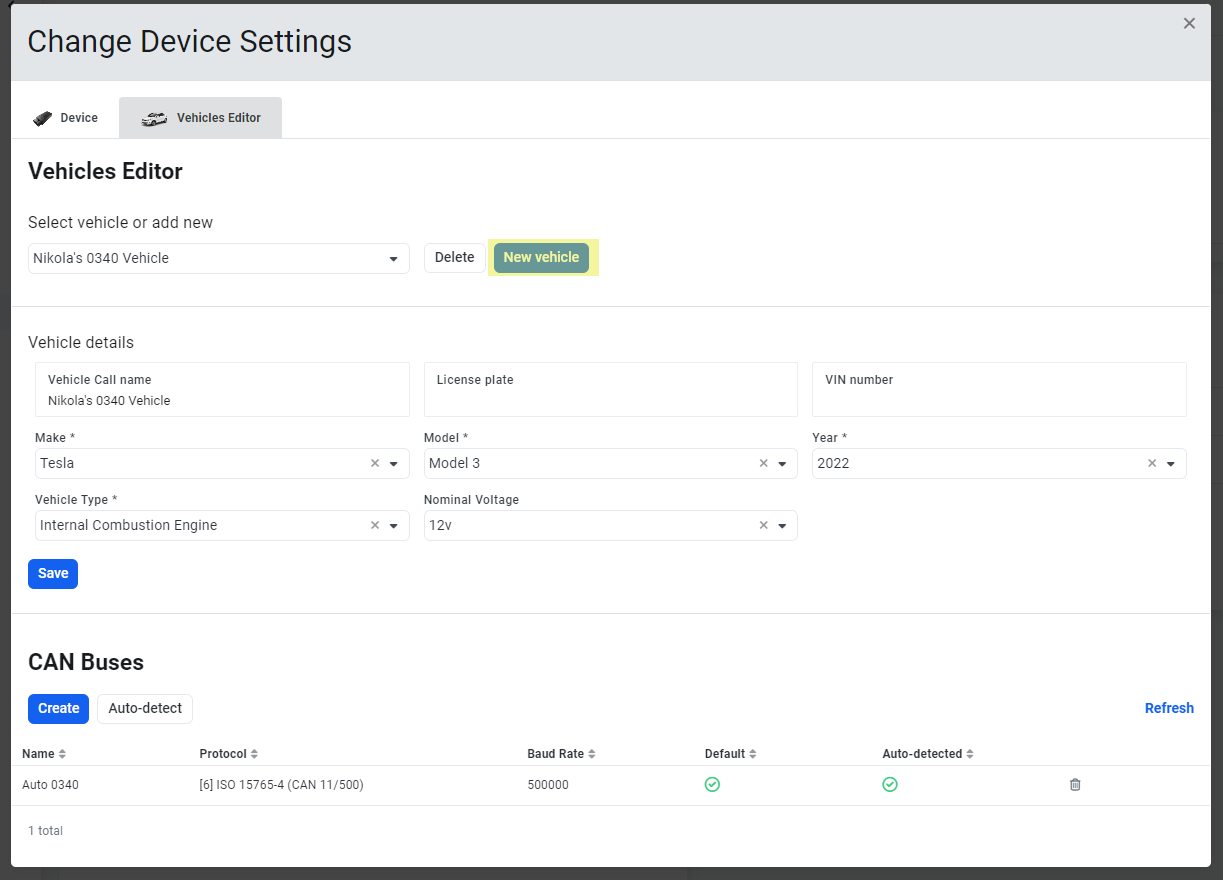
- (Optional) Set up CAN bus settings if applicable.
- Click Save to store the changes. Your AutoPi device is now paired with the new vehicle.
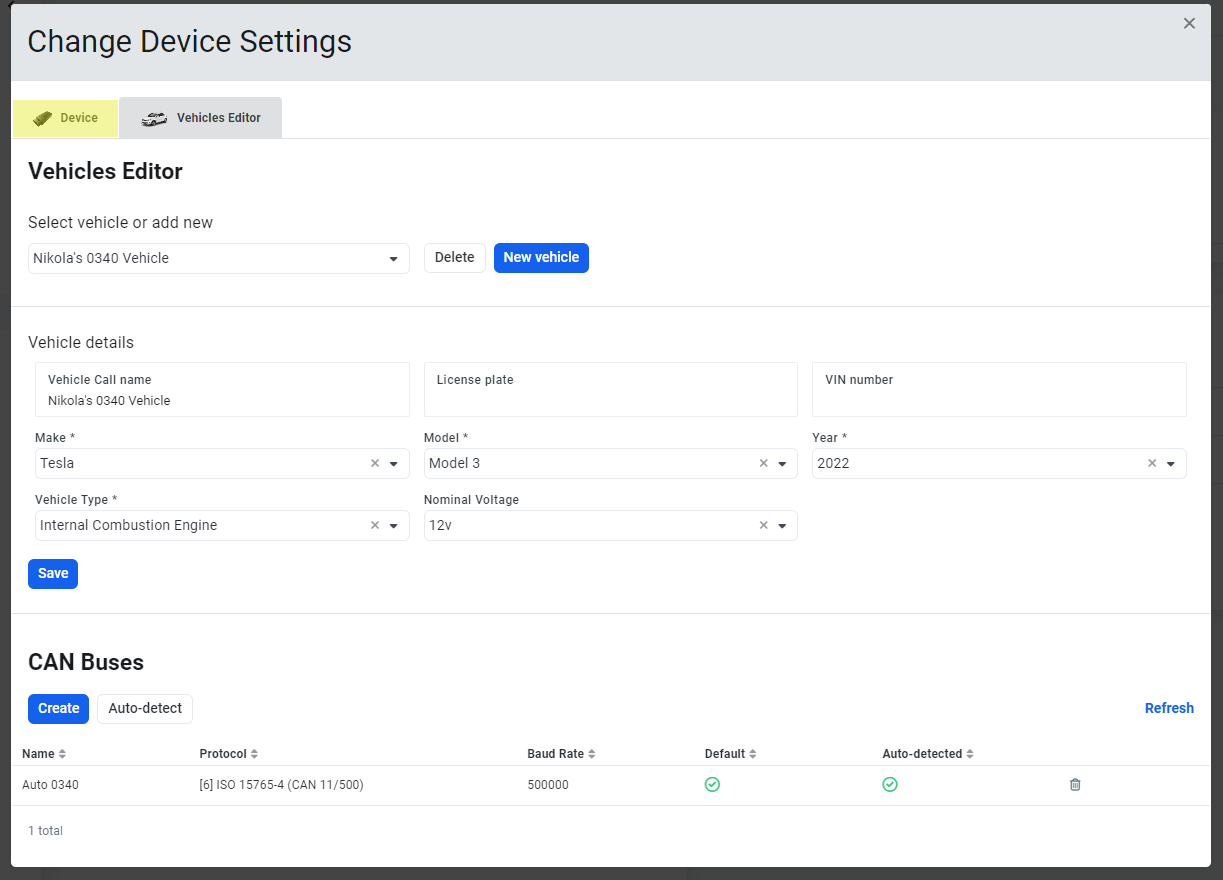
Option B: Connect to an Existing Vehicle
If a vehicle is already set up, follow these steps:
- In the settings pop-up, go to the Device tab.
- At the top of the device settings, there is a dropdown menu showing the currently connected vehicle.
- Click the dropdown to view a list of all existing vehicles. Select the one you want and click Save.
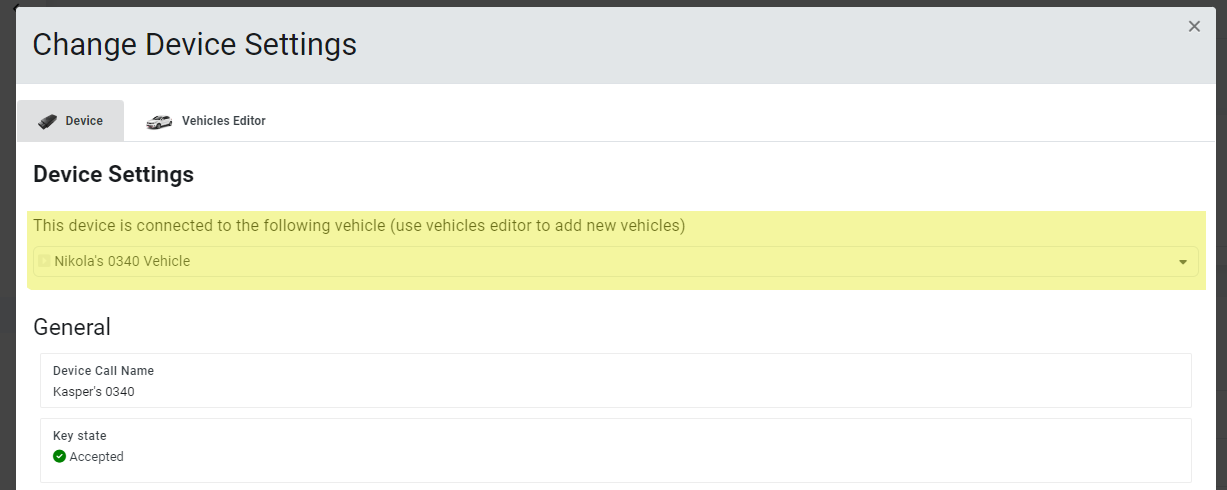
Your AutoPi device is now successfully paired with a vehicle and ready for use!
 Shop AutoPi devices
 Compare devices
 Contact sales
 Contact support