Software Updates


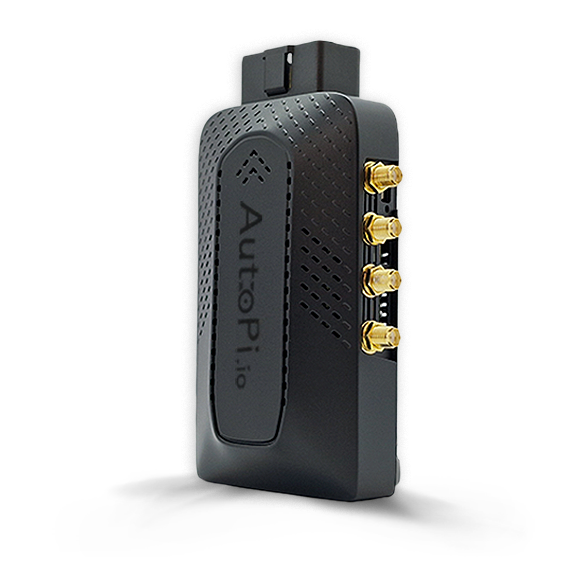
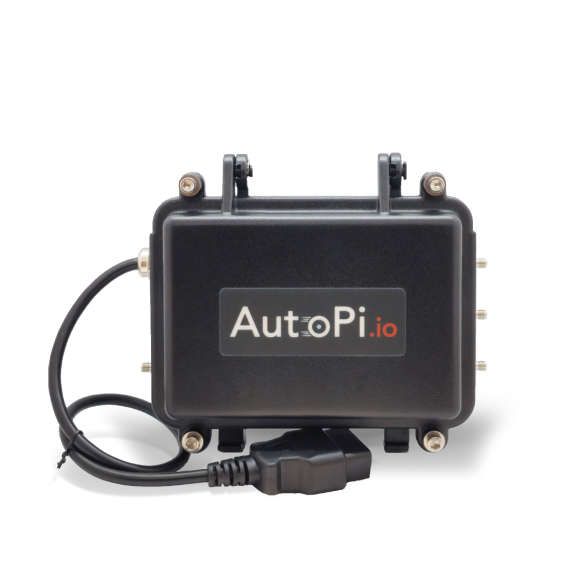
Keeping your AutoPi device up to date ensures you have access to the latest features, improvements, and bug fixes. This guide explains how to update your device and how to monitor update activity.
Updating Your Device
There are two main ways to update your device:
- Update through the AutoPi Cloud (recommended).
- Update using a command (not supported for AutoPi Mini devices).
Update Through the AutoPi Cloud
This is the most common and recommended method on how to queue a software update on a device.
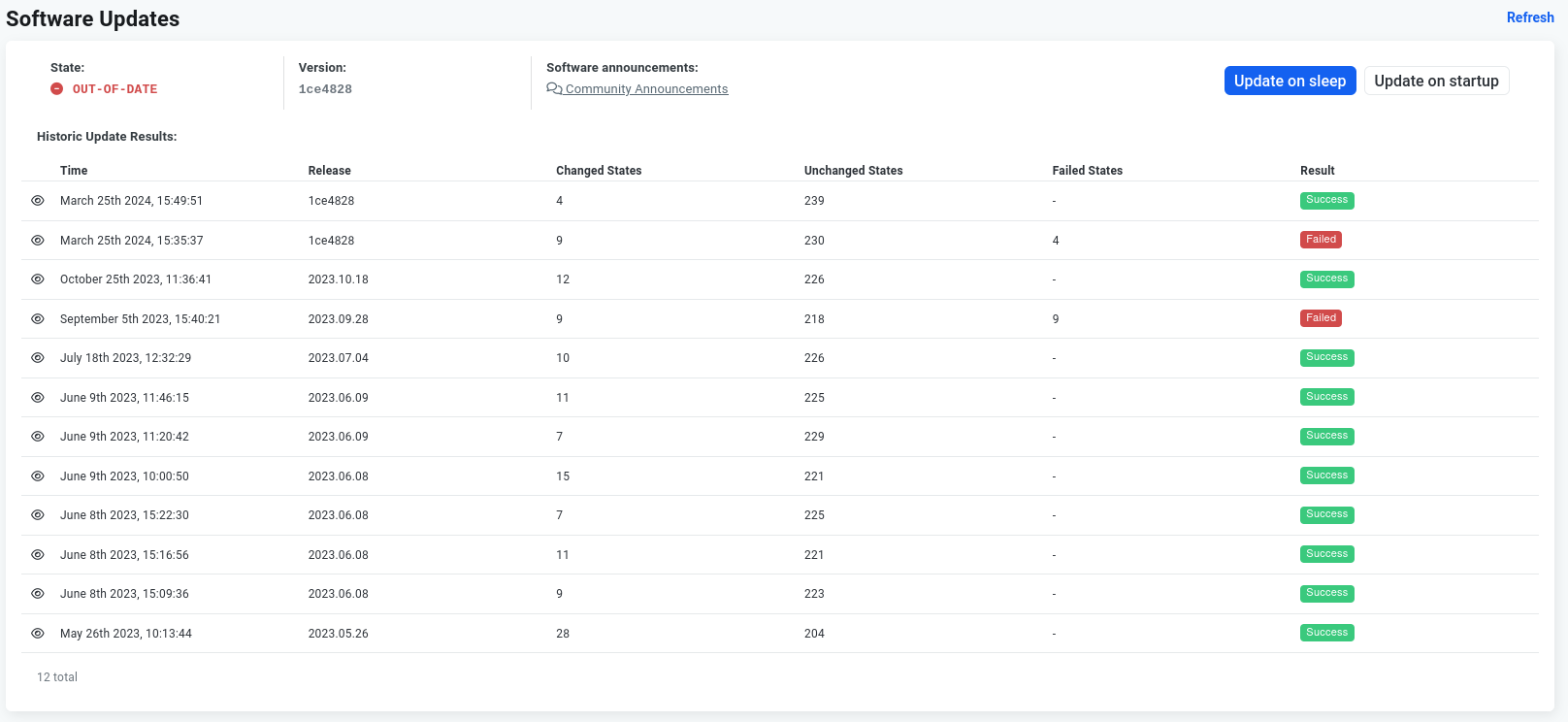
- Navigate to Device → Software Updates in the AutoPi Cloud.
- Click the Update on startup button (top-right corner).
- Confirm whether you want to update immediately or not.
Update behavior:
- If you choose to update immediately and device is online, the process starts right away.
- If you don't update the device right now but queue it, the device will try to perform the update before going to sleep if it's currently online, or on next start up if it's currently offline. Whether or not the update is performed successfully, the device will go to sleep right after, but if the update failed, it will be retried after it wakes up every time until the update goes through.
Automatic Updates
If enabled, the device will update automatically based on your configuration under Device > Advanced Settings > Update Release:
- Before sleep
- At startup (or before sleep).
Update With a Command
Tip: This method should only be used when necessary.
To perform a manual update on your device, you can run the command below through the web terminal. Using this method will still show an update attempt on the Software Updates page in case you need to review the update afterwards.
minionutil.update_release force=True
⚠️ Always run this command from the Cloud terminal, not directly on the device. Running it locally may result in incomplete or incorrect updates.
Check if Your Device is Already Performing an Update
Before starting an update, it’s useful to verify whether the device is already performing one. There are two general ways that you can determine if an update is currently being run on your device:
- Using the events tab.
- Running a command.
Method 1: Events Tab
One of the ways to determine if the device is being updated right now is to check the events from the device by navigating to Device > Events.
-
Events showing Update in progress:
system/release/*system/release/pendingsystem/release/retryingsystem/release/forcing.
-
Events showing Update completed or stopped:
system/release/updatedsystem/release/failed- Power-related events (e.g. shutdown).
You can also check events directly on the device by running:
reactor.manage context cache
If this list of events contains the above mentioned system/release/pending, that means the device us currently applying the update. This is done either during the startup or before sleep, based on your settings.
Method 2: Command: saltutil.running
With the saltutil.running command you can check the jobs the device is currently running. Using this command,
you can also determine if your device is currently updating.
First possible response:
$ saltutil.running
- fun: state.sls
  jid: req
  pid: 1124
  ret: ''
  arg:
    - - startup
The above response is returned usually when the device has just booted up. It signifies that the startup state is being executed (there is a small startup procedure whenever the device starts up and is connected to the server). If you have enqueued an update or your device is setup to try the update as soon as it starts up, a response like the one above would mean that the update is being attempted.
Another possible response:
$ saltutil.running
- jid: '20220610114357378648'
  pid: 1630
  _stamp: '2022-06-10T11:43:57.382915'
  ret: event_result
  arg:
    - shutdown
    - pillar:
        allow_auto_update: true
      __kwarg__: true
  fun: state.sls
- tgt_type: glob
  jid: '20220610114357091317'
  tgt: 629c06b123213bf84126afecd44a0340
  pid: 1627
  ret: ''
  user: 2
  arg:
    - __kwarg__: true
      confirm: true
  fun: power.sleep
This one is a bit more complex to look at, but there are a few key things to look at here. The response shows us that there are two jobs running - let's start with the second job. That job tells the reader that the device is going to go to sleep (notice the fun: power.sleep line). The power.sleep function will put the device to sleep, but first, it will execute the shutdown state. That shutdown state is the first job on the list returned above and it is the one that triggers the update as well. Notice the allow_auto_update: true argument, which signifies the device is most likely attempting the update right now. This type of response is usually seen when the device has been "forced" to update or it has been setup to attempt updates right before shutting down.
Viewing Update Attempts
You can review all update attempts under Device > Software Updates. Click on a specific update to open the Update Run details.
Update run states:
- Success - states that have been executed without error, but have made no changes on the device.
- Changed - states that have been executed without error and have made a change on the device.
- Failed - states that have been executed with an error. Those states usually have comments to try and explain what has gone wrong.
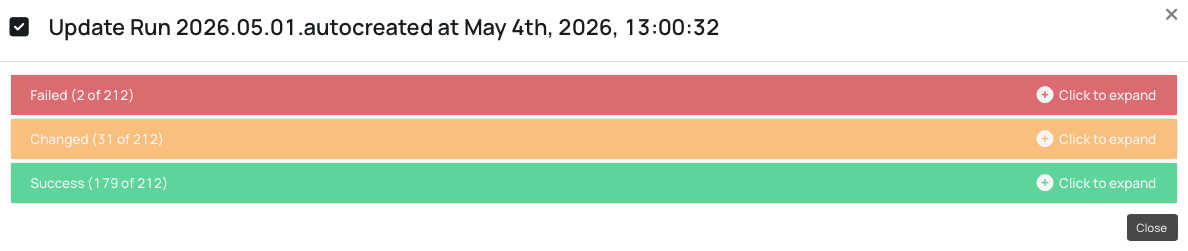
This view helps you understand:
- What steps were executed.
- Which steps succeeded or failed.
- Where issues occurred (if any).
Summary
- Use AutoPi Cloud for standard updates.
- Use manual command for update only when necessary.
- Always check if an update is already running before starting a new one.
- Review update attempts to troubleshoot issues.
Keeping your device updated ensures stable performance and access to the latest improvements.
 Shop AutoPi devices
 Compare devices
 Contact sales
 Contact support