Audio on Your AutoPi Device
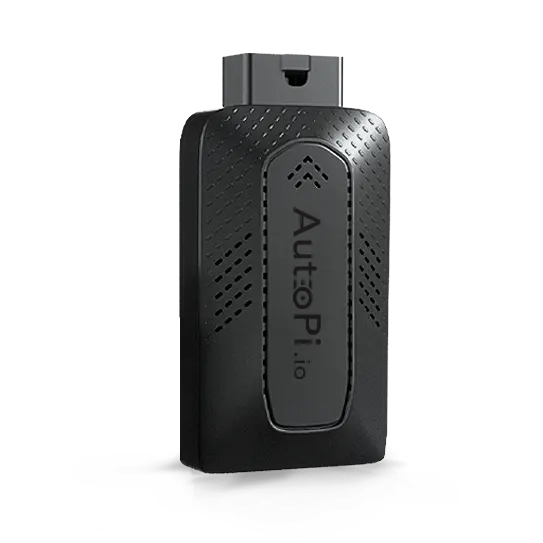
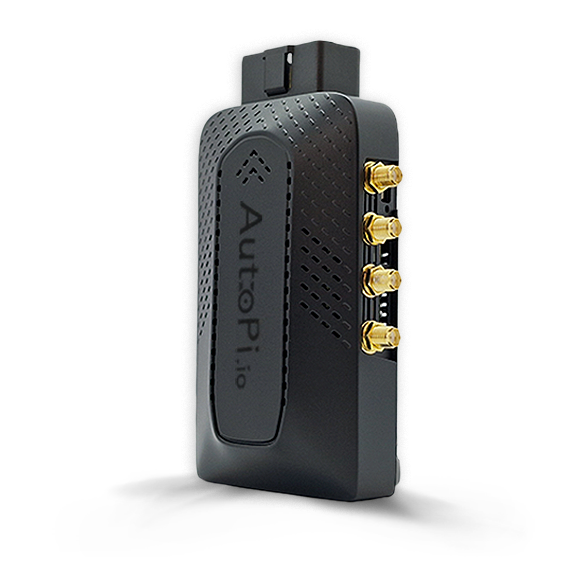
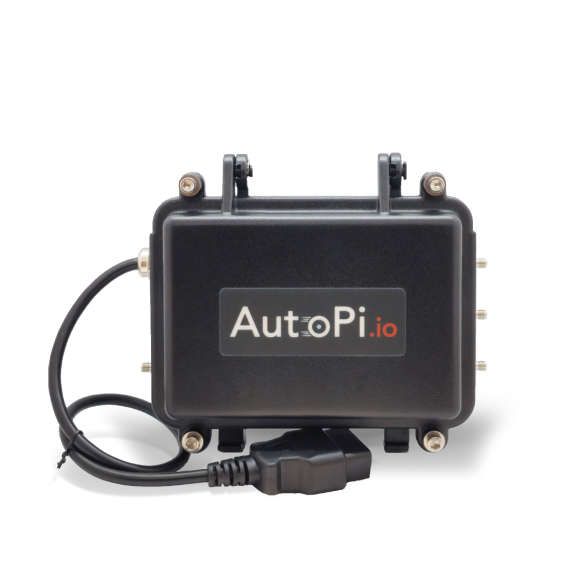
This guide explains how to use the built-in audio capabilities of your AutoPi device and how to disable audio alerts when they are not needed for your use case.
What is audio and how to use it?
Your AutoPi device includes built-in speakers that can be used to deliver spoken alerts and notifications directly from the vehicle. This is useful for scenarios where real-time audio feedback is required, such as alerting a driver to a triggered event or a threshold being exceeded.
The following resources cover everything available for audio on your device:
-
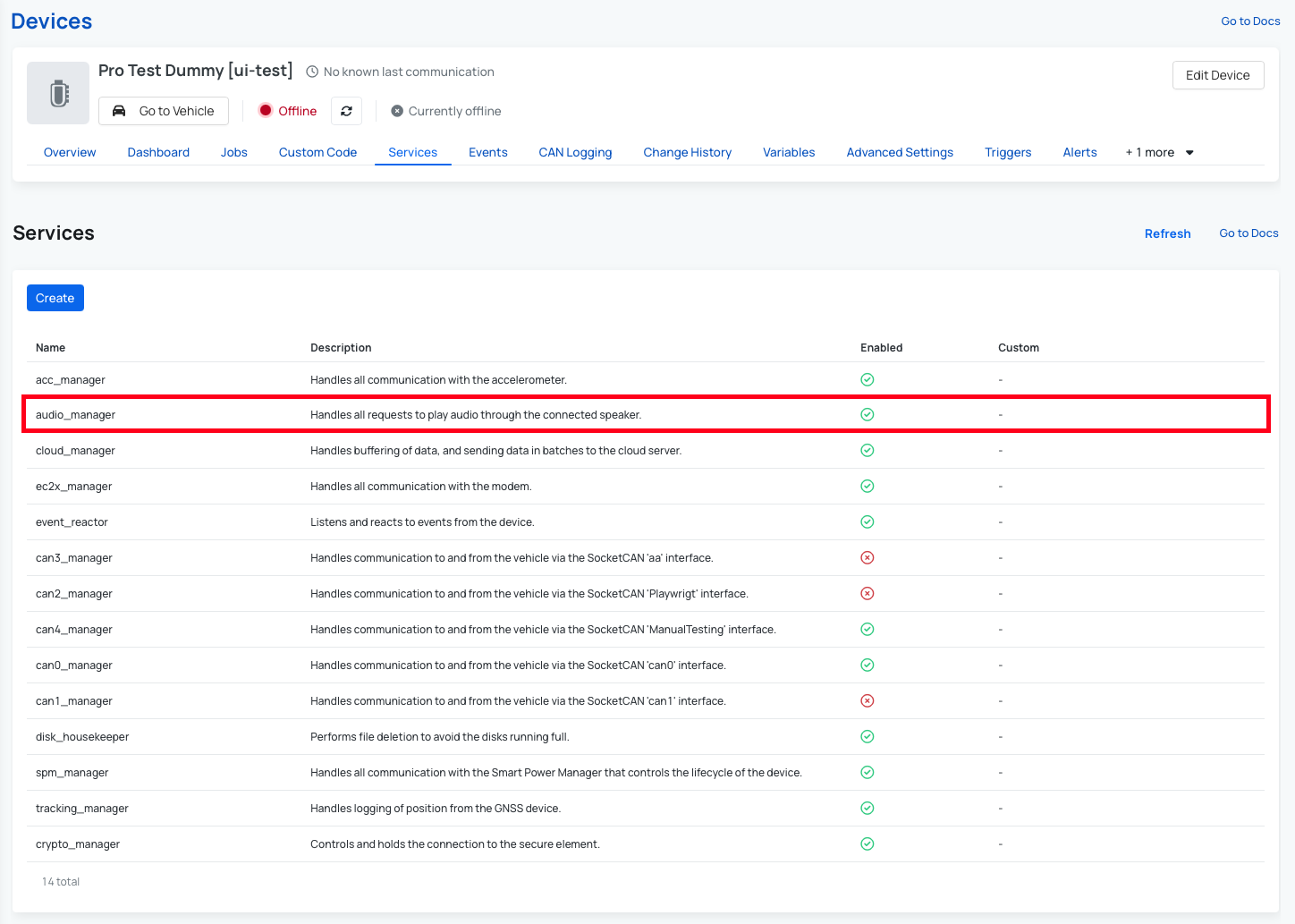
Audio Manager — handles all requests to play audio through the connected speaker. Detailed documentation on the audio manager service, including its handlers and a description of how it works: Audio Manager.
-
Audio Commands — commands can be executed in three ways: through the terminal in AutoPi Cloud, remotely on the device, or locally on the device itself. Some examples of available audio commands:
audio.aplay— play a given audio file using theaplaycommand.audio.espeak— speak a given text using theespeakcommand.
For a full reference of all audio commands: Audio Commands.
-
Audio Settings — the available audio configuration options in AutoPi Cloud: Audio Settings.
How to disable audio speak alerts on your AutoPi device?
Audio speak alerts are disabled by default on all devices running OS release 11 (Bullseye) or newer. If your device is on an older release (Buster, OS 10 or below), speak alerts are enabled by default and can be turned off as described below.
It is important to understand what "disabling audio speak alerts" means. This setting does not silence all audio on the device — your device can still play custom events and any audio you configure it to play. What it controls is whether the device automatically speaks a predefined set of system events out loud.
The default speak alerts are triggered by the following events:
system/releasevehicle/battery/critical_levelsystem/power/sleepsystem/power/hibernatesystem/power/rebootsystem/network/wwan0/offlinesystem/minion/offlinesystem/minion/restarting
You can view and manage these under Device > Services > event_reactor > Reactors > speak_events.
To disable the default speak alerts:
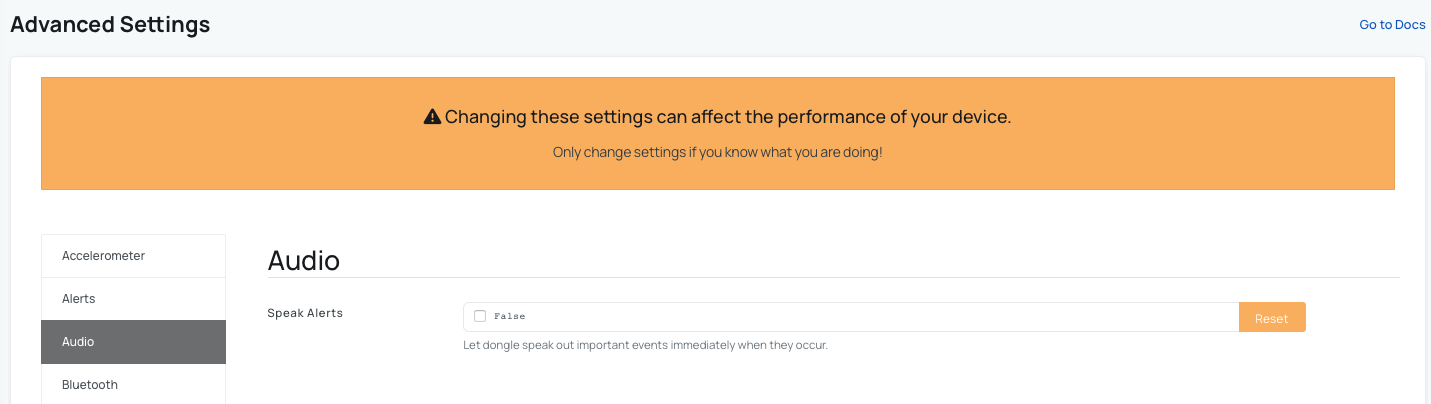
- Open AutoPi Cloud and navigate to the device you want to configure.
- Go to Device > Advanced Settings > Audio.
- Locate the Speak Alerts option and set it to False.
- Save your changes.
Once saved, the device will no longer play spoken alerts.
If you need to apply this change across multiple devices, use the Templates feature to configure the setting once and roll it out to all devices associated with that template. This avoids the need to update each device individually. Read more here: Templates
 Shop AutoPi devices
 Compare devices
 Contact sales
 Contact support