Groups

This guide will walk you through creating and managing vehicle groups to organize your fleet into reusable, logical segments. Vehicle groups enable you to apply configurations, workflows, and policies consistently across multiple vehicles simultaneously, streamlining fleet management and reducing manual configuration tasks.
What you'll learn:
- How to create vehicle groups for organizing your fleet.
- How to add and remove vehicles from existing groups.
- How to edit and delete groups as your fleet structure evolves.
- How to integrate groups with templates for automatic assignments.
- How to apply geofences to entire groups efficiently.
- How to use groups in reporting and analytics workflows.
What Are Groups?
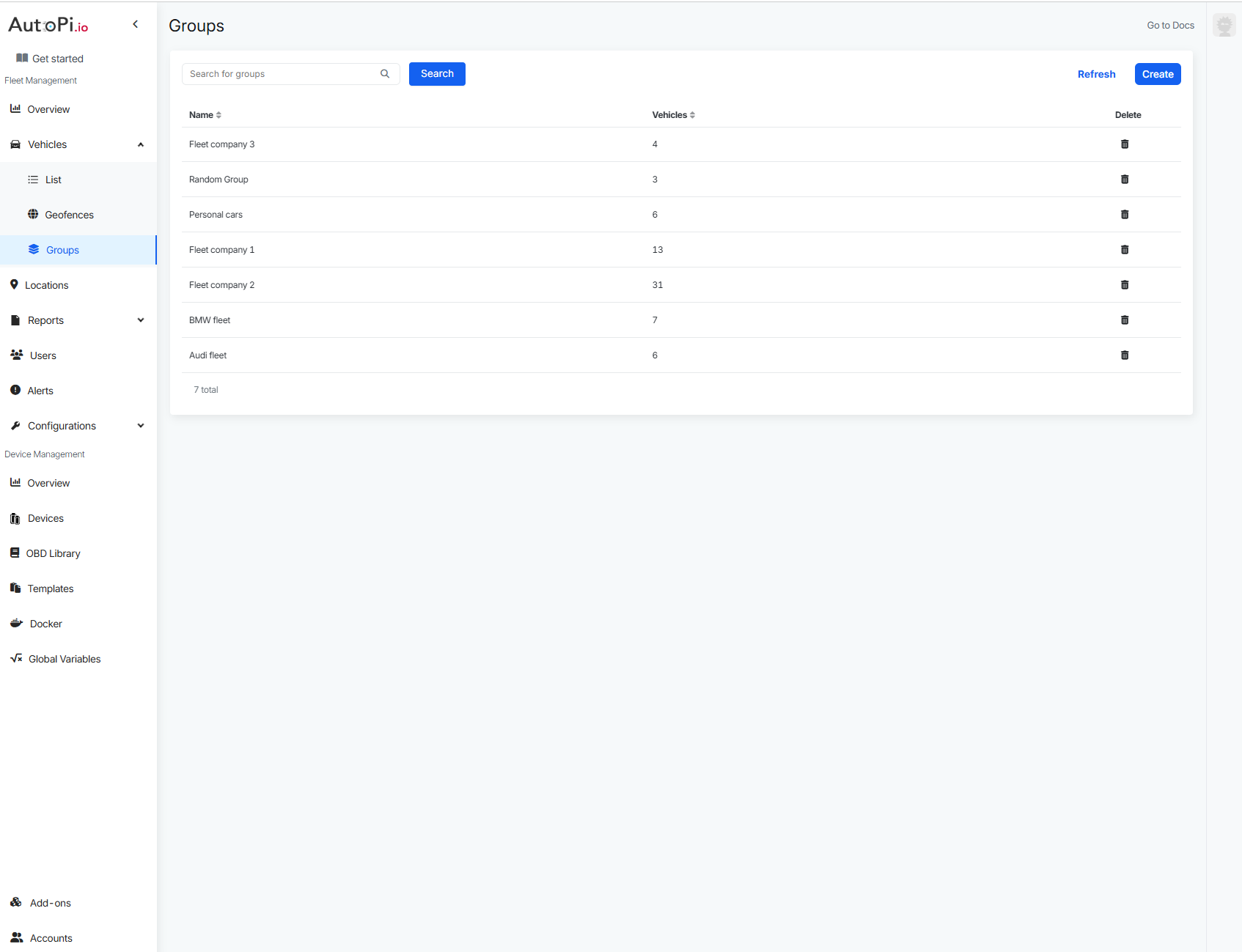
The Groups section in the Vehicles tab lets you organize multiple vehicles into reusable sets. Groups make fleet operations faster and more consistent, because you can apply configurations and workflows to a full set of vehicles instead of selecting each vehicle one by one.
Common use cases include applying geofences, configuring templates, and creating reports for a specific segment of your fleet.
Key features:
- Simple group creation and management interface
- Quick vehicle search and selection for group membership
- Integration with templates for automatic group assignment
- Geofence application at group level
- Group-based reporting capabilities
Create a Vehicle Group
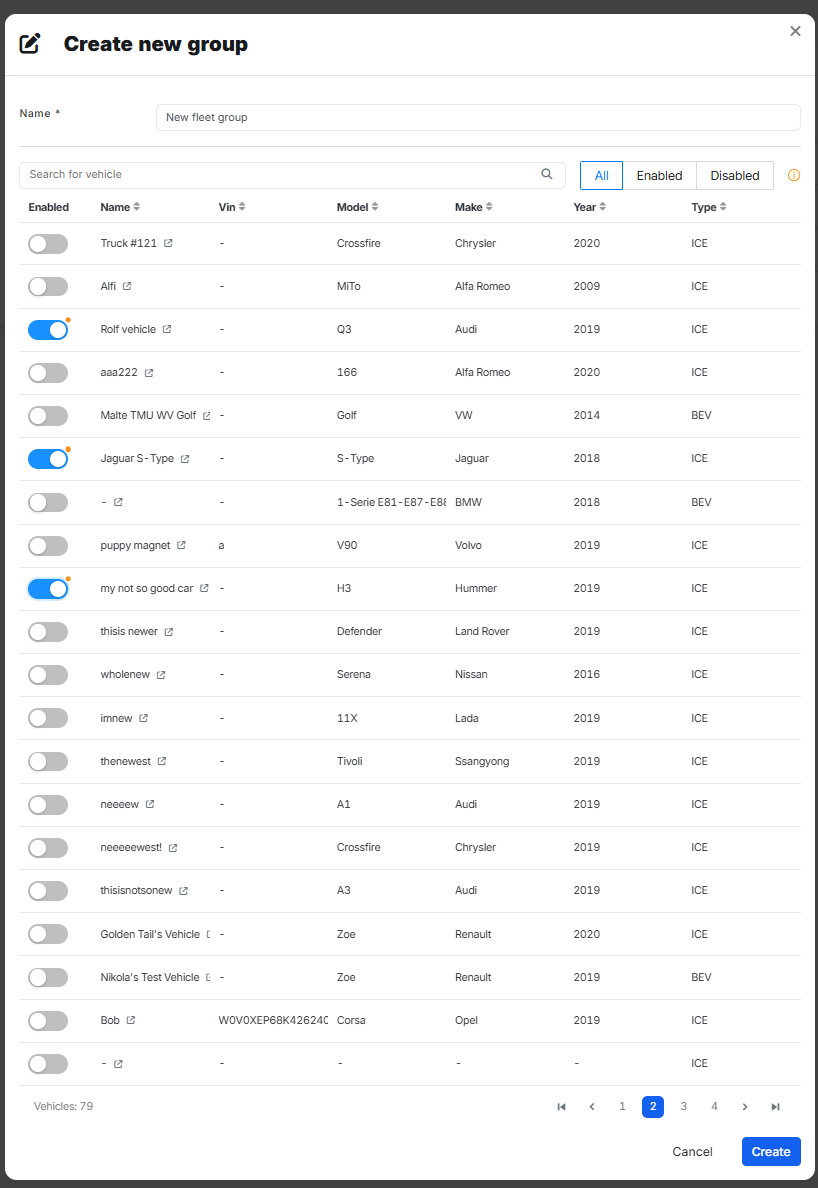
- Go to Vehicles -> Groups.
- Click Create.
- Enter a clear group name (for example,
Office ParkingorService Fleet). - Use the search field to find and select the vehicles you want to include.
- Click Confirm to save.
The new group will appear in the Groups list and can be reused across other fleet features.
Edit or Delete a Group
- Open Vehicles -> Groups.
- Click the group you want to update.
- Add or remove vehicles as needed, then save your changes.
- Delete the group if it is no longer needed.
Use Groups with Other Features
Groups are designed to work across multiple AutoPi Cloud workflows.
1. Templates
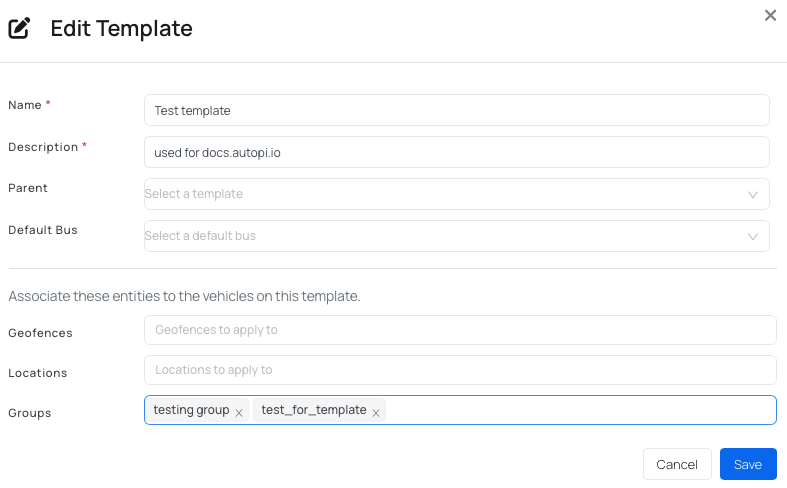
You can configure a group in a template so that devices added through that template are already associated with the same group. This adds another layer of fleet identification and keeps device organization consistent.
To assign a group to a template:
- Navigate to Device Management -> Templates.
- Select an existing template from the list, or click Create to set up a new one.
- Open the template's Settings tab.
- Locate the Vehicle Group field and select the group you want to associate with this template.
Any device subsequently added to the template will automatically inherit this group assignment.
Read the main guide: Templates
2. Fleet Geofences
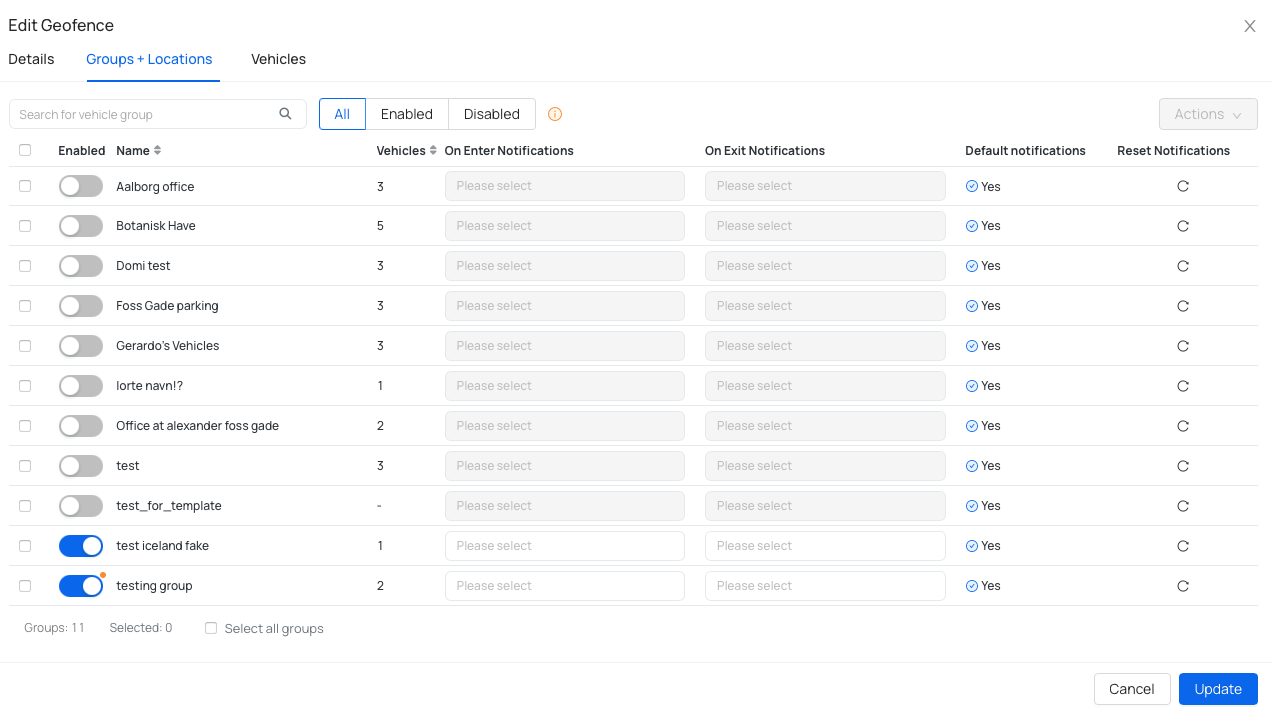
When creating a fleet geofence, you can select one or more groups instead of adding vehicles individually. All vehicles in the selected group will be included in the geofence setup.
Read the main guide: Fleet Geofences
3. Reports
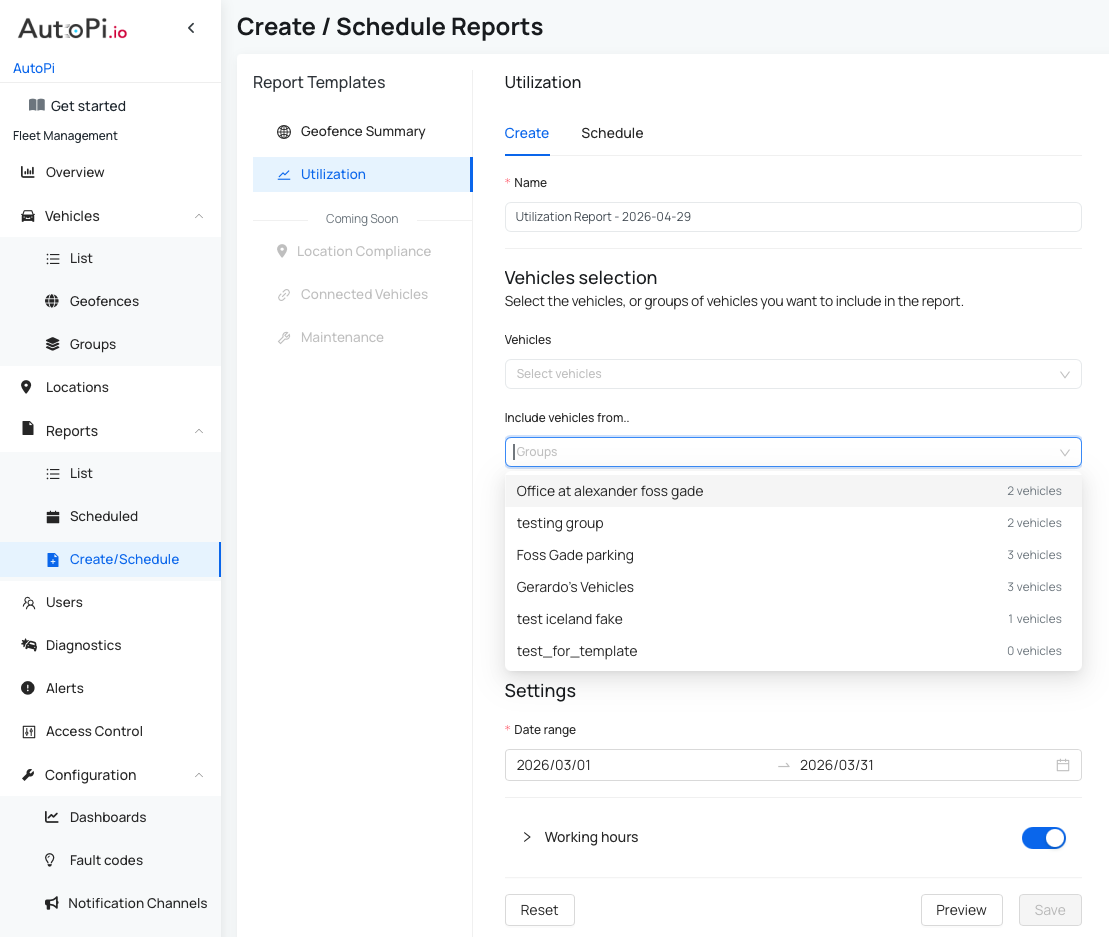
When creating a one-time report or scheduling a recurring report, you can select a full group of vehicles instead of choosing vehicles one by one.
Read the main guide: Geofence Summary Report
 Shop AutoPi devices
 Compare devices
 Contact sales
 Contact support