Access Control
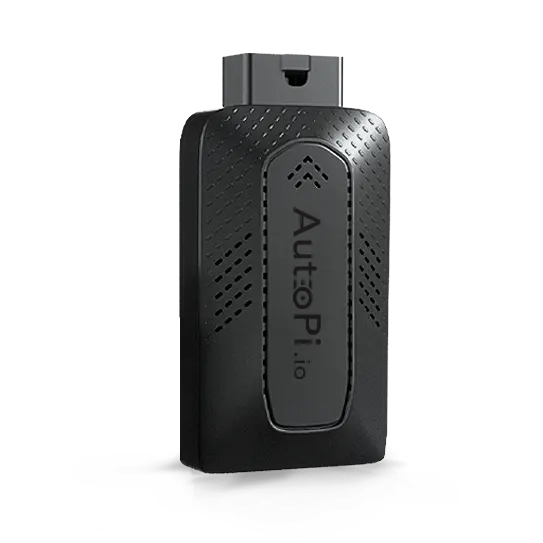
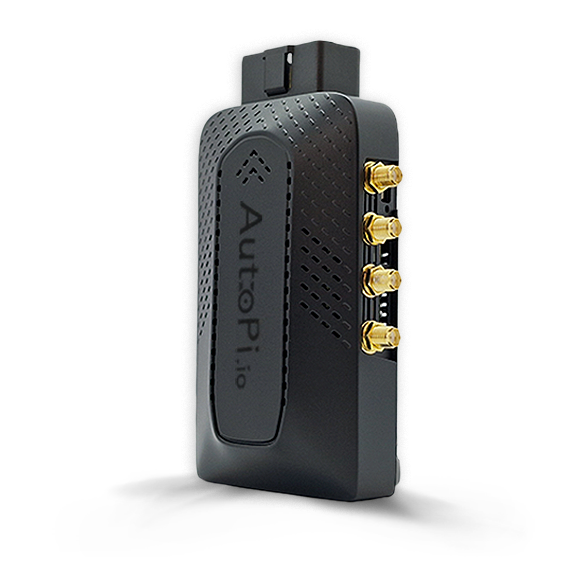
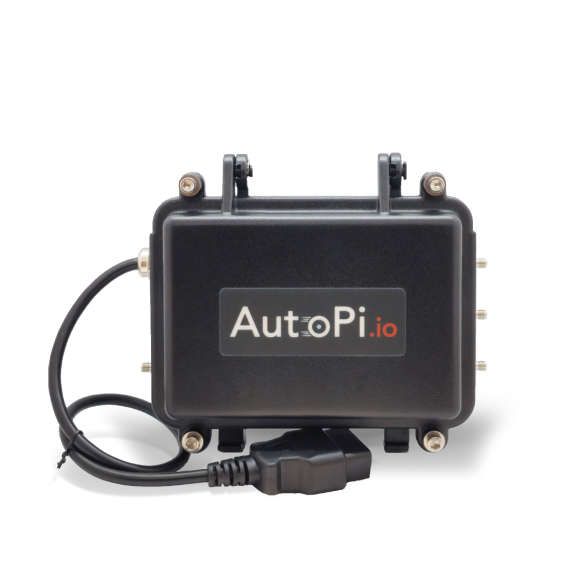
Access Control uses RFID authentication to identify drivers and record vehicle access attempts. It provides a centralized history of who attempted to access a vehicle, which RFID token they used, when the attempt occurred, and whether access was approved or rejected.
By linking RFID tokens to users and assigning authorized drivers to vehicles, you can maintain a clear record of vehicle usage across your fleet. This helps fleet administrators verify driver activity, investigate incidents, monitor rejected access attempts, and identify unauthorized vehicle use. The access history also supports operational accountability by showing when drivers authenticated, logged out, or attempted to use vehicles they were not assigned to.
Prerequisites
Before using Access Control:
- Enable and configure RFID on the AutoPi device. To learn more about the underlying service, see RFID Manager.
- Add an RFID token to each user who needs vehicle access.
- Assign each driver to the vehicles they are authorized to use.
To see the Access Control tab, your user account must have the Access Control Management permission. You can read more here: Permission Groups.
Assign RFID Tokens to Users
Each user can have one or more RFID tokens.
- In AutoPi Cloud, go to Users.
- Open the relevant user profile.
- Scroll to RFID Tokens.
- Add one or more tokens, then save your changes.
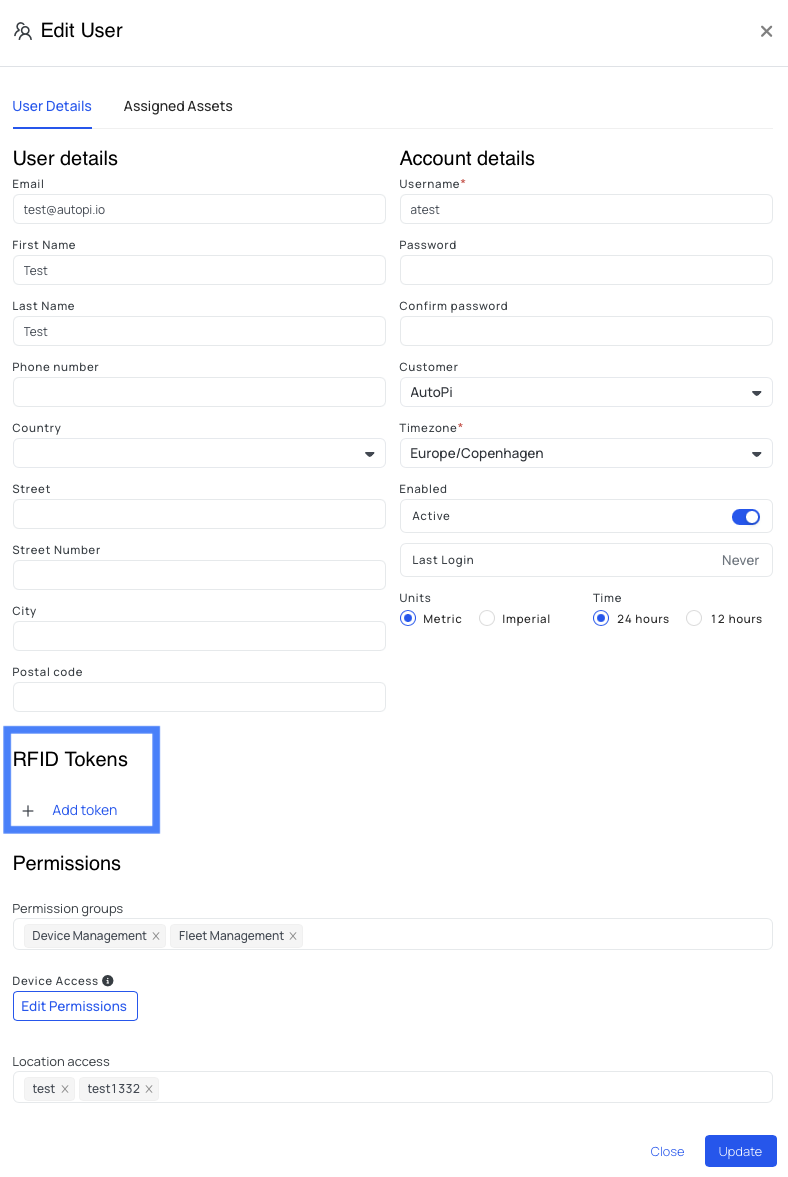
Only administrators with the account_administrator permission can assign RFID tokens.
You can create users without email addresses for drivers who do not need to sign in to AutoPi Cloud. Their RFID tokens and access activity can still be tracked.
Assign Drivers to Vehicles
A vehicle can have multiple assigned drivers, and a driver can be assigned to multiple vehicles.
- Go to Fleet Management > Vehicles.
- Select one or more vehicles.
- Select Assign Drivers.
- Choose the drivers who are authorized to use the selected vehicles.
- Save your changes.
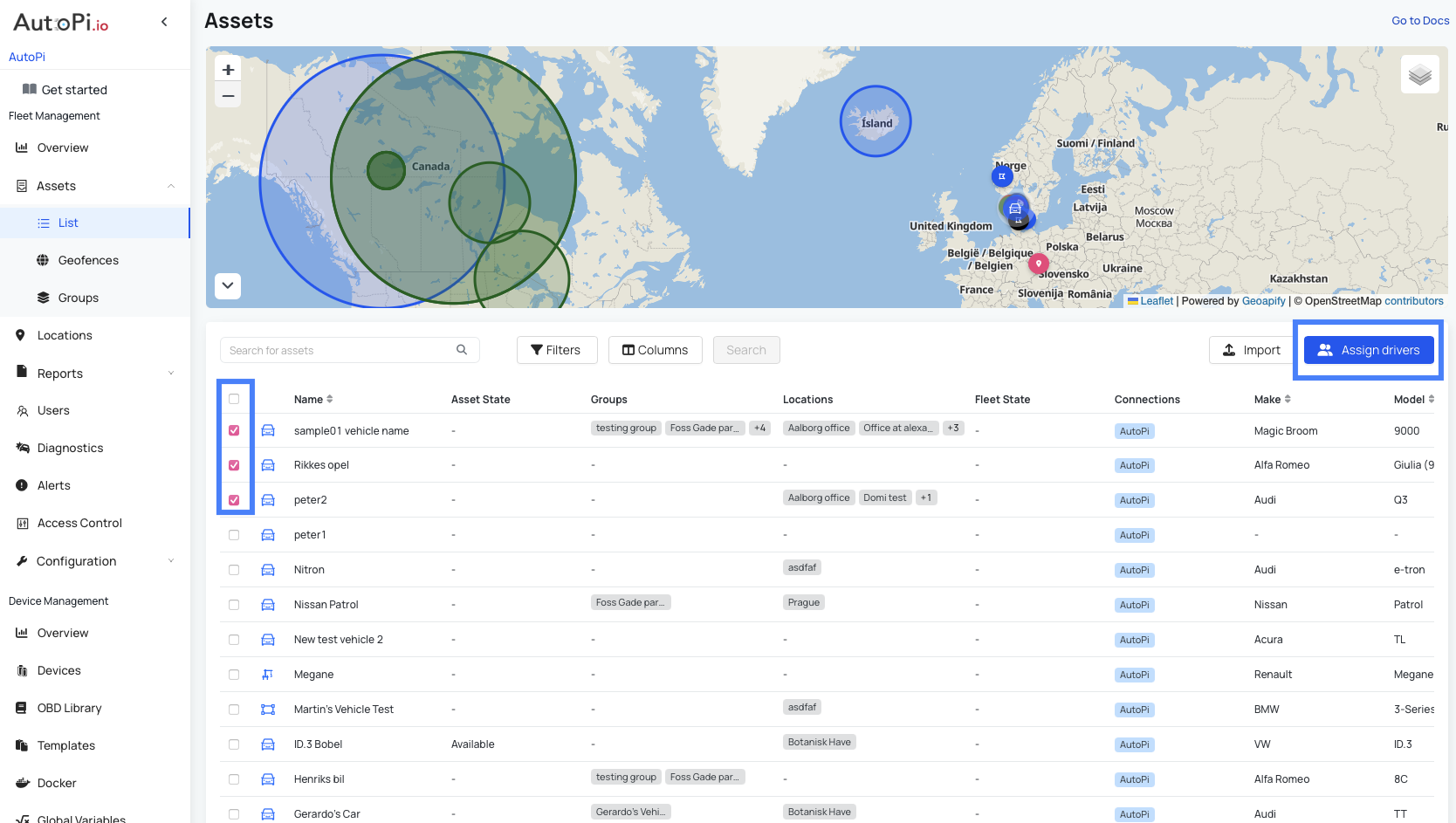
The Assign Drivers button becomes available after you select at least one vehicle. You can also manage driver assignments from the Access Control page or review a driver's vehicles from the Assigned Vehicles tab in their user profile.
For more information about managing vehicles and driver assignments, see Vehicles List.
Review Access Attempts
The Access Control page records RFID authentication attempts across your fleet.
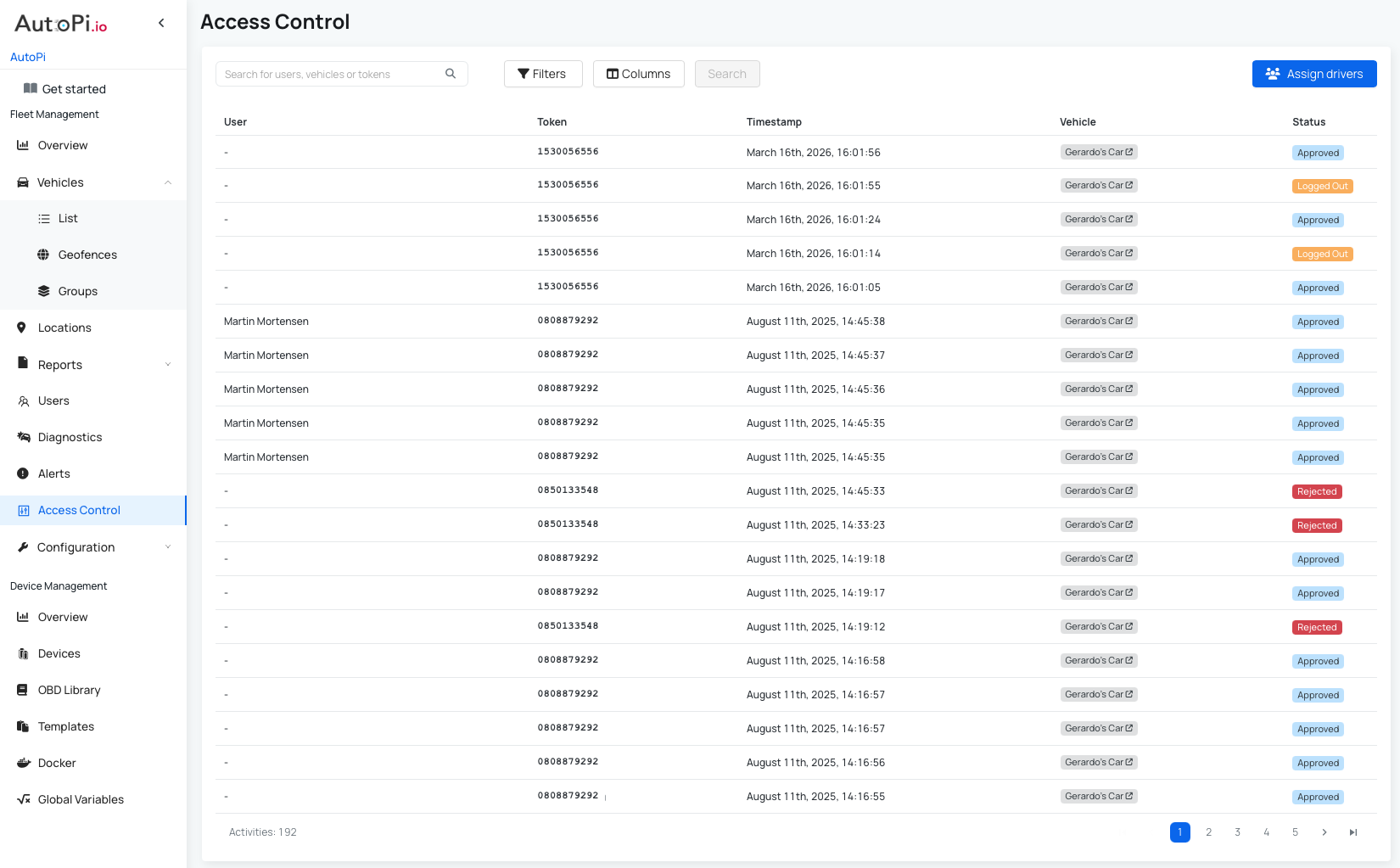
Each record includes:
- User name: the user associated with the scanned RFID token.
- Token used: the RFID token presented to the reader.
- Timestamp: when the access attempt occurred.
- Vehicle: the vehicle where the token was scanned.
- Status: whether the user was approved, rejected, or logged out.
Use these records to verify driver activity, investigate rejected access attempts, and maintain accountability across your fleet.
Review RFID Events
Each RFID scan also generates a system event:
system/rfid/<rfid_token>/read: the device read an RFID token.system/rfid/<rfid_token>/authenticated: the token was authenticated.system/rfid/<rfid_token>/rejected: the token was rejected.
If you do not know a card or chip's token ID, scan it and review the resulting event in the device's Events tab. For more information, see RFID Events.
You can use these events to create custom triggers for rejected tokens, including email notifications and fleet administrator alerts. See Custom Triggers for configuration instructions.
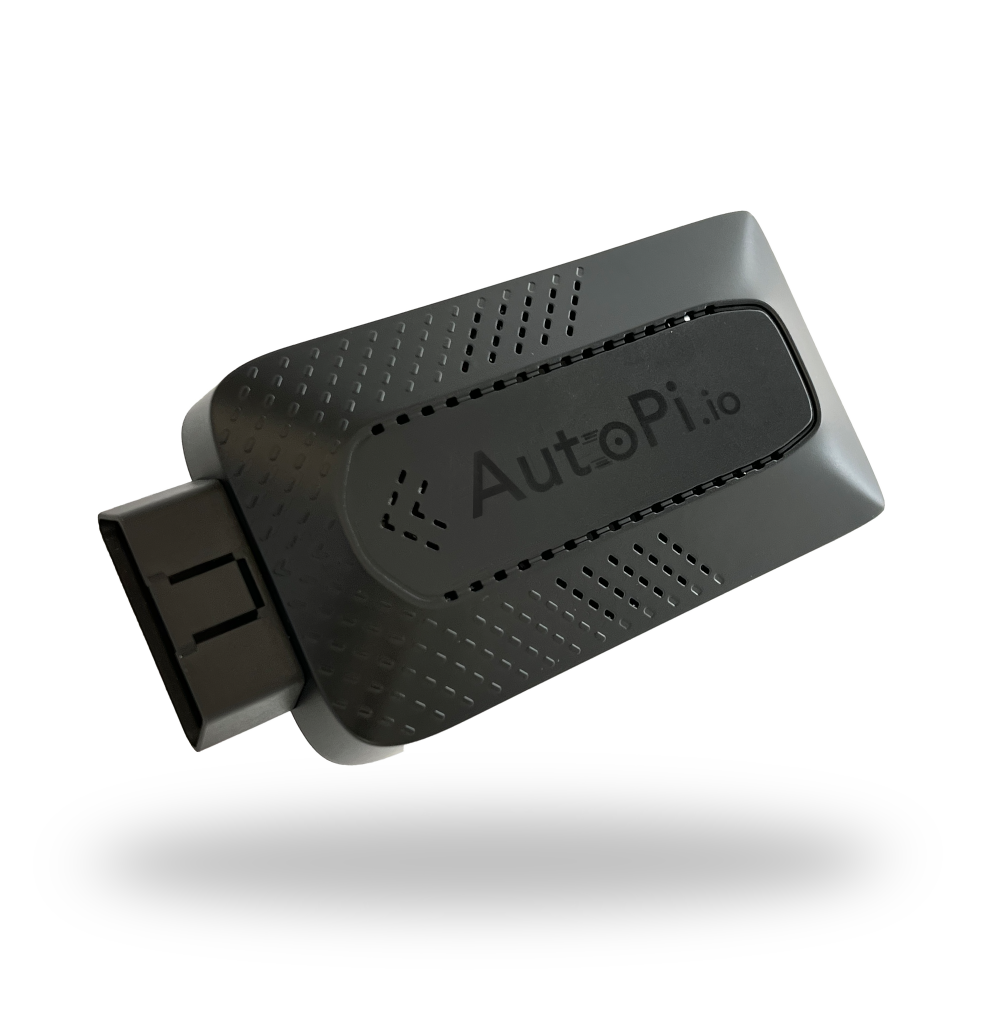 Shop AutoPi devices
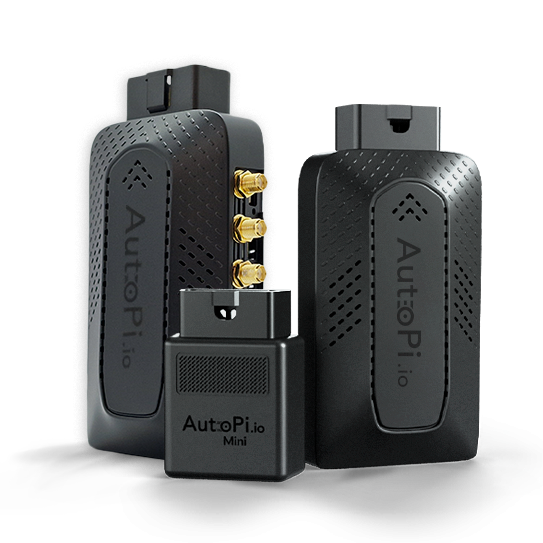 Compare devices
 Contact sales
 Contact support