Vehicles List
This guide shows you how to manage and view your fleet vehicles using the Vehicles List tab. The Vehicles List provides a centralized view of all your vehicles with tools to:
- Search and filter vehicles by various criteria
- Customize which information is displayed
- Perform bulk operations with import/export functionality
- Manage vehicle assignments and perform quick actions
- Access detailed vehicle information
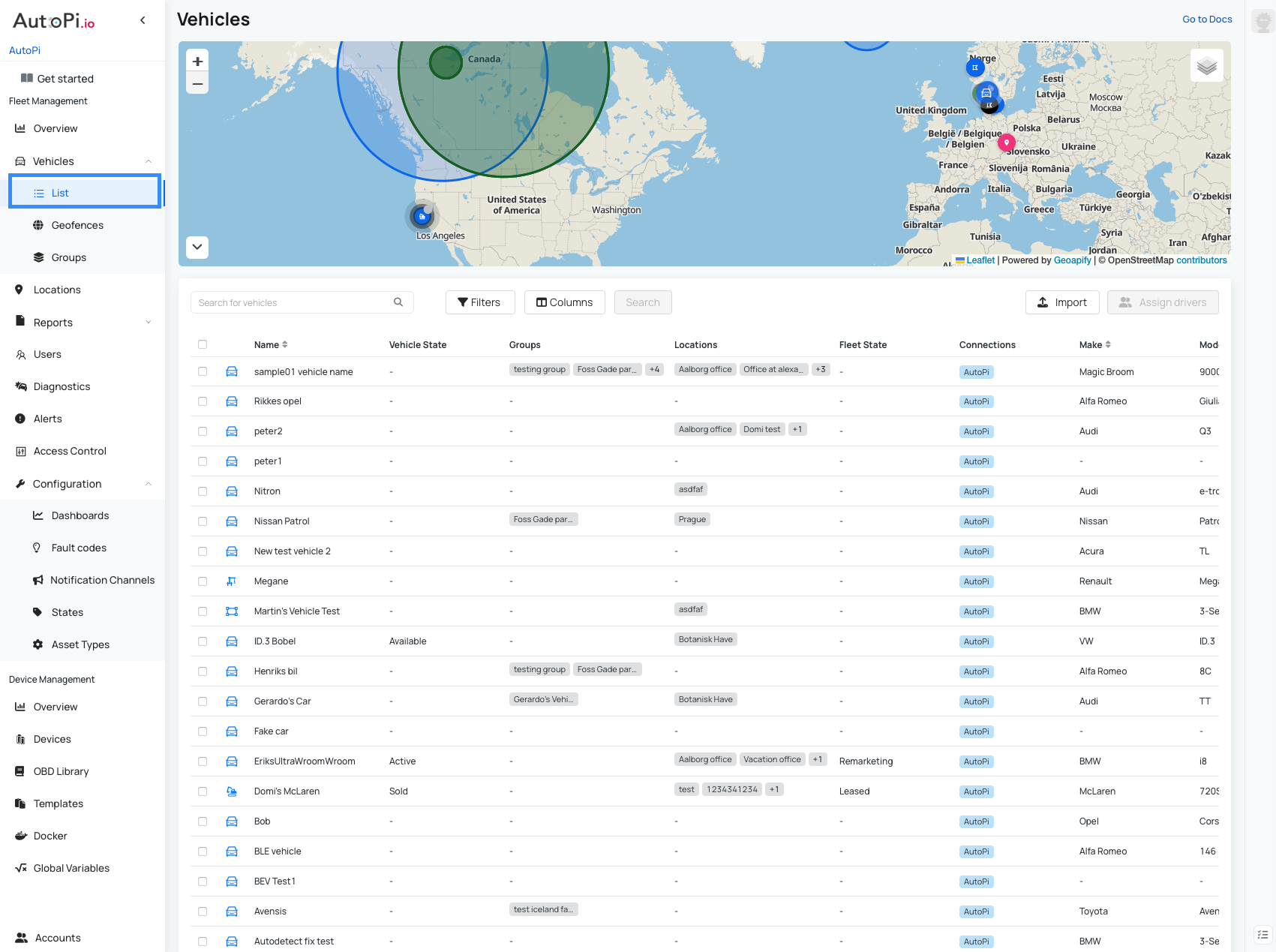
Filtering Vehicles
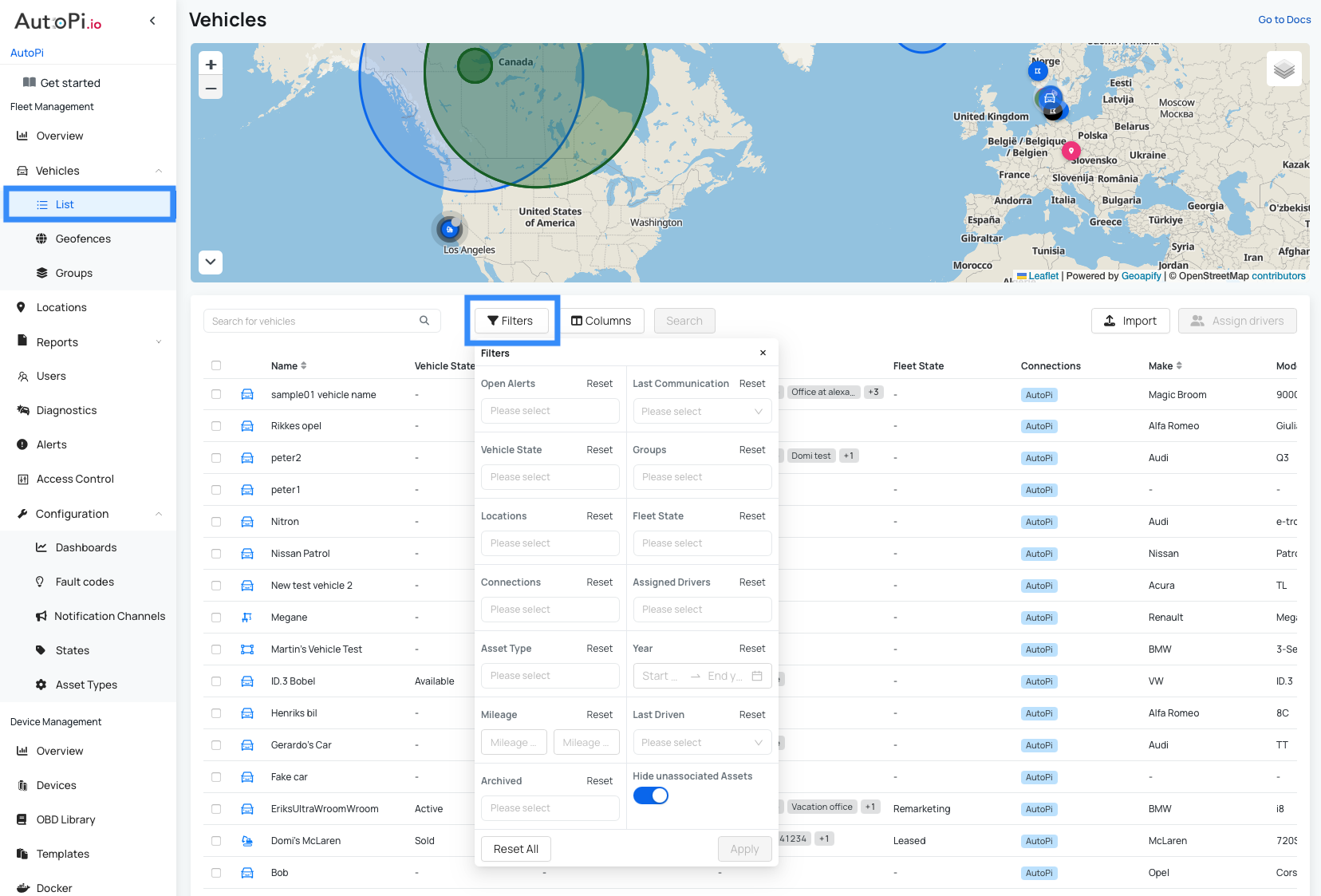
The filter panel, located between the world map and the vehicle list, helps you quickly find specific vehicles and gain clearer visibility into your fleet. Use filters to narrow down vehicles by various criteria.
Available filters:
- Open Alerts — display only vehicles with active alerts requiring attention.
- Last Communication — filter by when the vehicle last communicated with the system (e.g., last 15 minutes, last 1 hour, today, last 30 days, etc.).
- Fleet State — show vehicles filtered by their fleet assignment state.
- Vehicle State — filter by operational status (active, inactive, maintenance, etc.).
- Location — filter vehicles by assigned location.
- Groups — display vehicles belonging to specific groups.
- Connections — filter by device connection name.
- Assigned Drivers — show vehicles filtered by assigned driver.
- Asset Type — filter by the type of asset (device model, hardware type, etc.).
- Year — filter by vehicle model year using a range (from year to year).
- Mileage — filter vehicles by mileage range (from - to mileage).
- Last Driven — filter by when the vehicle was last operated (last 5 minutes, today, last 30 days, etc.).
- Hide Unassociated Assets — toggle to show only vehicles with an associated device, or include vehicles without device associations.
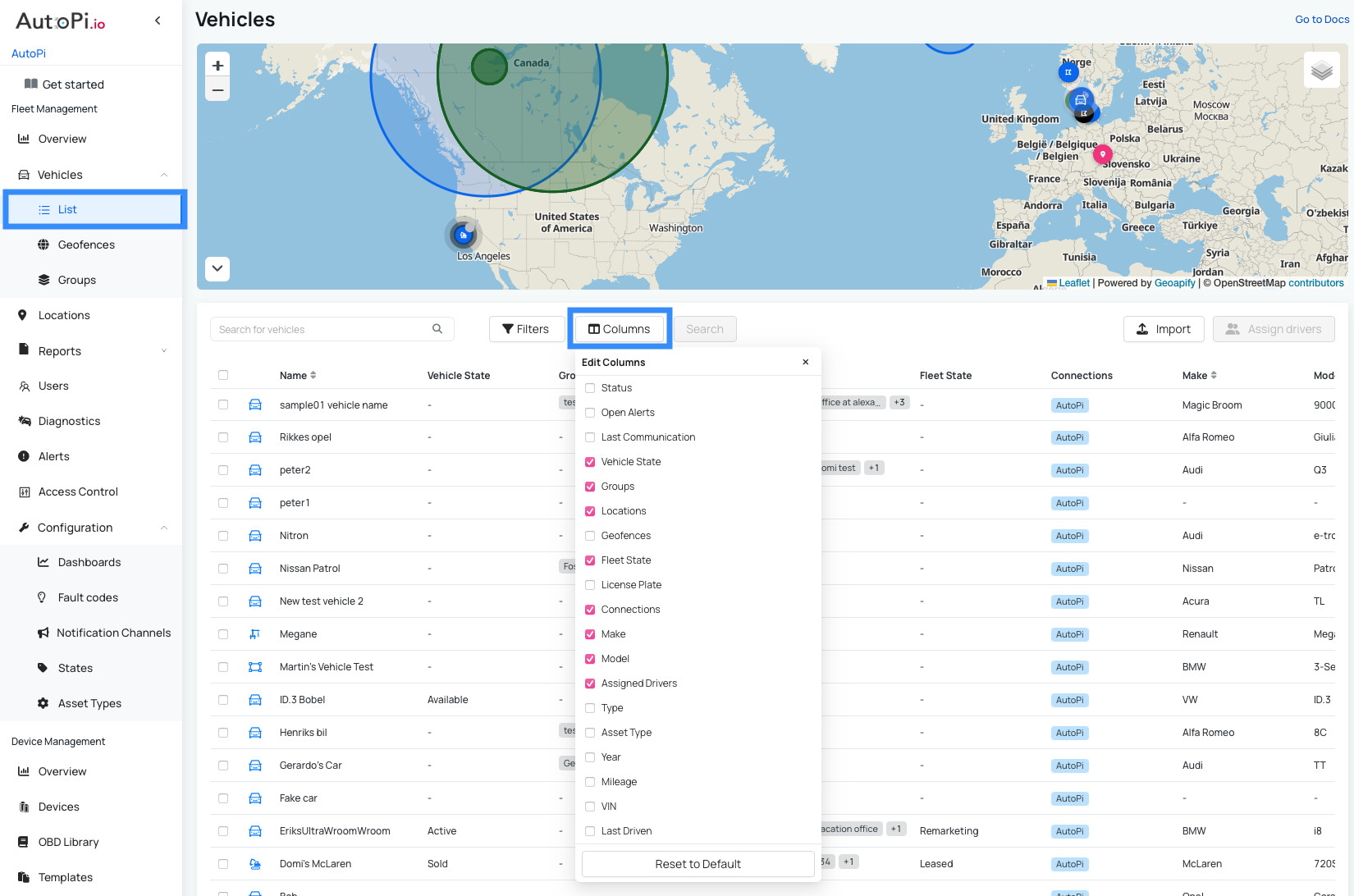
Customizing Vehicle Columns
The vehicle list displays comprehensive information about each vehicle, including location, geofence assignments, status, and other key metrics. You can customize which columns are visible based on your preferences.
To customize columns:
- Click the Columns button in the table header.
- Select or deselect columns to show or hide.
- Your preferences are automatically saved.
Available columns:
- Status — current operational status of the vehicle (online, offline).
- Open Alerts — number of active alerts requiring attention for the vehicle.
- Last Communication — timestamp of the most recent communication from the device.
- Vehicle State — operational state (active, inactive, maintenance, etc.). Fleet State — fleet state (rental, service).
- Groups — vehicle group assignments.
- Locations — assigned location(s) for the vehicle.
- Geofences — geofence zone assignments.
- License Plate — vehicle registration plate number.
- Connections — device connection status and type.
- Make — vehicle manufacturer.
- Model — vehicle model name.
- Assigned Drivers — driver(s) currently assigned to the vehicle.
- Type — vehicle type classification (ICE, EV, Hybrid, Plug-in Hybrid).
- Asset Type — type of asset or device installed.
- Year — model year of the vehicle.
- Mileage — current vehicle mileage.
- VIN — vehicle identification number.
- Last Driven — timestamp of the vehicle's most recent trip.
Managing Vehicles
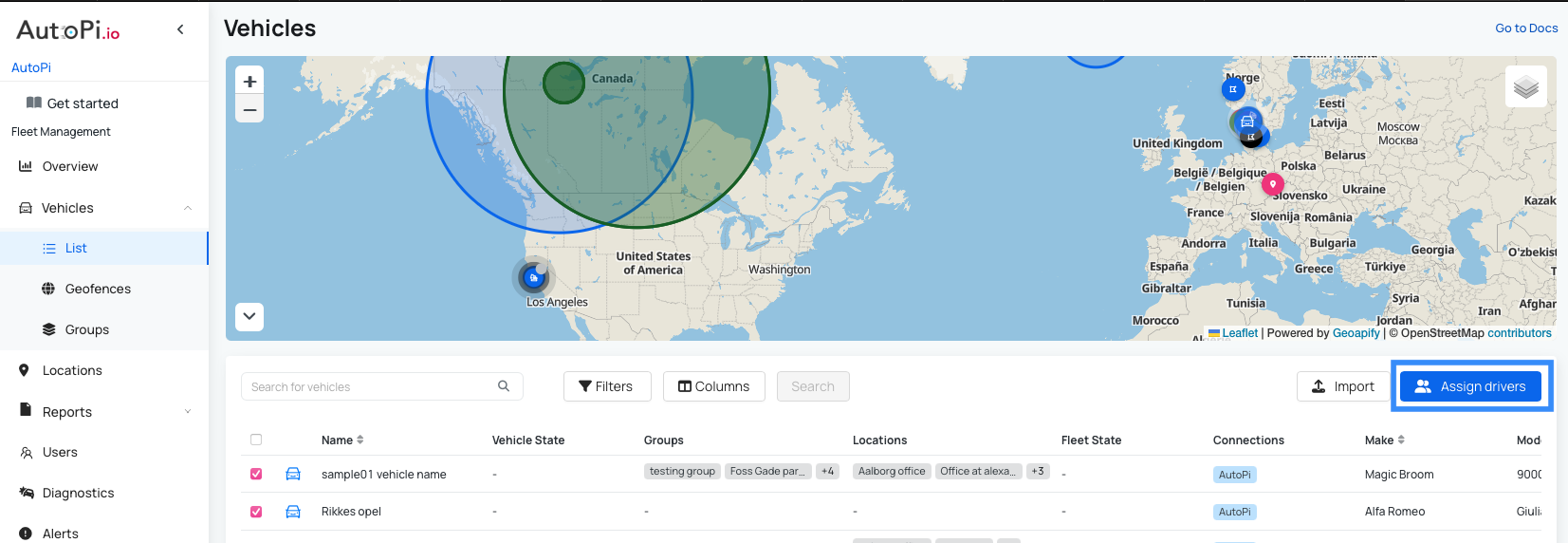
Assign Drivers
When you select one or more vehicles, the Assign Drivers button in the upper-right corner becomes active (highlighted in blue). Click this button to:
- Assign one or more drivers to the selected vehicles
- Manage driver-to-vehicle relationships
- Update driver assignments across multiple vehicles at once
Import and Export Vehicles
The Import/Export functionality allows you to manage your entire fleet efficiently through CSV files. This is especially useful for bulk operations and fleet management.
Export vehicles:
- Click Export to download a CSV file of your current vehicle list
- The exported file includes all vehicle information visible in your current view
- Use this to back up vehicle data or transfer information to other systems
Import vehicles:
- Click Import to add or edit multiple vehicles at once
- Upload a CSV file with vehicle information
- Use this to bulk-add new vehicles to your fleet or update existing vehicle data

Vehicle Actions
Each vehicle in the list has an Actions menu (three dots) with quick access to common operations:
Available actions:
- Edit — Update vehicle information (details, settings, assignments, etc.)
- Delete — Remove the vehicle from your fleet
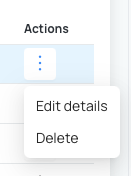
Accessing full vehicle details: Click anywhere on a vehicle row to open the Vehicle Details page, where you can view comprehensive information and manage all aspects of the vehicle.
Vehicle Details Page
From the Vehicle Details page, you have access to:
- Trips — View detailed trip history with routes, duration, and distance
- Alerts — Monitor and manage active vehicle alerts
- Dashboard — Create and customize real-time performance monitoring dashboards
- Diagnostics — Review diagnostic error codes and vehicle health status
- Edit Vehicle — Update all vehicle settings and configurations
Learn more about the Vehicle Details page: Vehicle Details Guide
 Shop AutoPi devices
 Compare devices
 Contact sales
 Contact support