Vehicle States

Vehicle States and Fleet States give you a structured way to reflect the real-world status of every vehicle in your fleet. By defining and assigning states, your team can immediately understand the situation of any vehicle without needing to dig into logs or historical data.
Once configured, states are visible in two key places:
- Vehicle Overview — the Fleet Information widget on the Vehicle Overview tab displays the current Vehicle and Fleet State assigned to a vehicle, giving you a quick snapshot of its status.
- Vehicle List — the Vehicle List supports filtering by Vehicle State and Fleet State, making it easy to group and view all vehicles sharing the same status at once.
Vehicle States
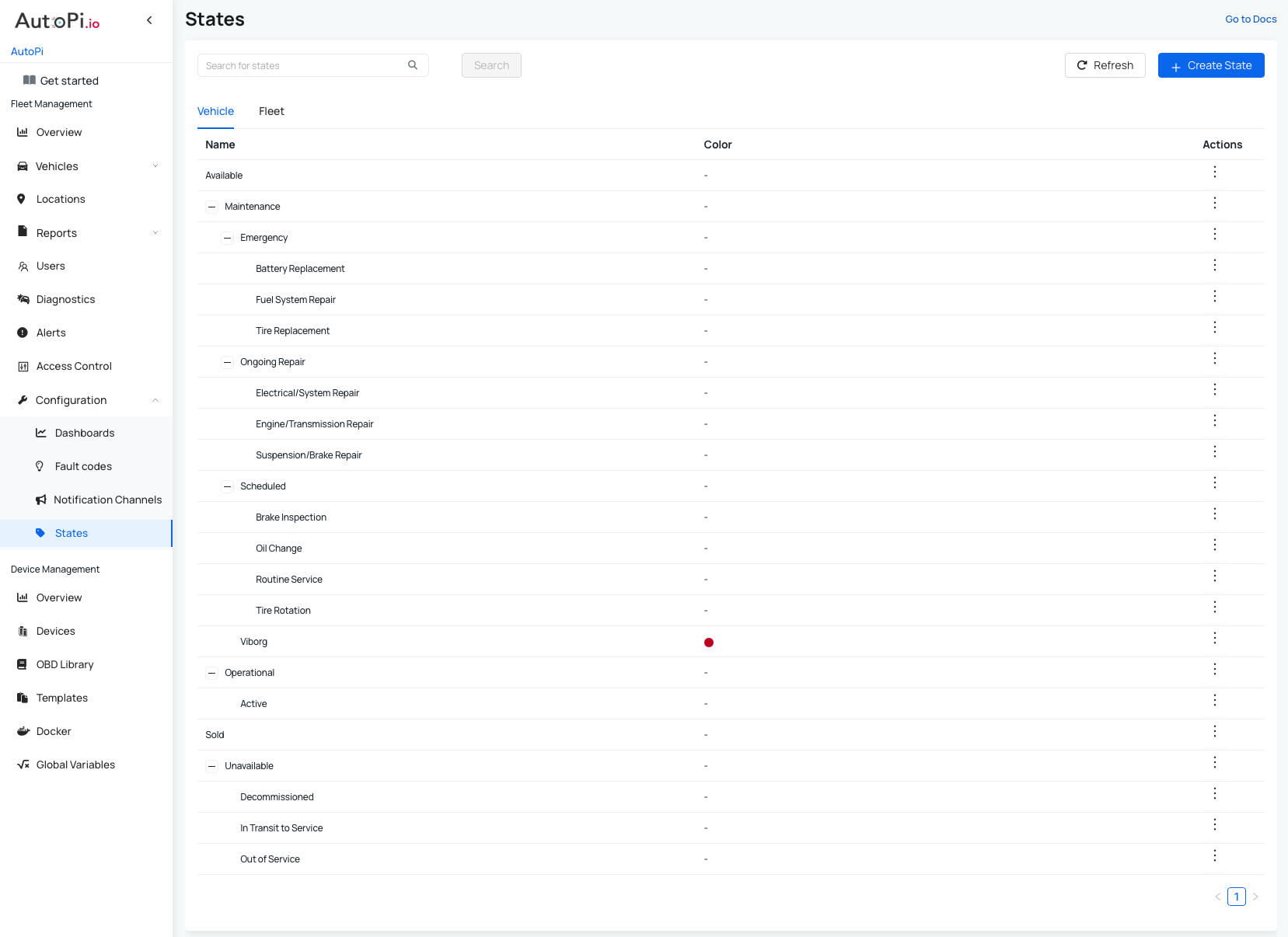
Vehicle States allow you to track and communicate the current status of each vehicle in your fleet. A set of default states is provided out of the box, but you can create fully custom states to match your operational needs.
States support a parent-child hierarchy. For example, you can create a top-level state such as Maintenance, and then define more specific child states beneath it, such as Awaiting Parts or In Service — to provide greater detail.
Fleet States
Fleet States offer an additional layer of classification at the fleet level. You can define what each state represents and how it should be used within your organization. A set of default Fleet States is provided, but these can be customized or removed as needed.
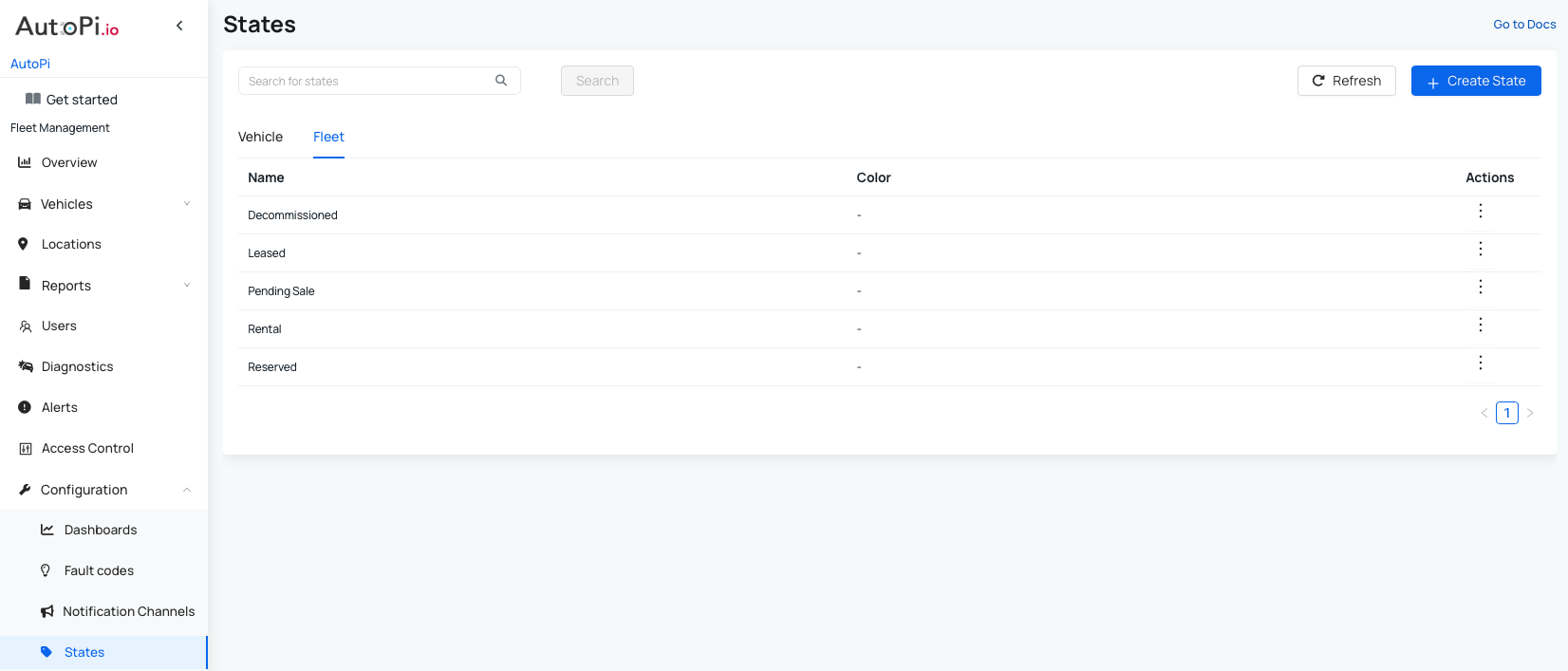
Creating a Vehicle/Fleet State
To create a new state:
- Click Create State.
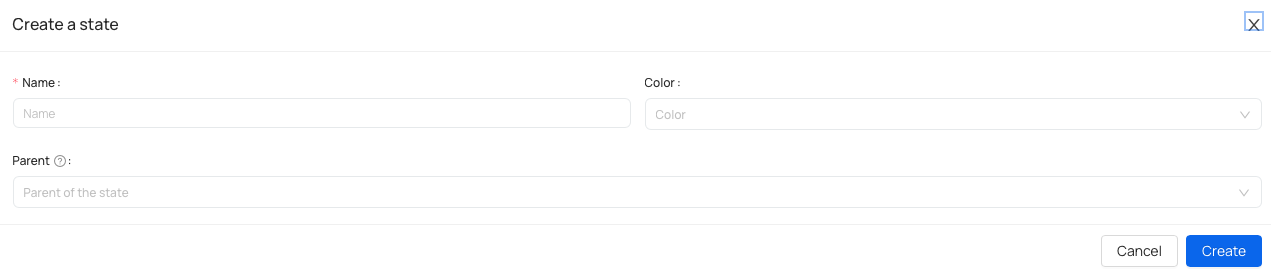
- Fill out the following fields:
- Name — enter a descriptive name for the state (e.g., Maintenance, In Transit).
- Color — select a color to visually distinguish the state in the Vehicle List.
- Parent — optionally assign a parent state to create a hierarchy of states.
- Save your changes.
 Shop AutoPi devices
 Compare devices
 Contact sales
 Contact support