Asset Types
Asset Types are customizable categories that allow you to organize your fleet by vehicle classification and tailor how vehicle information is displayed across the platform. Whether you manage a mixed fleet with cars, vans, and trucks, or you need to distinguish between different asset classes for operational purposes, Asset Types provide the flexibility to define these distinctions and manage them centrally.
By creating Asset Types, you can:
- Define custom vehicle categories specific to your fleet's needs.
- Control which vehicle fields are displayed for each asset type.
- Standardize vehicle data collection and reporting across similar asset types.
- Customize terminology (such as "Serial Number" instead of "VIN") for specific asset categories,
- Set a default asset type for new vehicles added to your fleet.
This guide explains how to create and manage asset types, assign them to vehicles, configure defaults, and customize terminology to fit your fleet management strategy.
Access Asset Types
To access the Asset Types configuration page:
- Navigate to Configuration → Asset Types.
- The Asset Types table displays all created asset types and their associated information.
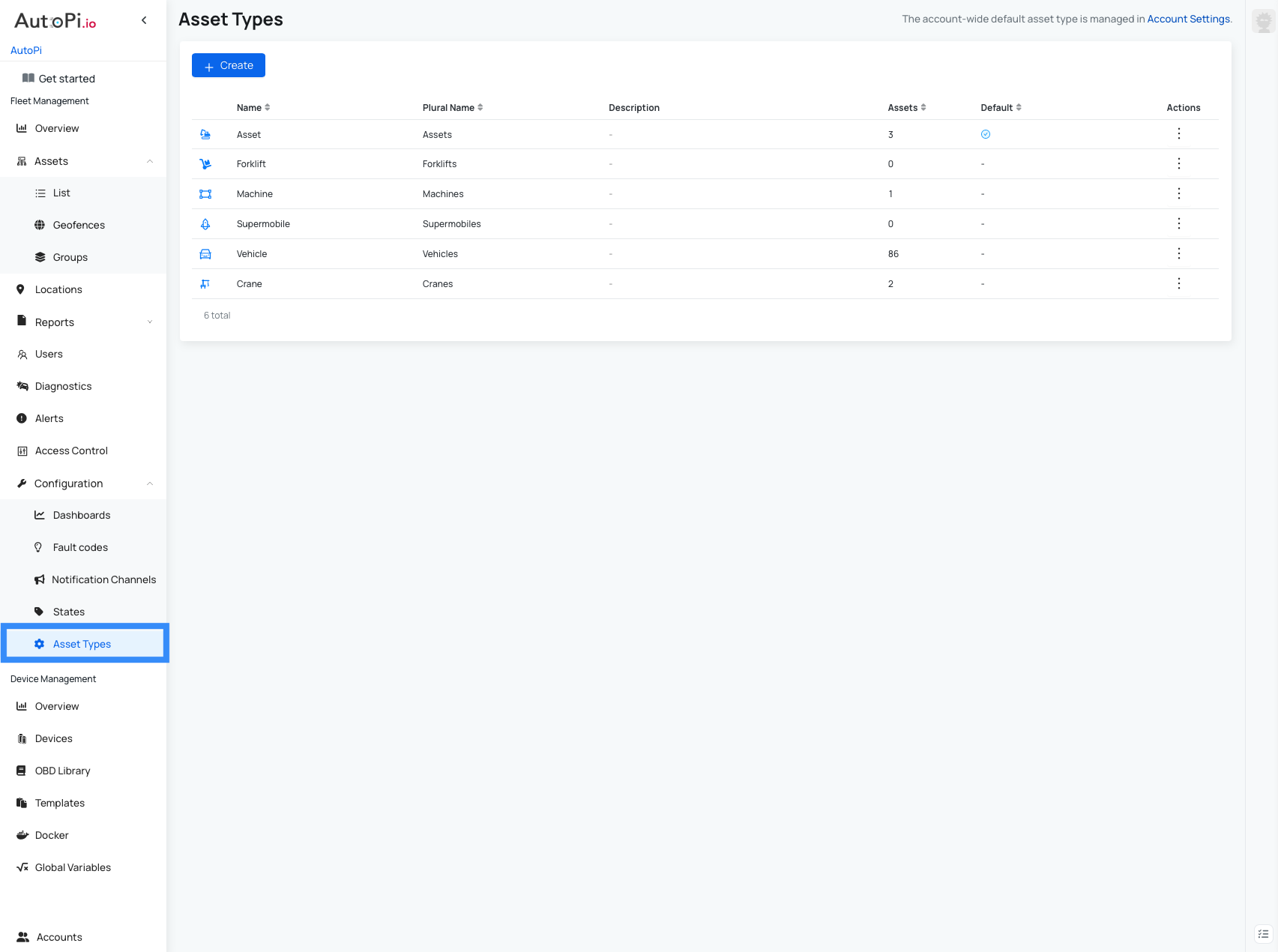
Asset Types Table Overview
The table includes the following information for each asset type:
- Name – the asset type name.
- Plural Name – the plural form of the asset type name.
- Description – a brief description of the asset type.
- Assigned Vehicles – the number of vehicles using this asset type.
- Default status – indicates whether this is the default asset type for your fleet.
- Actions – click the three-dot menu to edit or delete an asset type.
Asset type creation and editing are available only to users with Account Administrator permission. Refer to the Accounts permissions guide for more information.
Create a New Asset Type
To create a new asset type:
- Navigate to Configuration → Asset Types.
- Click Create.
- Fill in the required information (see field descriptions below).
- Click Save.
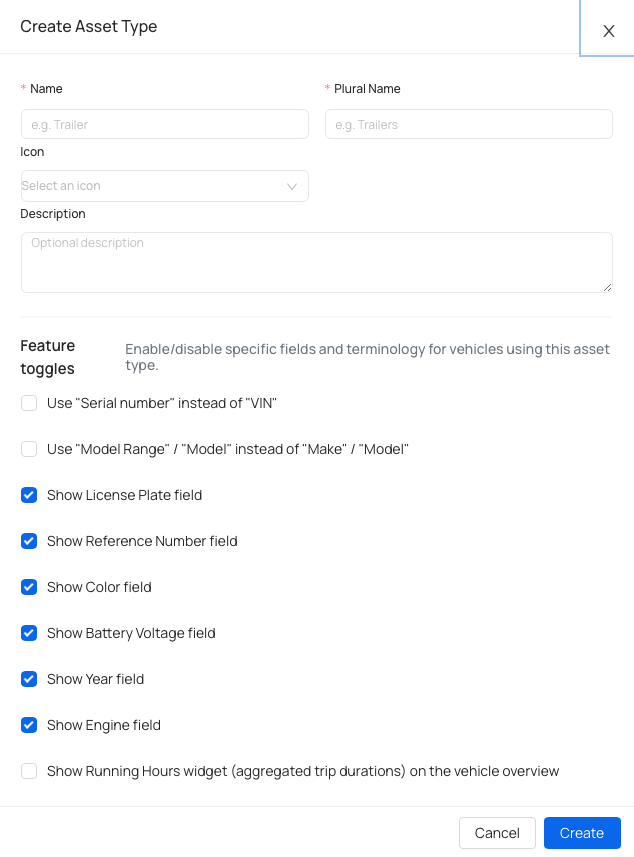
Available Fields
- Name – the asset type name (required).
- Plural Name – the plural form of the name (required).
- Icon (optional) – displayed on maps and the vehicle overview page when no custom avatar is selected.
- Description (optional) – additional details about the asset type.
- Feature Toggles – enable or disable specific fields and vehicle information display for this asset type. These options control what information is shown on the Vehicle Overview page:
- Use "Serial number" instead of "VIN"
- Use "Model Range" / "Model" instead of "Make" / "Model"
- Show License Plate field
- Show Reference Number field
- Show Color field
- Show Battery Voltage field
- Show Year field
- Show Engine field
Assign an Asset Type to a Vehicle
To assign an asset type to a specific vehicle:
- Navigate to Vehicles.
- Select the vehicle you want to update.
- Click Edit Vehicle.
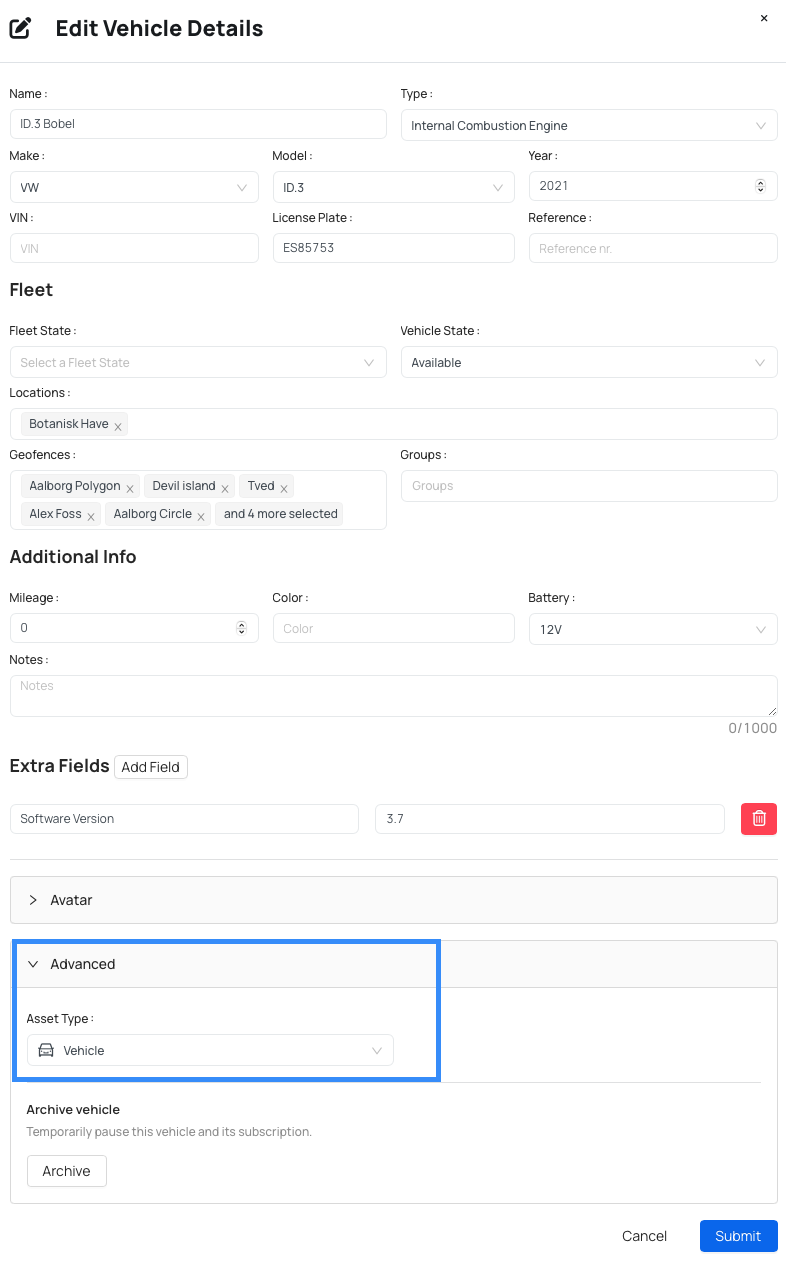
- Open the Advanced section.
- Under Asset Type, select the desired asset type from the dropdown.
- Click Save.
Change the Default Asset Type
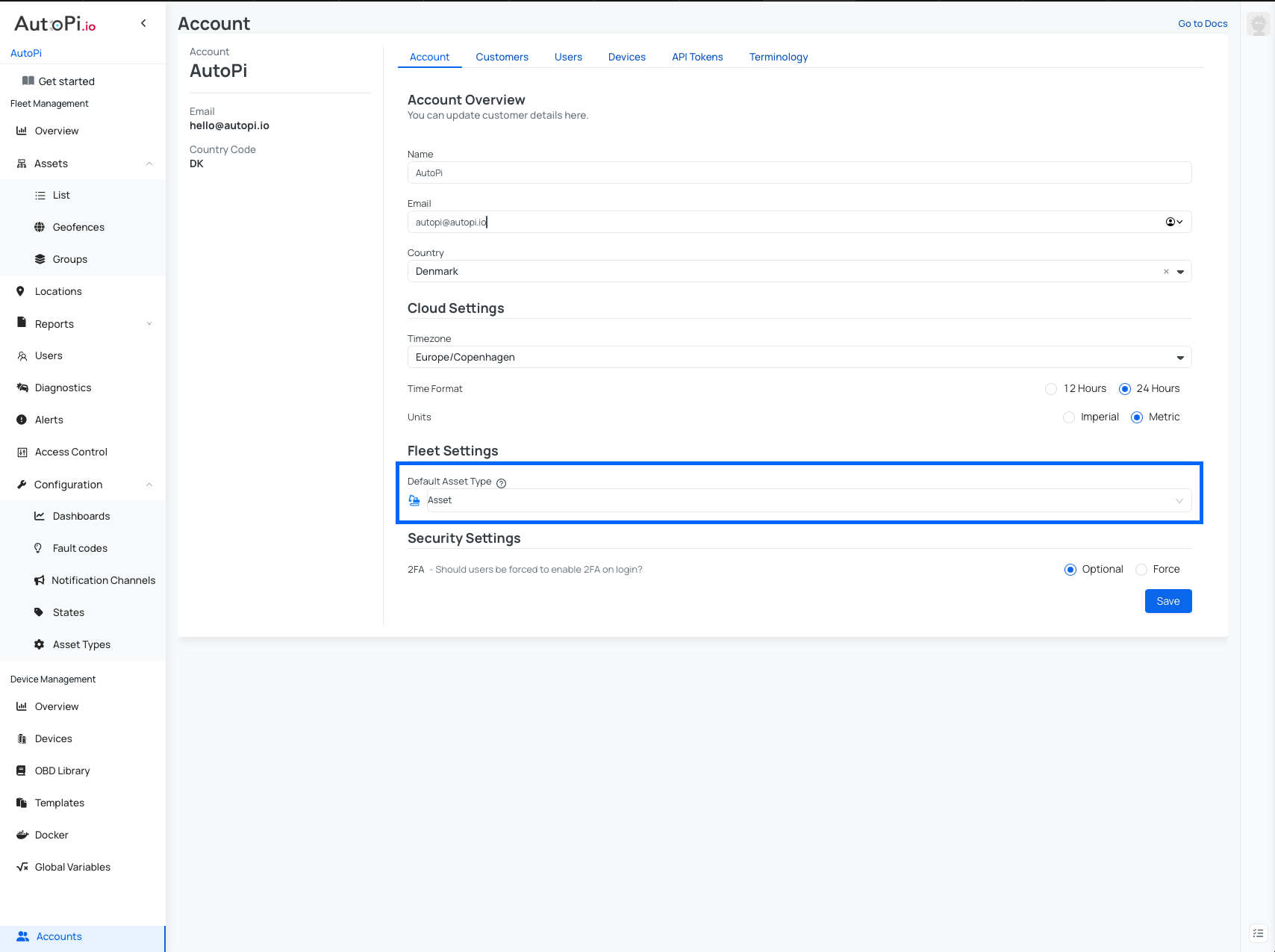
By default, the default asset type is Vehicle. To change the default:
- Navigate to Accounts.
- Click Fleet Settings.
- Find Default Asset Type.
- Select the desired asset type from the dropdown.
- Click Save.
Customize Terminology
You can customize vehicle-related terminology across the platform to match your fleet's needs.
To customize terminology:
- Navigate to Accounts.
- Select Terminology.
- On this page, you can select custom terms from dropdown options or create new custom terms.
- Save your changes.
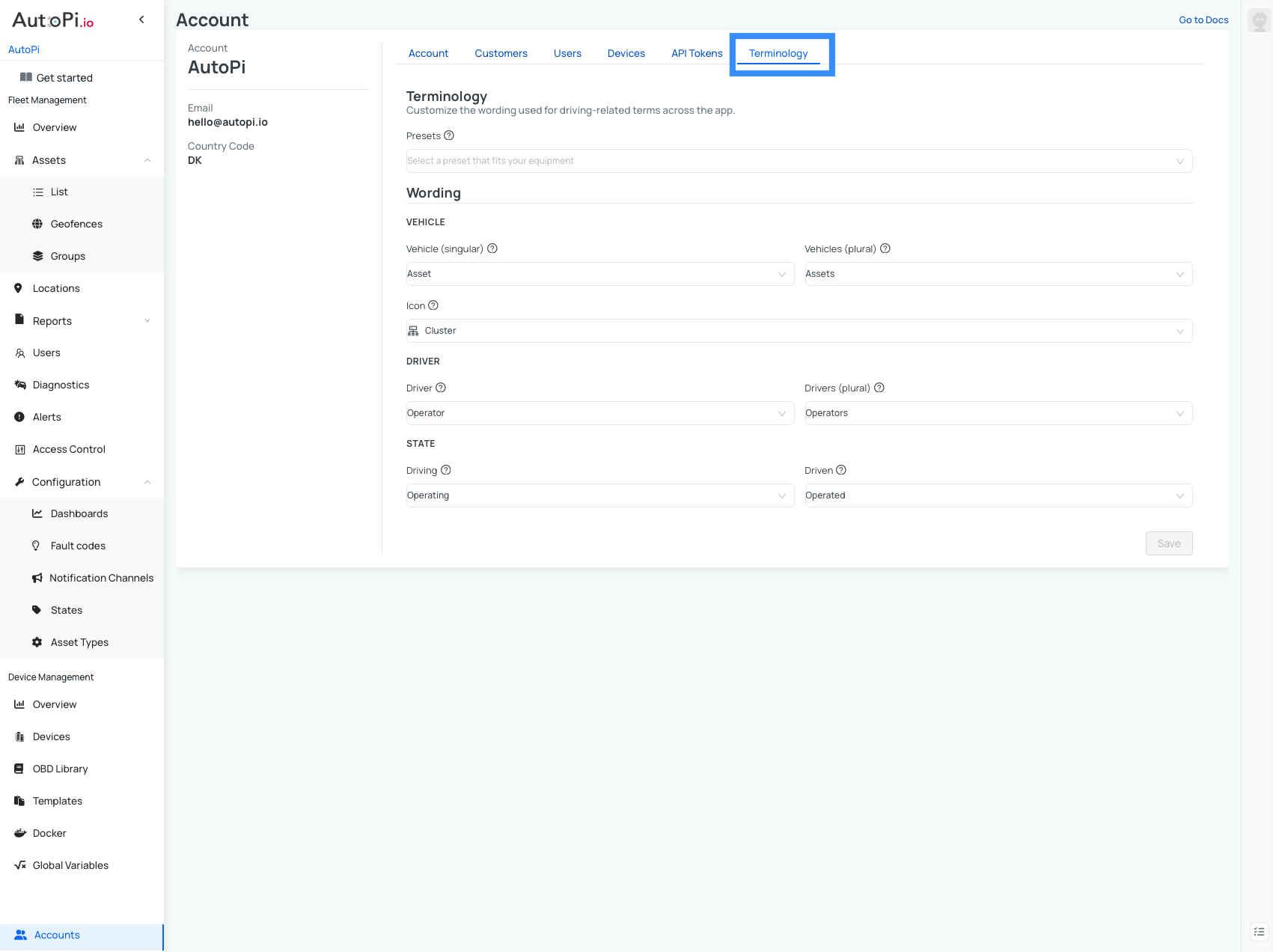
This allows you to adjust terminology for driving-related terms across the app and for vehicle-specific labels.
 Shop AutoPi devices
 Compare devices
 Contact sales
 Contact support