Vehicle Details

This guide shows you how to access and use the Vehicle Details section in AutoPi Cloud. The Vehicle Details page is your central hub for managing and monitoring all aspects of a specific vehicle.
From this page, you can:
- View comprehensive vehicle information — access complete details about your vehicle, including make, model, VIN, license plate, and custom reference information.
- Edit vehicle settings — update vehicle details, fleet assignments, locations, geofences, groups, and other vehicle-specific configurations.
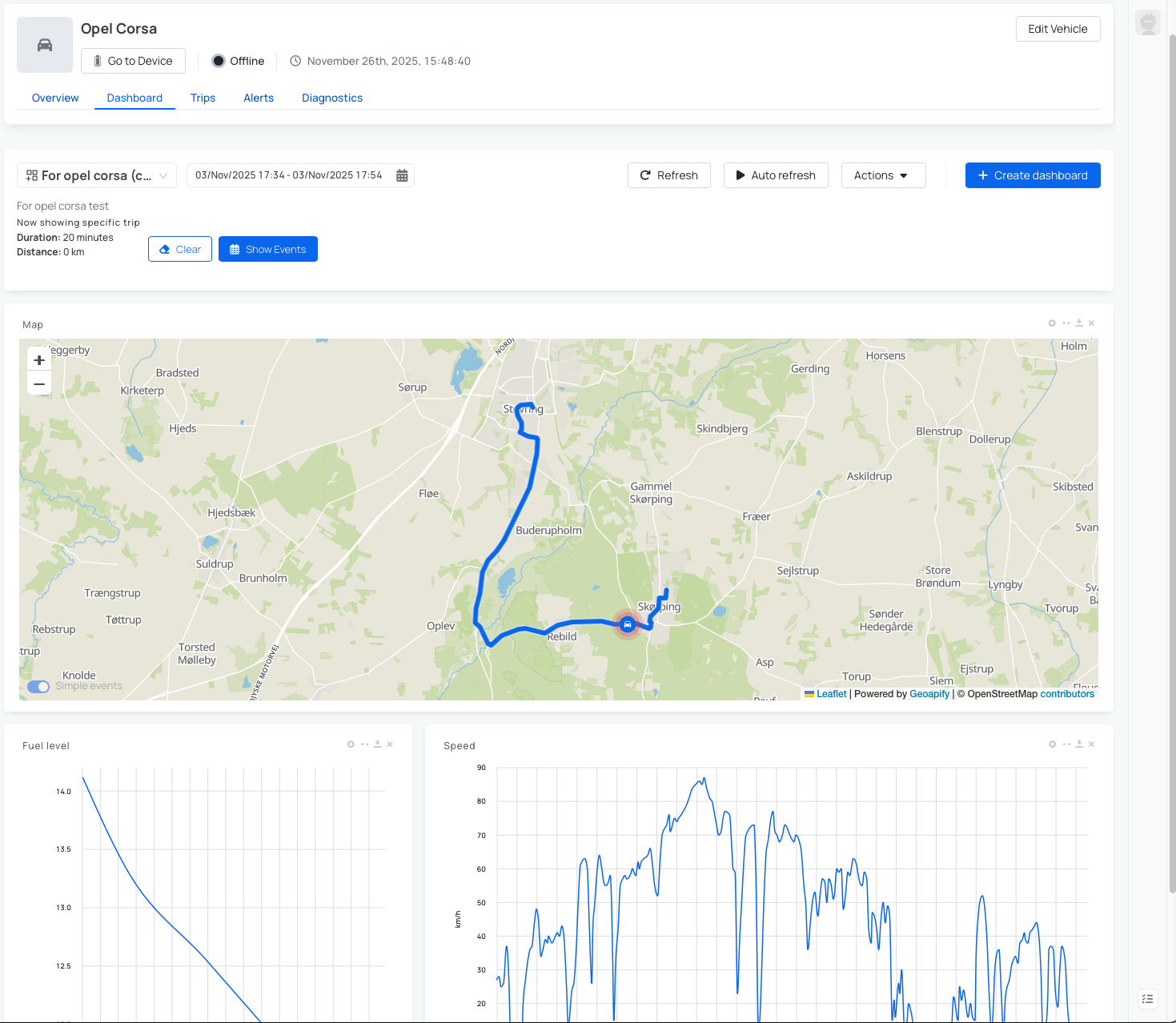
- Monitor real-time performance — create customizable dashboards with various visualization types to track metrics such as vehicle position, speed, RPM, battery status, and more.
- Analyze trip history — review detailed trip information including routes, duration, distance, and trip categorization.
- Manage active alerts — view and respond to vehicle alerts with different severity levels to stay informed about vehicle health.
- Diagnose vehicle issues — access diagnostic error codes and timestamps to identify and resolve vehicle problems before they become critical.
Whether you're managing a single vehicle or overseeing a fleet, the Vehicle Details section provides the tools you need to stay informed and maintain optimal vehicle performance.
Overview
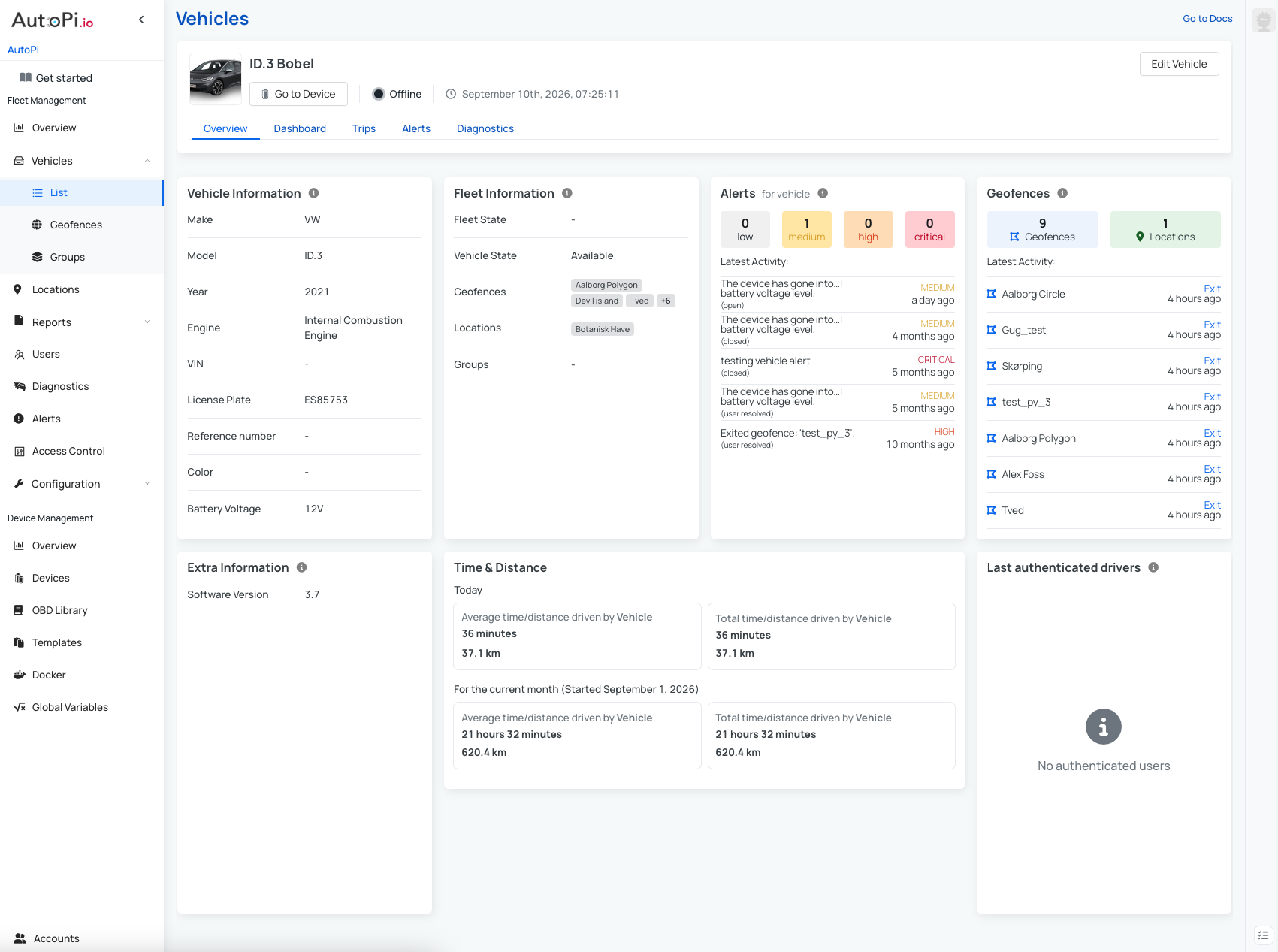
The Overview section displays key vehicle information in a series of widgets, including:
- Vehicle details and fleet membership
- Active alerts and assigned geofences
- Location data
- Cumulative statistics on drive time and total distance
Edit Vehicle
From any tab in the Vehicle Details section, you can edit vehicle information by clicking the Edit Vehicle button in the upper-right corner.

Clicking this button opens the vehicle edit dialog. The following sections are available for configuration:
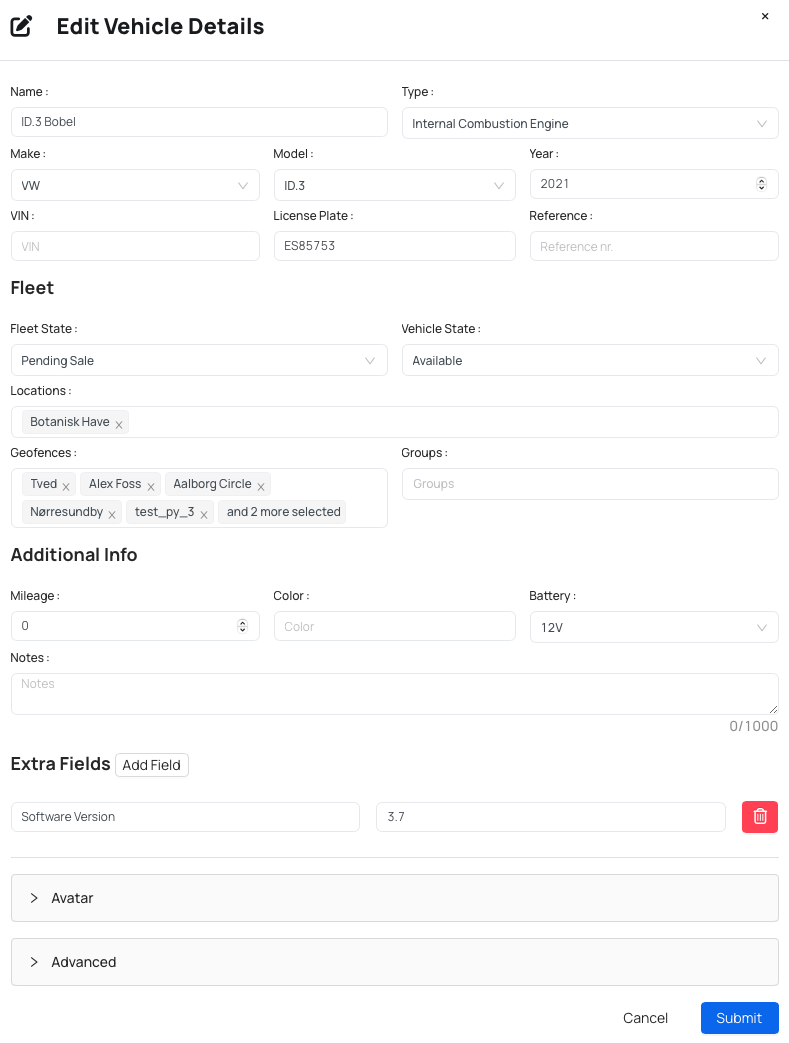
Update basic vehicle information:
- Name — name of your vehicle
- Type — ICE, EV, Hybrid, or Plug-in Hybrid
- Make — vehicle manufacturer
- Model — vehicle model
- Year — model year
- VIN — vehicle identification number
- License Plate — registration plate number
- Reference — custom reference identifier
Manage vehicle fleet settings:
- Fleet state — current fleet assignment status
- Vehicle state — operational status of the vehicle
- Locations — assigned vehicle locations
- Geofences — geofence assignments
- Groups — vehicle group membership
Store additional vehicle details:
- Mileage — current vehicle mileage
- Color — vehicle color
- Battery — battery voltage (12V or 24V)
- Notes — custom notes about the vehicle
Add custom fields as needed to capture additional vehicle information specific to your organization.
Change the vehicle's custom avatar image for quick visual identification.
Under Advanced, configure the asset type for the vehicle.
Dashboard
The Dashboard section displays real-time vehicle data in customizable widgets. You can create multiple dashboards and customize them with various visualization types to monitor the metrics that matter most.
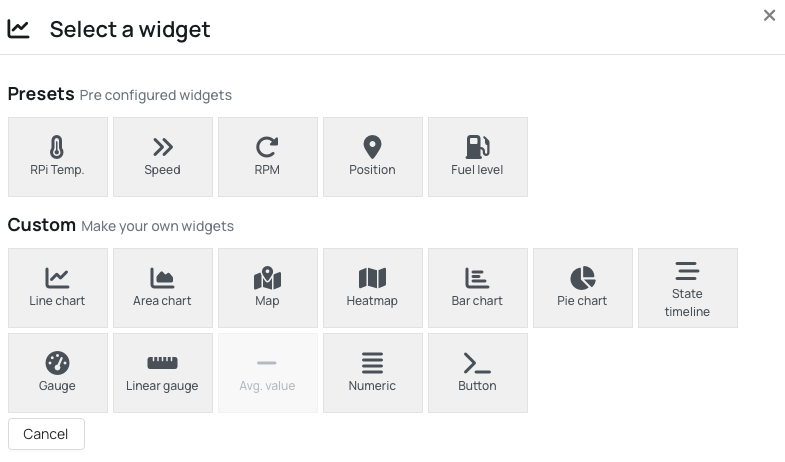
Available widget types:
- Line chart, Area chart, Bar chart, Pie chart
- Map, Gauge, Linear gauge
- State timeline, Numeric display
Filter data by date range to track metrics such as vehicle position, speed, RPM, and more. Build custom widgets to display the data that matters most, or use Auto Generate to let the platform automatically create a dashboard based on the latest vehicle data.
Dashboard organization: Dashboards are grouped into three categories:
- Autogenerated — automatically created from device data
- Mine — dashboards you created
- Shared — dashboards shared by admin users in your organization
Users with Admin permissions can create dashboards and push them to specific vehicles based on vehicle type or Make/Model. Learn more: Shared Dashboards.
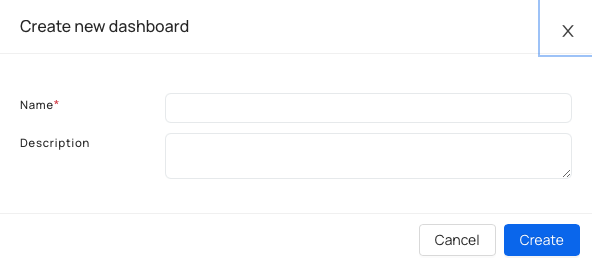
Create a New Dashboard
To create a new vehicle dashboard:
- Navigate to Vehicle > Dashboard.
- Click Create dashboard.
- Enter the following:
- Name — a clear, descriptive dashboard name
- Description (optional) — a short description of the dashboard's purpose
- Click Create.
Add Widgets to a Dashboard
Use the Autogenerate option to automatically create widgets from available device data. This is a convenient way to get started when building a new dashboard.
To add a widget manually:
- Go to your Dashboard and click Actions.
- Click Add widget.
- Select a widget type.
- Configure the widget:
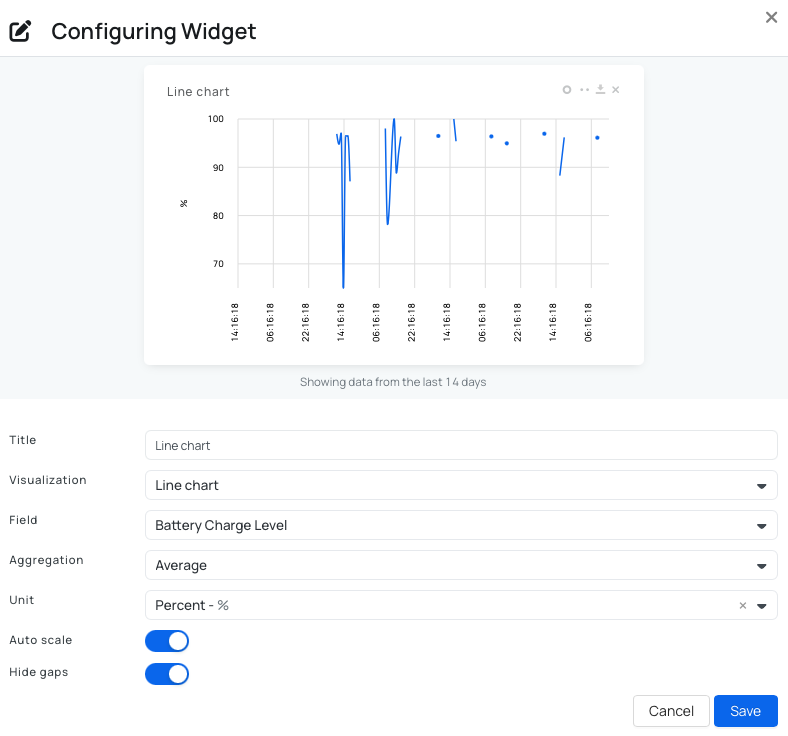
- Title — name displayed on the widget.
- Visualization — chart or display type (line chart, map, gauge, etc.).
- Field — logger or signal to display.
- Aggregation — Average, minimum, maximum, sum, or raw data.
- Unit — unit of measurement shown in the widget.
- Auto scale — automatically scale values to fit the visualization.
- Hide gaps — hide or show periods with no data.
- Click Save, then save the dashboard.
Widget Controls
Each widget includes the following controls in the top-right corner:
| Icon | Action |
|---|---|
| Circle (refresh) | Refresh widget data |
| Two-dot (edit) | Edit the widget |
| Download | Download widget data |
| X (delete) | Remove the widget from the dashboard |
Trips
The Trips section displays detailed information about each vehicle trip, including:
- Trip route on a map.
- Starting and ending addresses.
- Trip duration and distance.
- Trip categorization (personal or business).
- Data export capability.
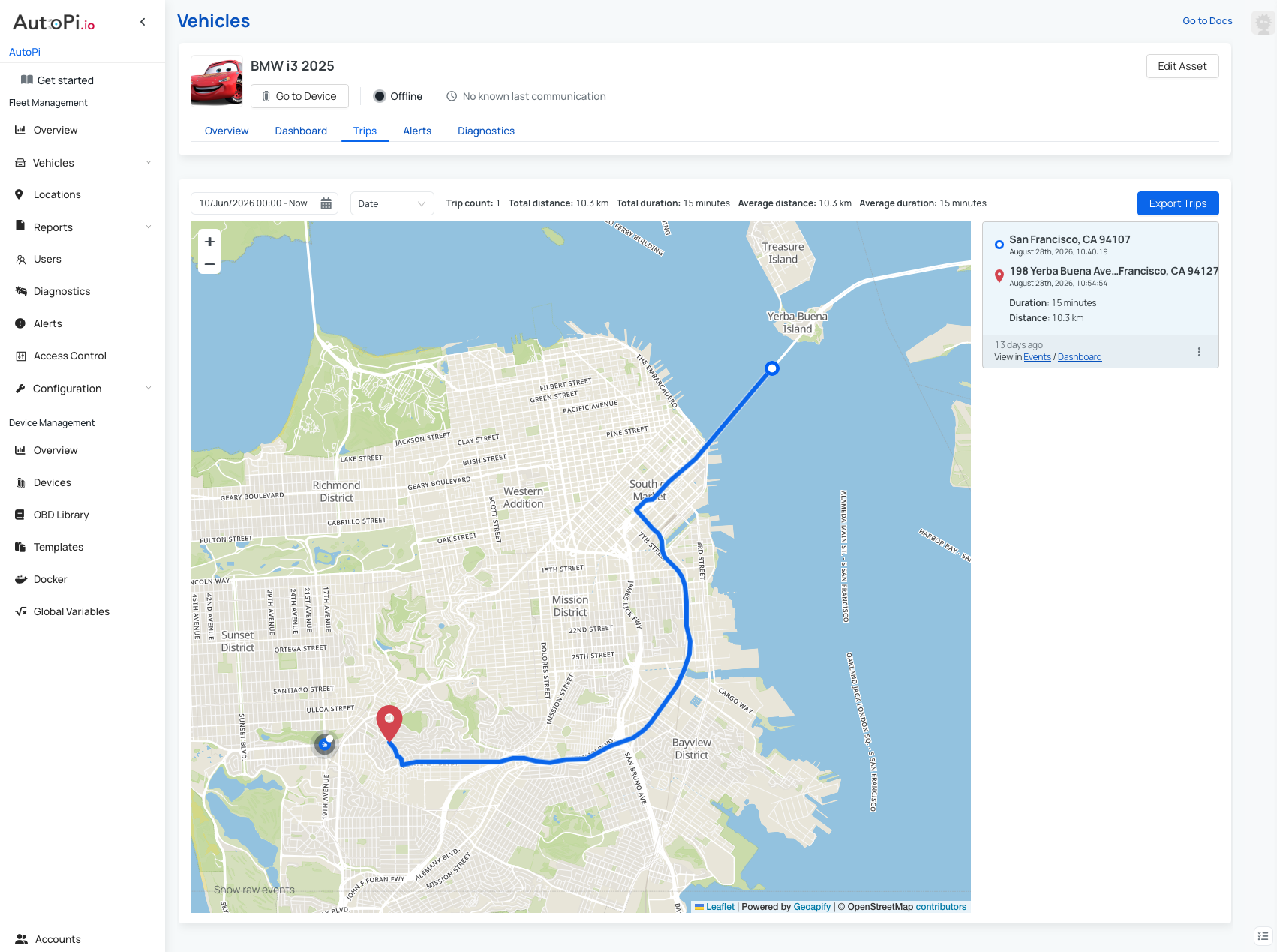
Filter trips by:
- Time range (week, last month, or custom dates).
- Distance.
- Duration.
Click any trip to view its complete route on the map along with the distance traveled and duration.
Trip summary displays:
- Total number of trips.
- Total distance driven.
- Total duration.
- Average distance and duration per trip.
For more detailed information on trip management and analysis, see Trips.
Alerts
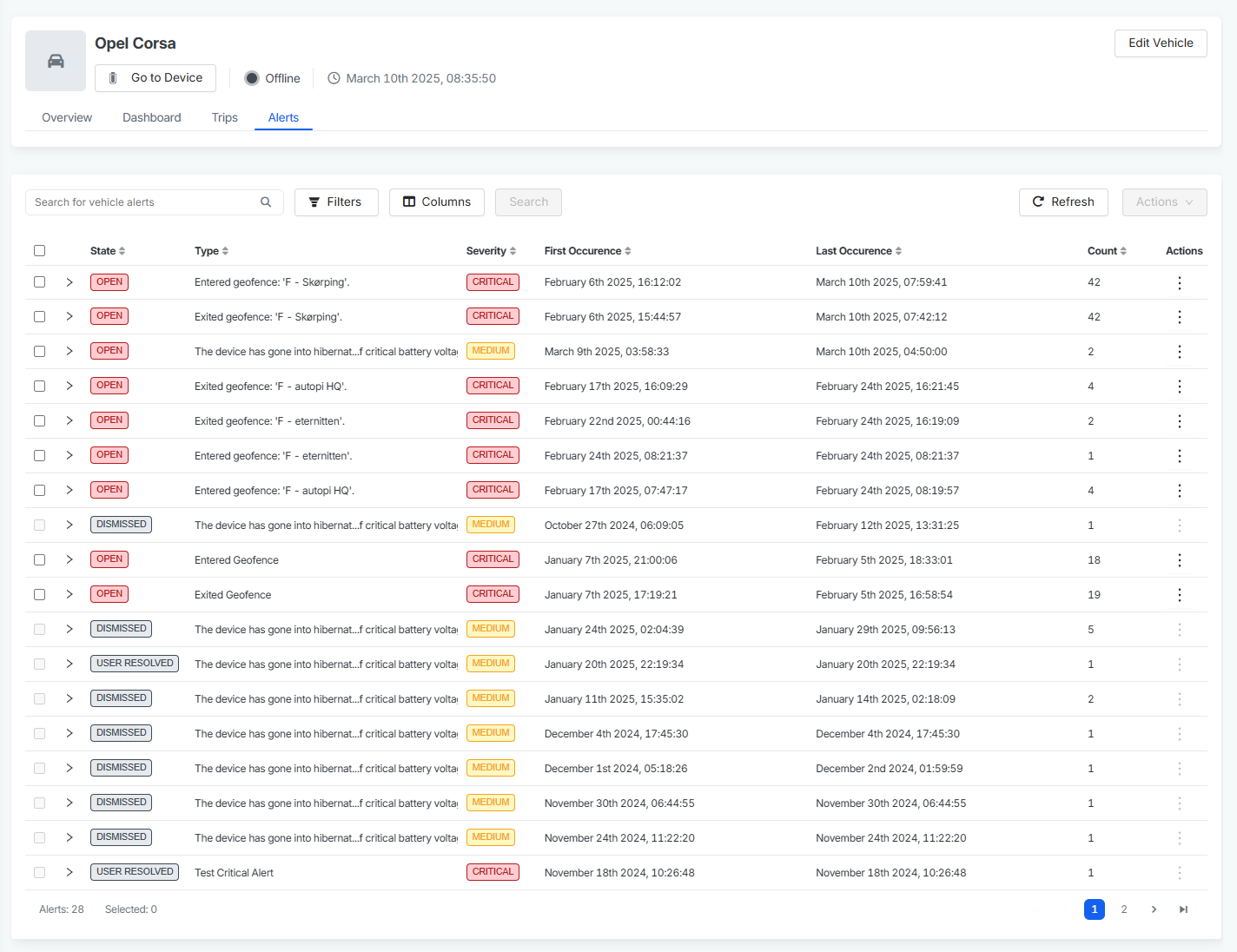
The Alerts tab displays all active vehicle alerts, including severity level, occurrence count, and description. This provides a centralized view of all issues requiring attention for the vehicle.
Alert information includes:
- Severity level — indicates the urgency of the alert (critical, warning, info, etc.)
- Occurrence count — how many times the alert has been triggered
- Description — details about what triggered the alert
You can manage alerts directly from this view by dismissing resolved issues or marking them as resolved. Regular monitoring of active alerts helps you stay informed about vehicle health and respond promptly to any problems.
Diagnostics
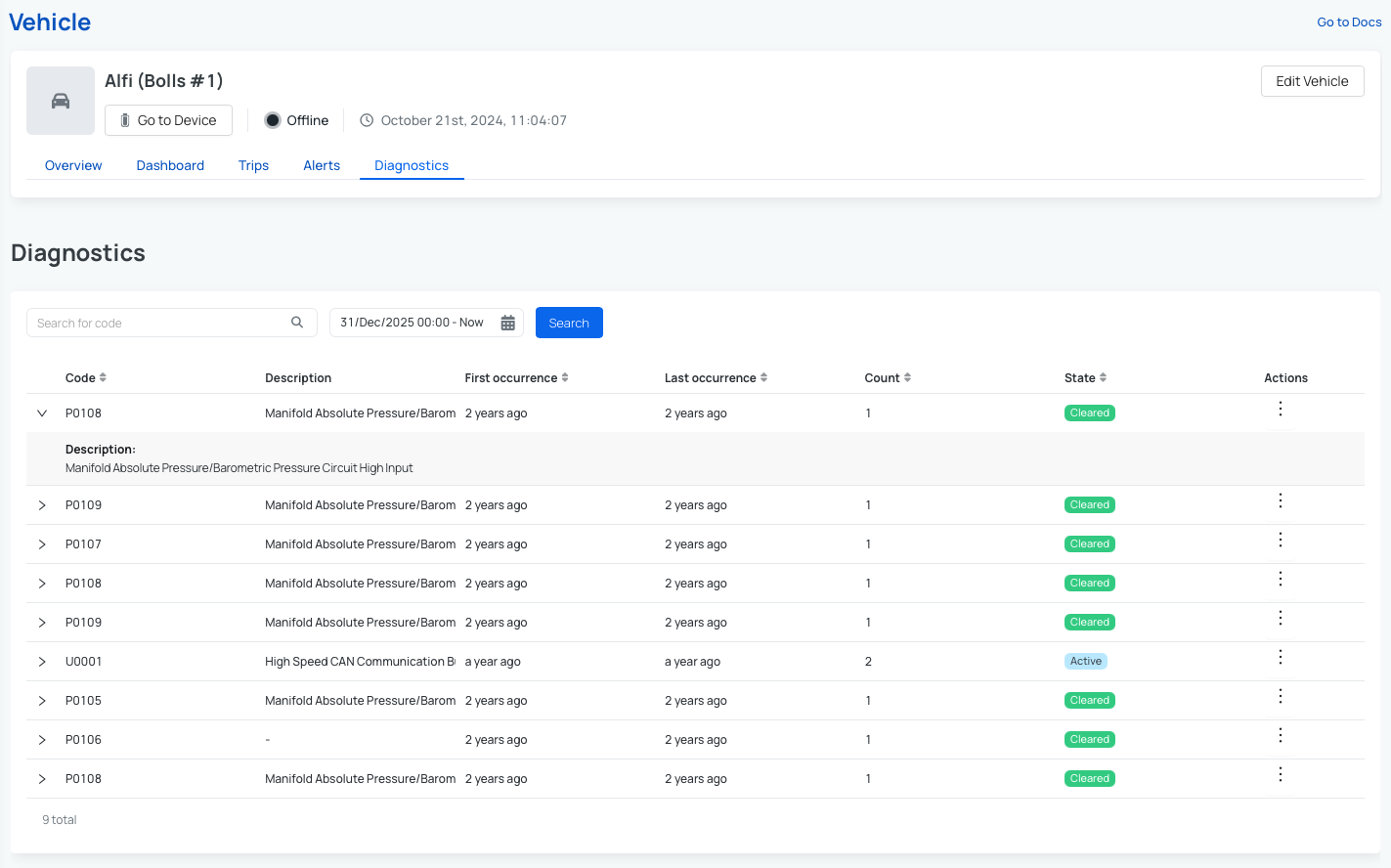
The Diagnostics tab displays all diagnostic error codes currently reported by the vehicle. This provides structured insight into any detected issues.
For each diagnostic code, you can view:
- Error code and description.
- First and last occurrence timestamps.
- Occurrence count.
This information helps you understand not only what the issue is, but also when it first appeared and how frequently it occurs.
Monitoring vehicle health: Use diagnostics alongside Fault Codes to monitor vehicle health in real time. You can:
- Configure cloud alerts or email notifications for critical issues.
- Set up custom Triggers to automate actions based on specific diagnostic codes.
- Respond promptly to detected problems before they become major issues.
 Shop AutoPi devices
 Compare devices
 Contact sales
 Contact support