Geofence Summary Report

The Geofence Report provides insights into vehicle activity within predefined geographic areas. It helps fleet managers:
- Track entries and exits from geofenced zones.
- Monitor unauthorized or unexpected stops.
- Evaluate route adherence and optimize routing efficiency.
List Tab
Use the List tab to review reports that have already been generated. This is the main place to open previous reports, export results, and remove reports you no longer need.
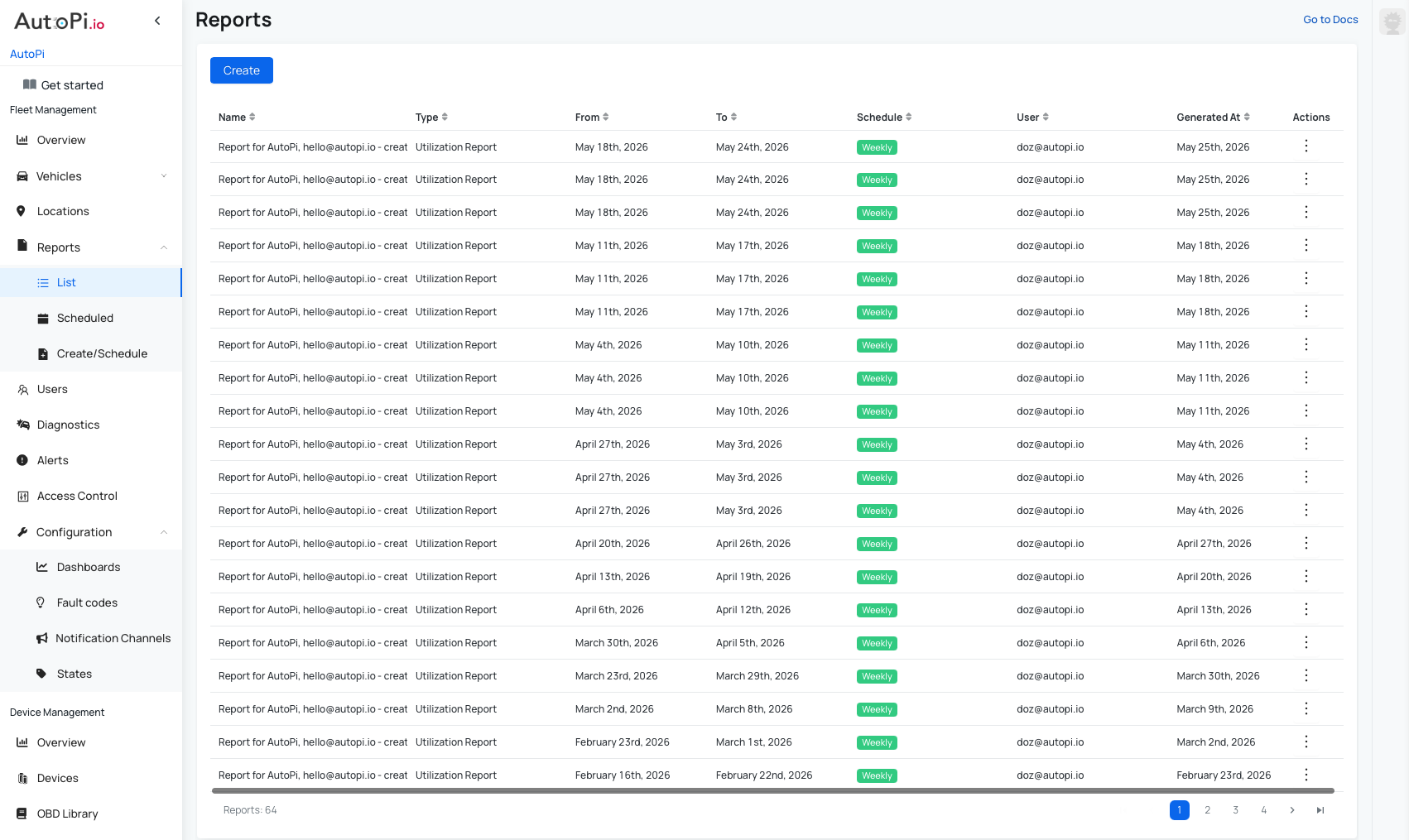
- Access a list of all generated Geofence Reports. The list includes:
- Report name (editable during creation).
- Report type (for example, Geofence Report).
- Date range (from/to).
- Creator name.
- Date and time when the report was generated.
- Actions: Download as PDF or delete the report.
- Click on a report to open its preview.
Schedules Tab
Use the Schedules tab to manage recurring Geofence Summary Reports. It gives you a clear overview of active schedules and quick access to edit or delete them.
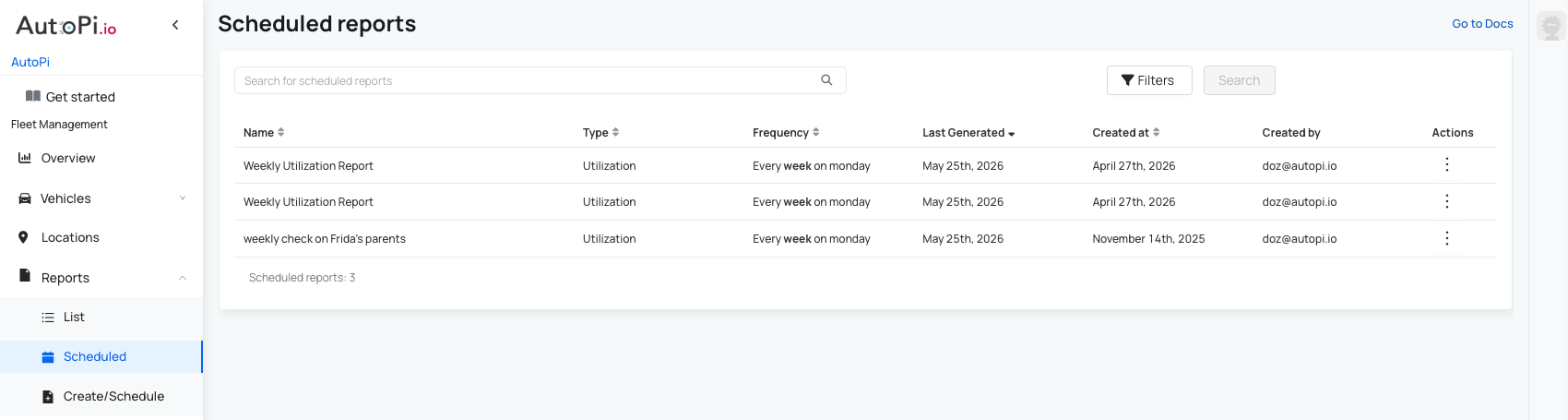
- View all scheduled Geofence Reports, including:
- Report name.
- Report type (for example, Geofence Report).
- Frequency and time of day.
- Last generated date.
- Schedule creation date.
- Creator name.
- Actions: Edit or delete a scheduled report.
Create/Schedule Tab
Use the Create/Schedule tab to configure one-time reports or set up recurring report generation. This tab is where you define report inputs, preview results, and save your configuration.
Creating a Geofence Summary Report
Complete the form below to create a one-time Geofence Summary Report.
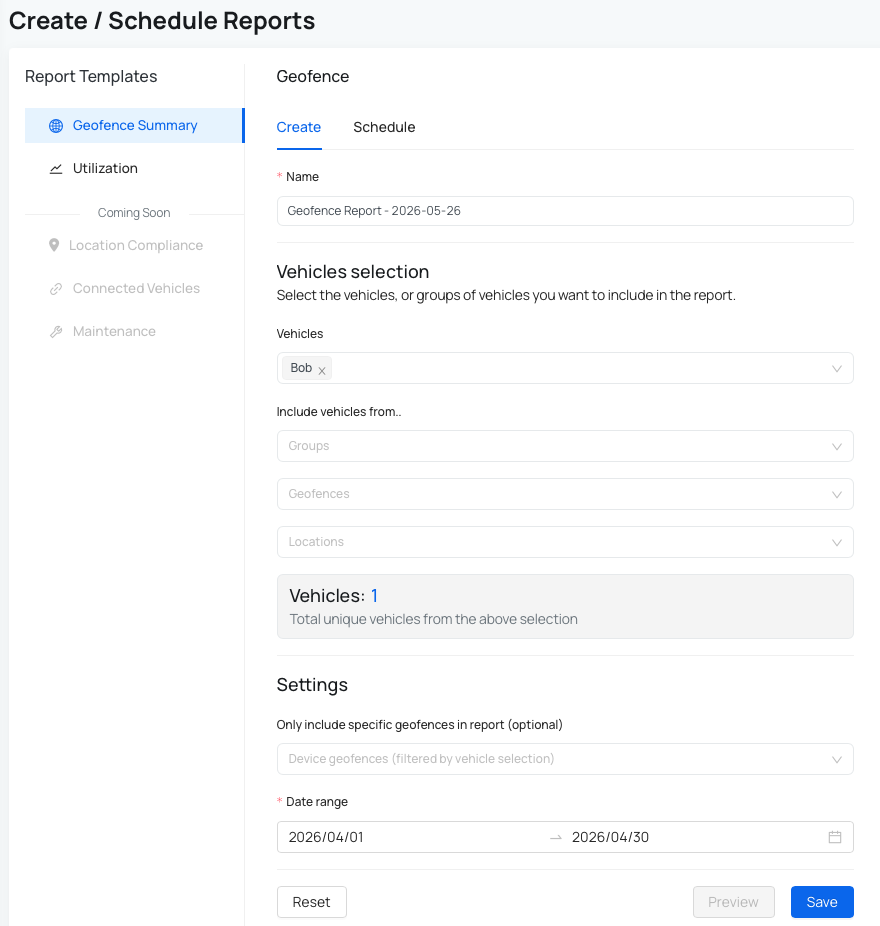
To create a Geofence Summary Report:
- From the AutoPi Cloud platform, navigate to the Reports menu and click Create/Schedule.
- Select Geofence Summary from the available report templates.
- Complete the report form. creation:
- Name: enter a name for the report.
- Vehicles selection: select the vehicles or groups you want to include in the report.
You can:
- select individual vehicles from the Vehicles dropdown.
- use the dropdowns under Include vehicles from.. and choose a vehicle group, fleet geofences, or locations to include all vehicles from those groups.
- Settings:
- Only include specific geofences in report (optional): limit the report to selected geofences.
- Date range: specify the start and end dates for the report.
- Reset: clears all configurations you’ve made.
- Preview: allows you to see how the report will look before saving.
- Save: saves the report and displays it under Reports - List.
Scheduling a Geofence Summary Report
After creating a Geofence Summary Report, you can schedule it to run at regular intervals (daily, weekly, or monthly). Scheduled reports are automatically generated and displayed under Reports - Schedules.
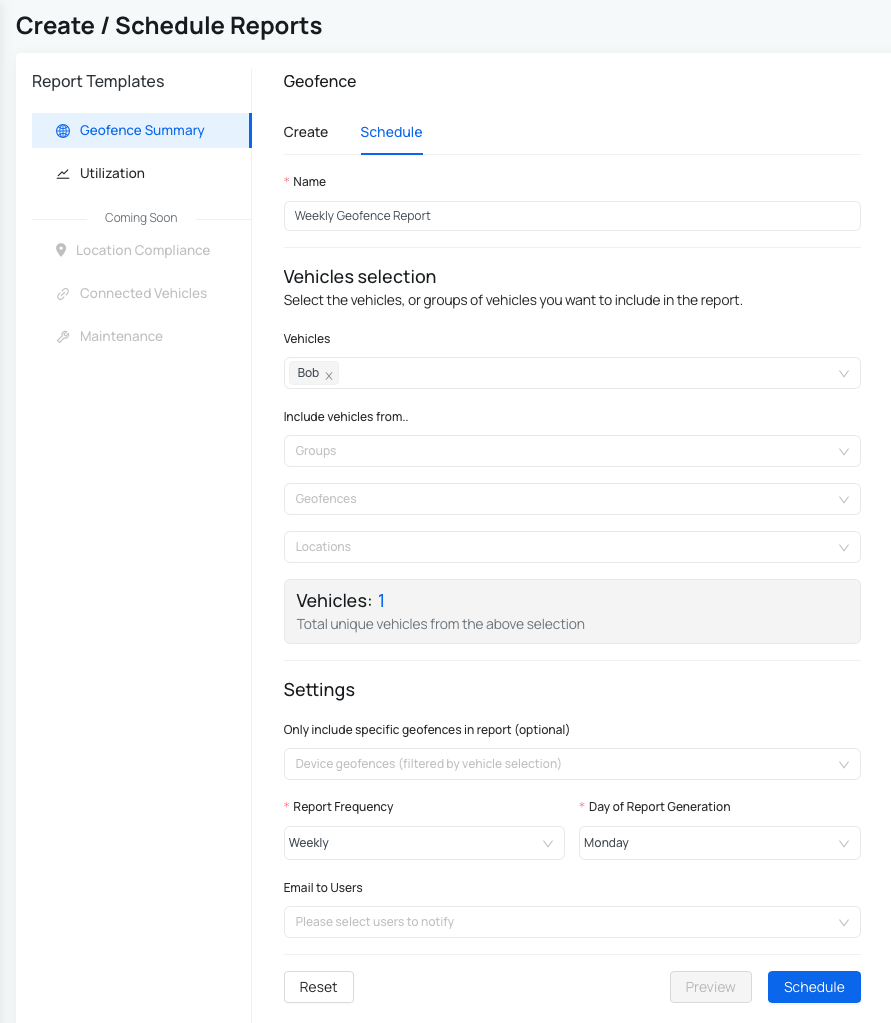
To create a schedule:
- Navigate to the Reports menu and click Create/Schedule.
- Select Geofence Summary from the available report templates and click Schedule next to Create to open the scheduling window.
- Complete the schedule form:
- Schedule Name: Automatically generated based on the frequency, but you can customize it.
- Vehicles/Include vehicles from: Select vehicles or vehicle groups for the scheduled report. Use the same selection flow as in report creation.
- Settings:
- Only include specific geofences in report (optional): limit the report to selected geofences.
- Report Frequency: select Daily, Weekly, or Monthly (one option at a time) for report frequency.
- Time/Day of Report Generation: specify the day or time of the report generation.
- Reset: clears all configurations you’ve made.
- Preview: allows you to see how the report will look before saving.
- Save: saves the report and displays it under Reports - List.
How fields in the geofence report are calculated
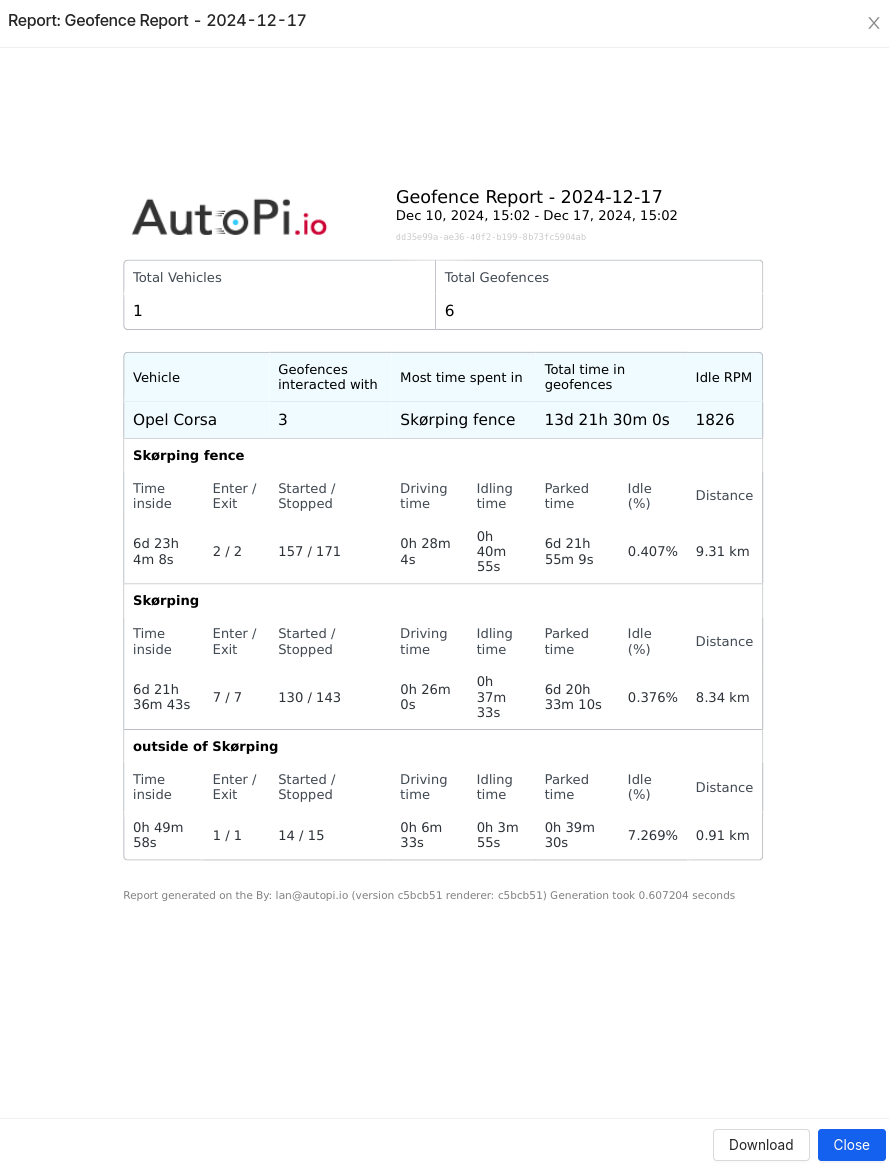
The fields in the Geofence Report are generated using data from GPS locations, accelerometer readings, and other device events. Below is a breakdown of how each field is calculated:
- Total vehicles: Displays the total number of vehicles selected when creating the report.
- Total geofences: Shows the total number of geofences selected during report creation.
- Geofences interacted with: Shows how many of the selected geofences were interacted with by any selected vehicle. This value is a subset of Total geofences.
- Most time spent in: Identifies the geofence where a vehicle spent the
most time. This is calculated by measuring the duration between vehicle
enter and exit events for each geofence.
- Detailed information, such as total time spent, number of entries, and exits, is available in the report fields below.
- Total time in geofences: The cumulative time each selected vehicle spent inside any selected geofence.
- Time inside: For each geofence, this field shows the total time a vehicle spent within that geofence. It is calculated as the sum of all durations between entry and exit events.
- Enter/Exit: This field counts how many times a vehicle entered and exited
a specific geofence. It is determined based on:
- Entry events: Recorded as
vehicle/geofence/*/enter. - Exit events: Recorded as
vehicle/geofence/*/exit. - You can view these events under Device -> Events and apply the relevant filters.
- Entry events: Recorded as
- Started: Counts how many times a vehicle started within a specific geofence.
This is based on accelerometer data detecting motion events:
- Filter:
vehicle/motion/shaking.
- Filter:
- Stopped: Counts how many times a vehicle stopped within a specific geofence.
This is also based on accelerometer data:
- Filter:
vehicle/motion/steady.
- Filter:
- Idling time: Displays the total time a vehicle spent idling within a
geofence. It is calculated as follows:
- Idling: The engine RPM is between 0 and a predefined idle RPM threshold (configurable per vehicle).
- Data source:
obd.rpm.value.
- Driving time: Indicates active driving time within the geofence. This is determined when the engine RPM is higher than the idle threshold.
- Parked: Shows the total time a vehicle was parked in a geofence. It is calculated as:
- Parked time = total time spent in the geofence - (driving time + idling time).
- Distance: Displays the total distance driven within a specific geofence. This is calculated using GPS points logged while the vehicle was inside the geofence.
 Shop AutoPi devices
 Compare devices
 Contact sales
 Contact support