Utilization report


The Utilization Report provides insights into how your vehicles or fleet are being used over a selected period. It helps you understand activity levels, idle time, and overall utilization to optimize operations and improve efficiency.
Viewing the Utilization Report
By default, working hours are set to 08:00 – 16:00.
The utilization report provides an overview of your vehicle or fleet for the selected time period, including:
- Active time
- Total time
- Inactive time
- Inactive time (%)
The report also highlights:
- The total number of vehicles included.
- A breakdown per individual vehicle.
Example of the Utilization Report:

This makes it easy to compare utilization across vehicles and identify opportunities to improve efficiency.
List Tab
Use the List tab to review utilization reports that have already been generated. This is the main place to open previous reports, export results, and remove reports you no longer need.
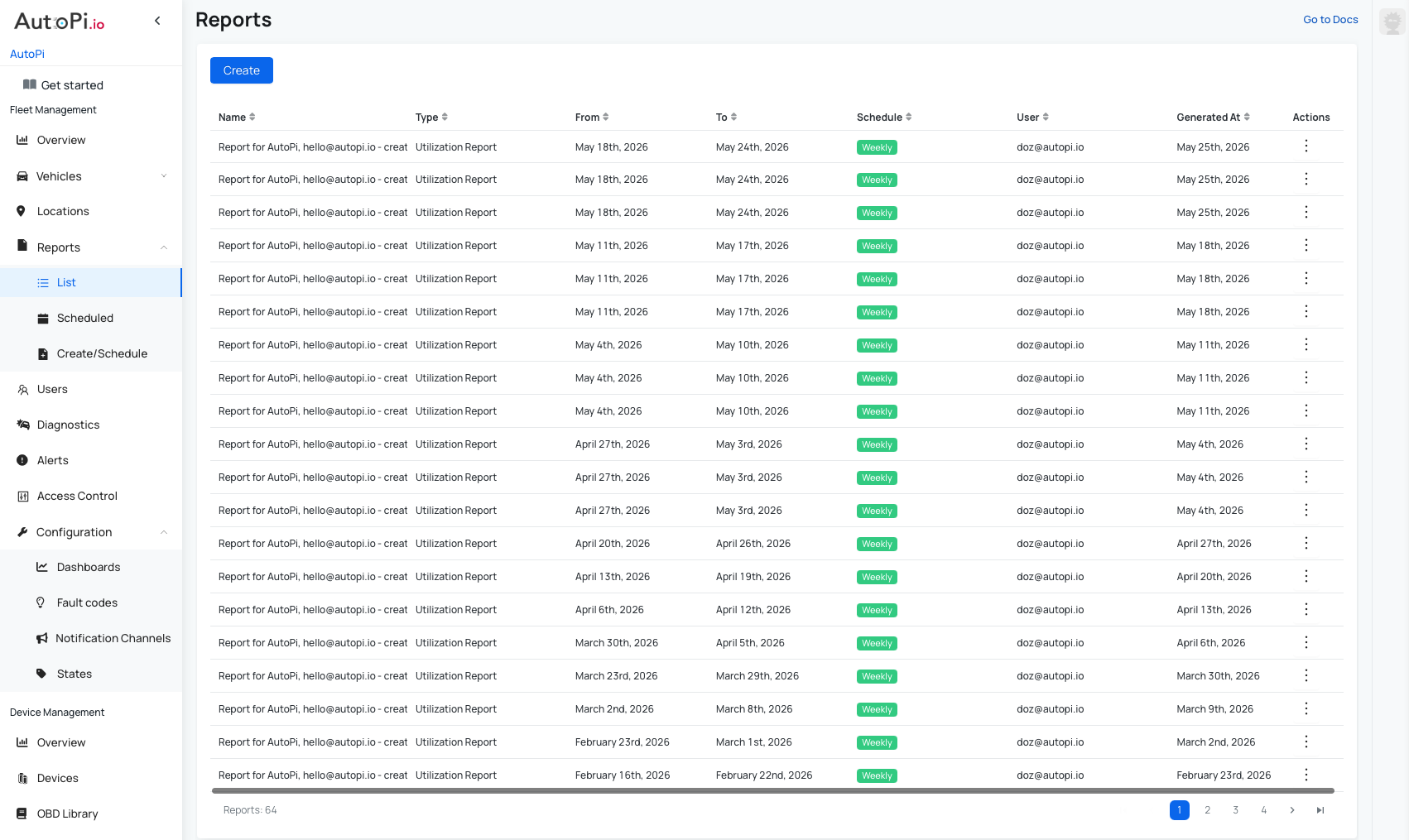
- Access a list of all generated Utilization Reports. The list includes:
- Report name (editable during creation).
- Report type (for example, Utilization Report).
- Date range (from/to).
- Creator name.
- Date and time when the report was generated.
- Actions: Download as PDF or delete the report.
- Click on a report to open its preview.
Schedules Tab
Use the Schedules tab to manage recurring Utilization Reports. It gives you a clear overview of active schedules and quick access to edit or delete them.
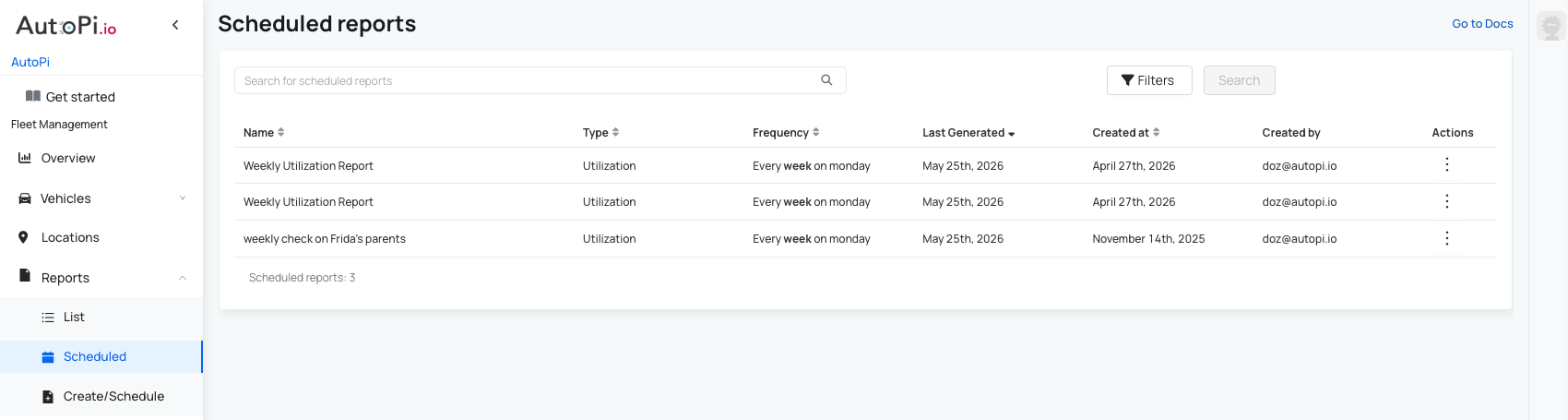
- View all scheduled Utilization Reports, including:
- Report name.
- Report type (for example, Utilization Report).
- Frequency and time of day.
- Last generated date.
- Schedule creation date.
- Creator name.
- Actions: Edit or delete a scheduled report.
Create/Schedule Tab
Use the Create/Schedule tab to configure one-time reports or set up recurring report generation. This tab is where you define report inputs, preview results, and save your configuration.
Creating a Utilization Report
Complete the form below to create a one-time Utilization Report.
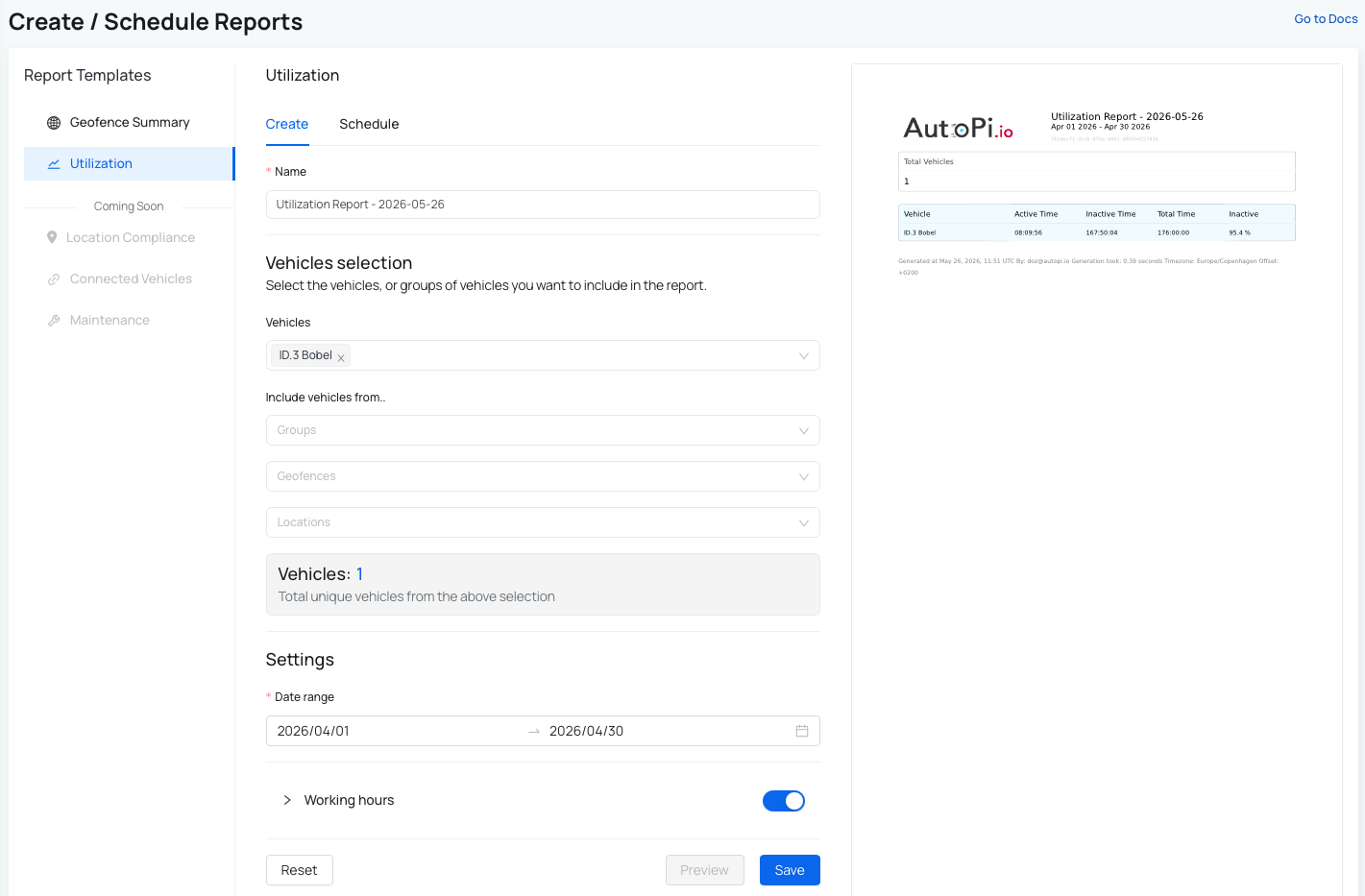
To create a Utilization Report:
- From the AutoPi Cloud platform, navigate to the Reports menu and click Create/Schedule.
- Select Utilization from the available report templates.
- Complete the report form:
- Name: enter a name for the report.
- Vehicles selection: select the vehicles or groups you want to include in the report.
You can:
- Select individual vehicles from the Vehicles dropdown.
- Use the dropdowns under Include vehicles from.. and choose a vehicle group, fleet geofences, or locations to include all vehicles from those groups.
- Settings:
- Working hours (optional): define the time range considered as working hours for utilization calculations. The default is 08:00 – 16:00. Click Set as default to apply these working hours to future reports.
- Date range: specify the start and end dates for the report.
- Reset: clears all configurations you've made.
- Preview: allows you to see how the report will look before saving.
- Save: saves the report and displays it under Reports - List.
Scheduling a Utilization Report
After creating a Utilization Report, you can schedule it to run at regular intervals (daily, weekly, or monthly). Scheduled reports are automatically generated and displayed under Reports - Schedules.
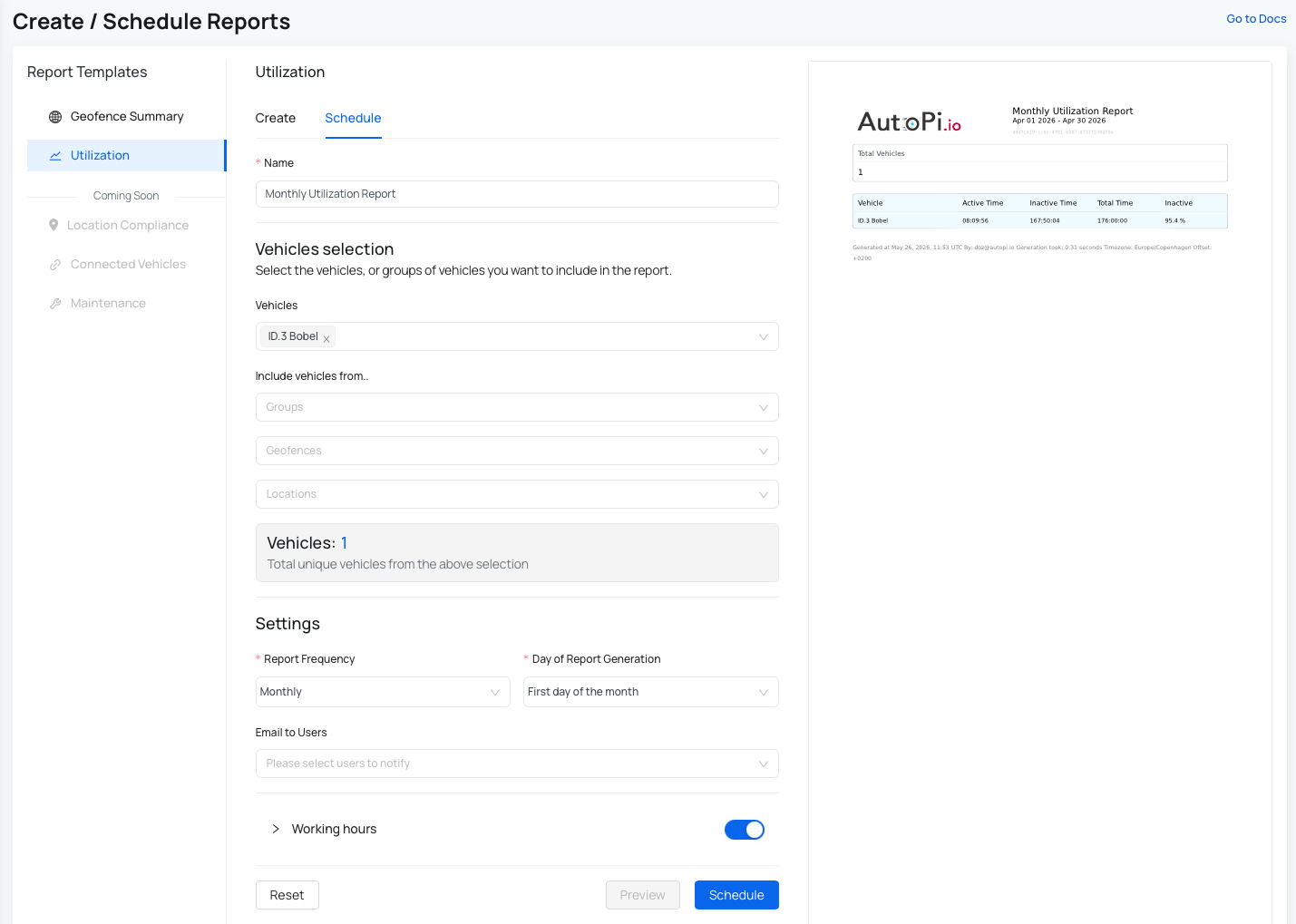
To create a schedule:
- Navigate to the Reports menu and click Create/Schedule.
- Select Utilization from the available report templates and click Schedule next to Create to open the scheduling window.
- Complete the schedule form:
- Schedule Name: automatically generated based on the frequency, but you can customize it.
- Vehicles/Groups: select vehicles or vehicle groups for the scheduled report. Use the same selection flow as in report creation.
- Settings:
- Report Frequency: select Daily, Weekly, or Monthly (one option at a time).
- Time/Day of Report Generation: select the specific day or time for report generation based on the chosen frequency.
- Email to users (optional): enter email addresses that should receive the report. The report will be available in Reports → List and a copy will also be sent to the specified email addresses.
- Working hours (optional): define working hours for utilization calculations. The default is 08:00 – 16:00. Click Set as default to apply these working hours to future reports.
- Reset: clears all configurations you've made.
- Preview: allows you to see how the report will look before saving.
- Save: saves the scheduled report and displays it under Reports - Schedules.
 Shop AutoPi devices
 Compare devices
 Contact sales
 Contact support