AutoPi Local API Overview
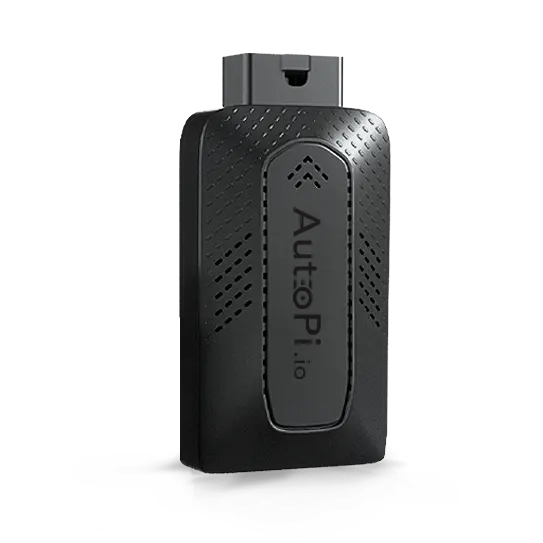
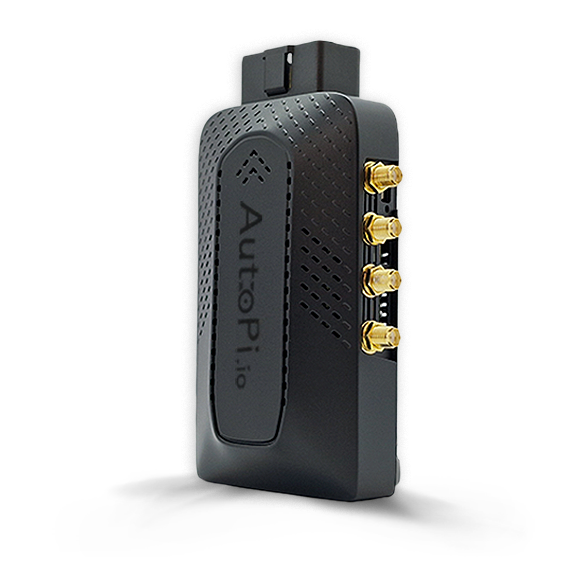
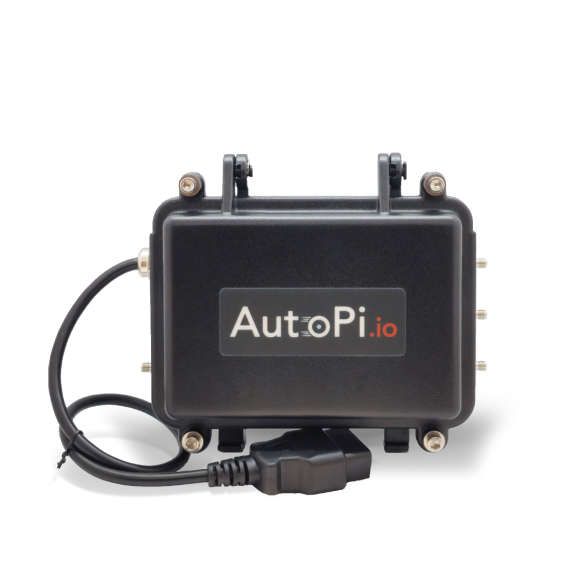
This guide will walk you through using the AutoPi Local API to interact with your device directly over the local network. You'll learn how to authenticate, execute commands, retrieve device information, download logs, and configure network and APN settings through REST endpoints accessible on port 9000.
The Local API provides direct device control without requiring an internet connection or cloud platform access. It's useful for local development, testing, configuration management, and troubleshooting when your device is on the same network as your computer or client application.
Key capabilities:
- Authentication — obtain JWT tokens for API access.
- Device Management — query device information and connected units.
- Command Execution — run AutoPi commands and state configurations.
- Log Access — download system and application logs.
- Network Configuration — manage WiFi and cellular (APN) settings.
Authentication
POST /auth/login/
Returns a static token and information about the local user and device.
Curl Example:
curl -X POST http://<device-ip>:9000/auth/login/
Response:
{
  "token": "<jwt_token>",
  "user": {
    "pk": 0,
    "username": "local user",
    "has_devices": true,
    "is_local": true,
    "devices": [
      {
        "unit_id": "<uuid>",
        "display": "Local device"
      }
    ],
    "timezone": "UTC"
  }
}
Device Info
GET /
Returns the device's unique unit ID.
Curl Example:
curl http://<device-ip>:9000/
Response:
{
  "unit_id": "<uuid>"
}
GET /dongle/devices/
Returns a list of available local devices.
Curl Example:
curl http://<device-ip>:9000/dongle/devices/
Response:
[
  {
    "unit_id": "<uuid>",
    "display": "Local device"
  }
]
Log File Download
GET /download_log/?file=<filename>
Downloads a specified log file from the device.
Query Parameters:
file: Name of the log file to download (e.g.,syslog,salt/minion)
Curl Example:
curl -O http://<device-ip>:9000/download_log/?file=syslog
Command Execution
POST /dongle/<unit_id>/execute/
Executes a structured command on the device.
The reason that you need the unit_id is because we need to make sure that the request is actually meant for that specific device when using the endpoint from another connected device, like when using the local configuration tool.
The unit_id can be retrieved one of the following ways A. Calling the root route
GET localhost:9000
B. Reading it from the file
/etc/salt/minion_id
Request Body:
{
  "command": "cmd.run",
  "arg": ["ls", "-l"],
  "kwarg": {}
}
Curl Example:
curl -X POST http://<device-ip>:9000/dongle/<unit_id>/execute/ \
  -H "Content-Type: application/json" \
  -d '{"command": "cmd.run", "arg": ["ls", "-l"], "kwarg": {}}'
Response:
Returns the command output as JSON.
The above commands can also be executed in raw format using the below endpoint.
POST /dongle/<unit_id>/execute_raw/
Executes a raw command string.
Request Body:
{
  "command": "cmd.run ls -l"
}
Curl Example:
curl -X POST http://<device-ip>:9000/dongle/<unit_id>/execute_raw/ \
  -H "Content-Type: application/json" \
  -d '{"command": "cmd.run ls -l"}'
Response:
Returns the command output as JSON.
Saving and applying WiFi networks
To save WiFi credentials on the device:
Command:
{
  "command": "grains.set",
  "arg": ["wpa_supplicant:networks", [
    { "ssid": "Network-1", "psk": "password1", "priority": 2 },
    { "ssid": "Network-2", "psk": "password2", "priority": 1 }
  ]],
  "kwarg": {
    "destructive": true,
    "force": true
  }
}
Curl Example:
curl -X POST http://<device-ip>:9000/dongle/<unit_id>/execute/ \
  -H "Content-Type: application/json" \
  -d '{
    "command": "grains.set",
    "arg": ["wpa_supplicant:networks", [
      { "ssid": "Network-1", "psk": "password1", "priority": 2 },
      { "ssid": "Network-2", "psk": "password2", "priority": 1 }
    ]],
    "kwarg": { "destructive": true, "force": true }
  }'
Then, to apply the changes and reconfigure the WiFi service:
Command:
{
  "command": "state.sls",
  "arg": ["network.wlan.client.config"],
  "kwarg": {}
}
Curl Example:
curl -X POST http://<device-ip>:9000/dongle/<unit_id>/execute/ \
  -H "Content-Type: application/json" \
  -d '{
    "command": "state.sls",
    "arg": ["network.wlan.client.config"],
    "kwarg": {}
  }'
APN Settings
GET /dongle/<unit_id>/settings/apn/
Retrieves current APN settings.
Curl Example:
curl http://<device-ip>:9000/dongle/<unit_id>/settings/apn/
Response:
{
  "apn": "internet",
  "user": "user",
  "pass": "pass",
  "pin": "0000",
  "mtu": 1280
}
PUT /dongle/<unit_id>/settings/apn/
Updates the APN configuration.
Request Body:
{
  "apn": "internet",
  "user": "user",
  "pass": "pass",
  "pin": "0000",
  "mtu": 1280
}
Curl Example:
curl -X PUT http://<device-ip>:9000/dongle/<unit_id>/settings/apn/ \
  -H "Content-Type: application/json" \
  -d '{"apn": "internet", "user": "user", "pass": "pass", "pin": "0000", "mtu": 1280}'
Response:
Returns the updated APN configuration.
Then, to apply the changes and reconfigure the QMI service:
Command:
{
  "command": "state.sls",
  "arg": ["network.wwan.qmi.config"],
  "kwarg": {}
}
Curl Example:
curl -X POST http://<device-ip>:9000/dongle/<unit_id>/execute/ \
  -H "Content-Type: application/json" \
  -d '{
    "command": "state.sls",
    "arg": ["network.wwan.qmi.config"],
    "kwarg": {}
  }'
Error Responses
All endpoints return structured error responses if something goes wrong.
Example:
{
  "error": "unit_id does not match the id configured on this device"
}
 Buy AutoPi device
 Compare all AutoPi devices
 Contact our sales team
 Contact our support team