Dashboards

Shared Dashboards allow you to create and manage dashboards that are automatically applied to multiple vehicles based on defined rules. This makes it easy to standardize data visualization across fleets without configuring dashboards individually for each vehicle.
In addition to Shared Dashboards, AutoPi also provides:
Dashboards Overview
Dashboards provide a visual representation of real-time and historical data from your vehicles and devices. Data can be displayed using a variety of widget types, including:
- Line chart
- Area chart
- Map
- Heatmap
- Gauge
- Bar chart
- Pie chart
- State timeline
- Linear gauge
- Numeric
AutoPi supports three types of dashboards:
- Autogenerated – automatically created based on the data received from a device.
- Mine – dashboards manually created by a user.
- Shared – dashboards created by an administrator and shared automatically with vehicles that match specific criteria.
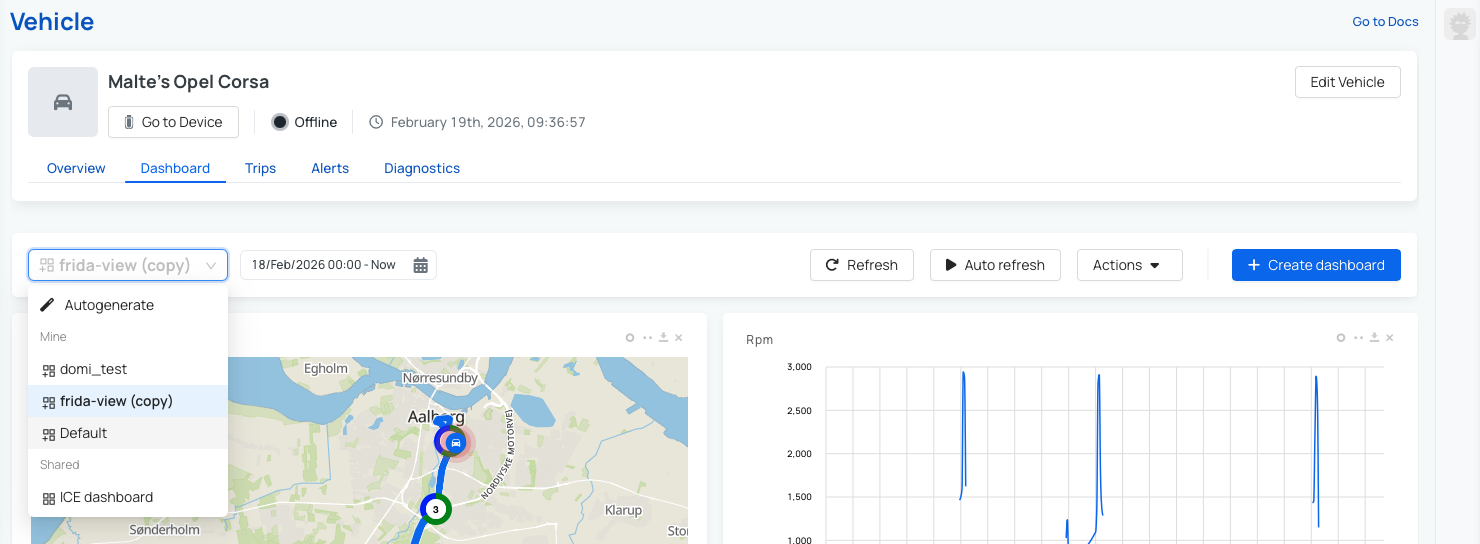
This guide focuses on Shared Dashboards.
Creating a Shared Dashboard
Step 1: Create a New Shared Dashboard
To create a shared dashboard:
- Navigate to Configuration → Dashboards.
- Click Create.
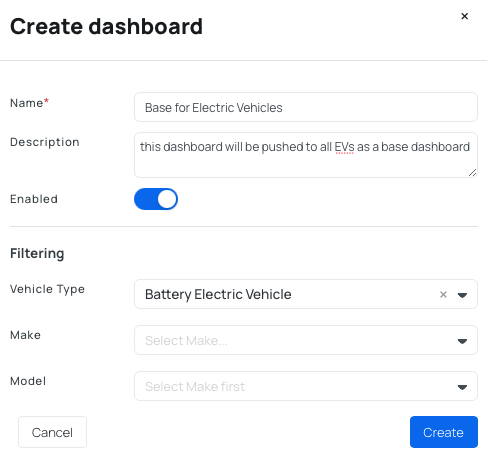
Fill in the following information:
Basic Information
- Name – choose a clear and descriptive name.
- Description (optional) – add details to help differentiate dashboards.
- Enabled – Toggle whether the dashboard is active or inactive.
Filtering
Filtering determines which vehicles the dashboard is automatically applied to. These filters are hierarchical:
- If you select only Vehicle Type, the dashboard is applied to all vehicles of that type (for example, all EVs).
- If you select Vehicle Type + Make, it applies only to vehicles of that make and type.
- If you select Vehicle Type + Make + Model, it applies only to that specific model.
Available filters:
- Vehicle type – Battery electric, hybrid electric, plug-in hybrid, or internal combustion engine.
- Make – Vehicle manufacturer.
- Model – Specific vehicle model.
Once saved, the new shared dashboard will appear in the dashboards table.
Shared Dashboards are available only to users with the account_administrator permission. If your user does not have this permission, the functionality will not be visible. You can read more about permissions in this guide: Accounts permissions.
Step 2: Add Widgets to the Shared Dashboard
After creating the shared dashboard and defining which vehicles it applies to, you can design its layout by adding widgets.
To make widget creation easier:
- Select the dashboard from the table.
- In the top-left corner, choose a vehicle to use as a data source.
- Select a timeframe.
Using real vehicle data helps ensure charts and widgets are configured correctly.
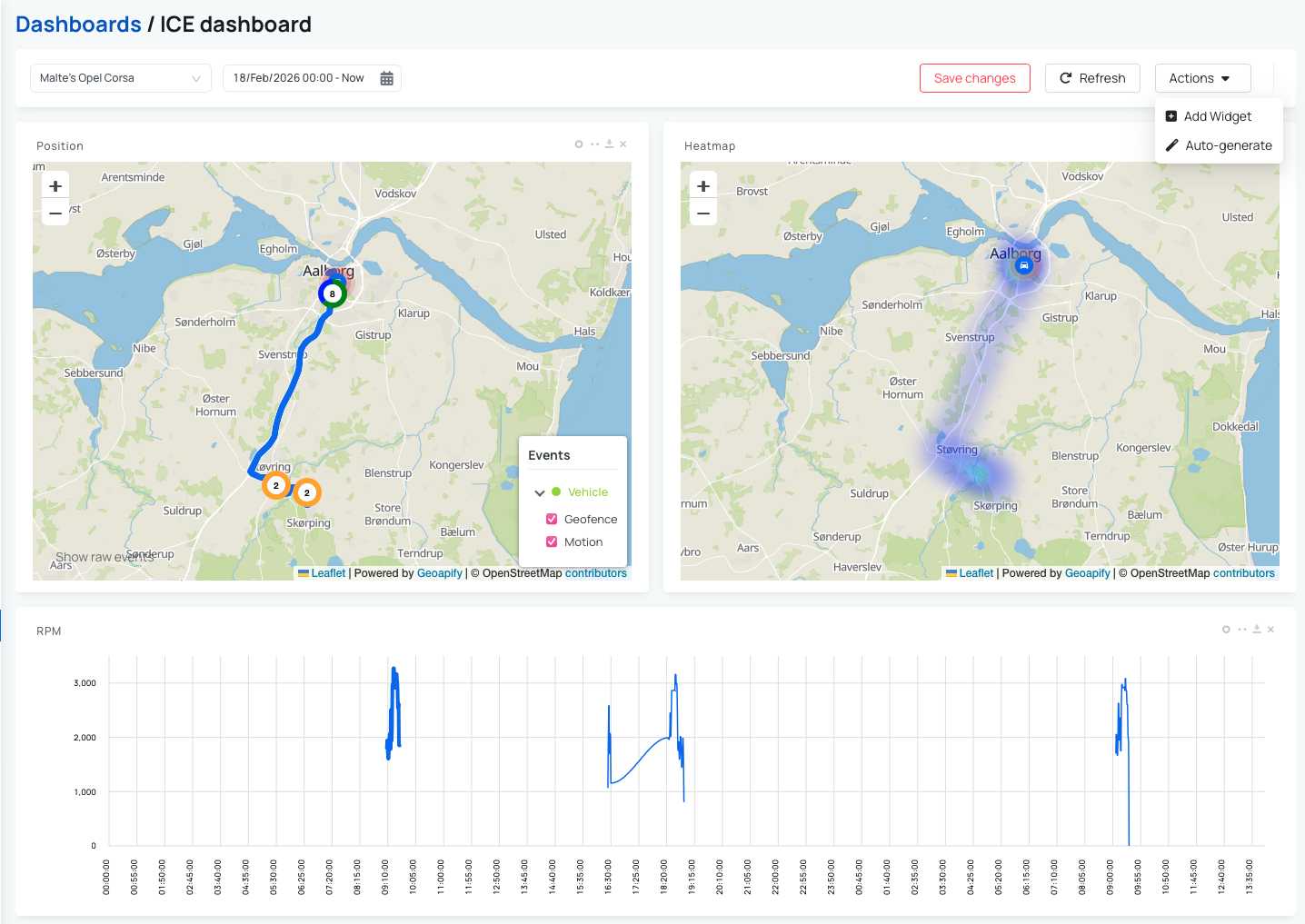
The Autogenerate option creates widgets automatically based on data available from the selected vehicle. This is useful when building a dashboard from scratch, as it provides a solid starting point that can later be edited or used as is.
To add a widget manually:
- Click Add widget.
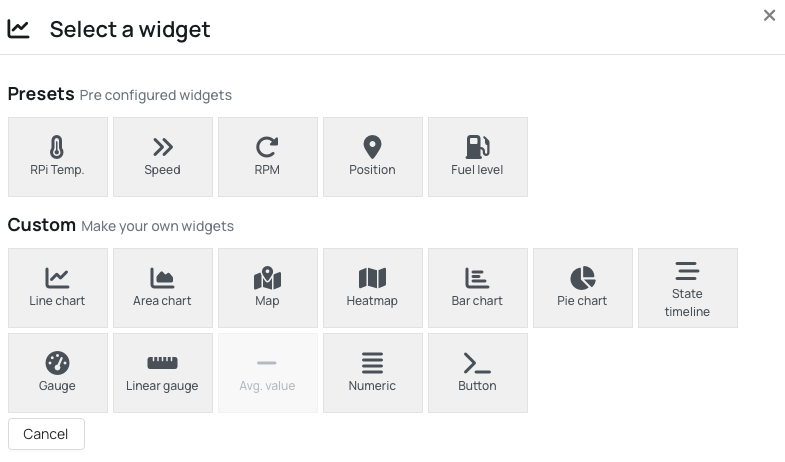
- Select the widget type.
- Configure the following fields:
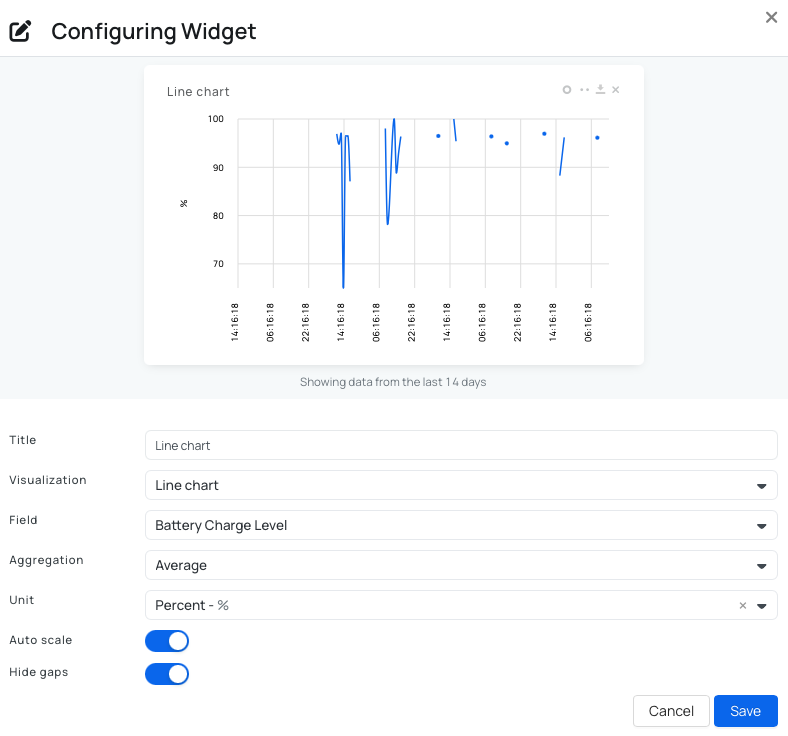
- Title – name of the widget.
- Visualization – chart or display type (line chart, map, gauge, etc.).
- Field – logger or signal to display.
- Aggregation – average, minimum, maximum, sum, or raw data.
- Unit – unit displayed on the widget.
- Auto scale – automatically scale values.
- Hide gaps – hide/show gaps where data was not received.
Save the widget and then save the dashboard changes. The widget is now part of the shared dashboard.
How to Edit Shared Dashboard?
There are several built-in actions that help you manage your Shared Dashboards efficiently. These actions allow you to maintain, reuse, or clean up dashboards as your needs evolve.
The available actions are:
- Edit – modify the dashboard layout and widgets.
- Duplicate – create a copy of an existing dashboard to reuse or extend it.
- Delete – permanently remove a shared dashboard.
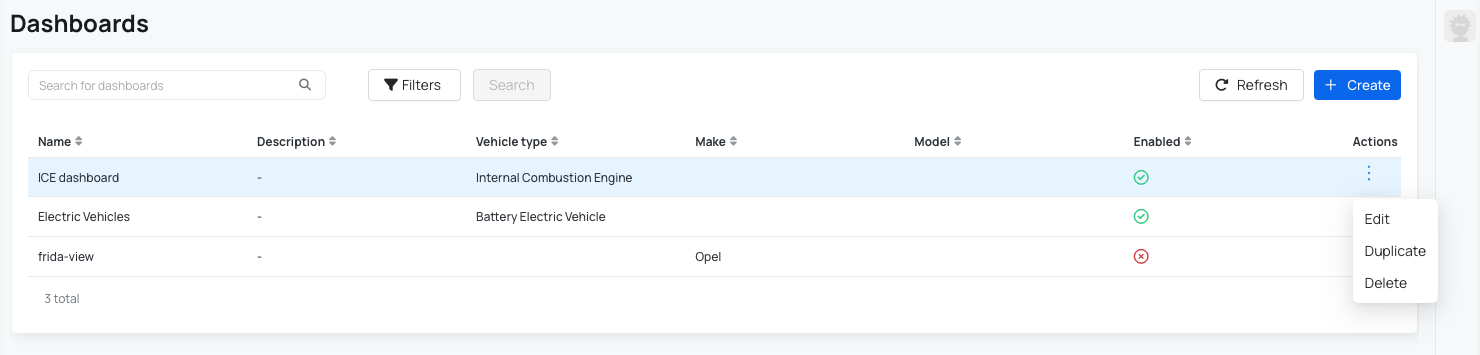
You can access all of these actions directly from the Dashboards table. In the Actions column, click the three-dot menu next to the desired dashboard to see the available options.
 Buy AutoPi device
 Compare all AutoPi devices
 Contact our sales team
 Contact our support team