Utilization report



The Utilization Report provides a clear overview of how your vehicles, or your entire fleet, are being used over a selected period of time. It helps you understand activity levels, idle time, and overall utilization so you can optimize operations and improve efficiency.
Viewing the Utilization Report
By default, working hours are set to 08:00 – 16:00.
The utilization report provides an overview of your vehicle or fleet for the selected time period, including:
- Active time
- Total time
- Inactive time
- Inactive time (%)
The report also highlights:
- The total number of vehicles included.
- A breakdown per individual vehicle.

This makes it easy to compare utilization across vehicles and identify opportunities to improve efficiency.
Create a New Utilization Report
To generate a one-time utilization report:
- Navigate to Reports → Create / Schedule.
- Select Utilization as the report type.
- Stay on the Create tab.
- Fill in the following fields:
- Report name – give your report a descriptive name.
- Vehicles / Groups – select the vehicles or vehicle groups to include.
- Geofences / Locations (optional) – instead of selecting vehicles individually, you can choose a geofence or location to automatically include all associated vehicles.
- Date range – select the time period the report should cover.
- Working hours – define the time range considered as working hours (if applicable).
- Default working hours are 08:00 – 16:00.
- You can edit these by clicking the arrow.
- Optionally, click Set as default to apply these working hours to future reports.
- Click Preview to preview the report.
- Click Save.
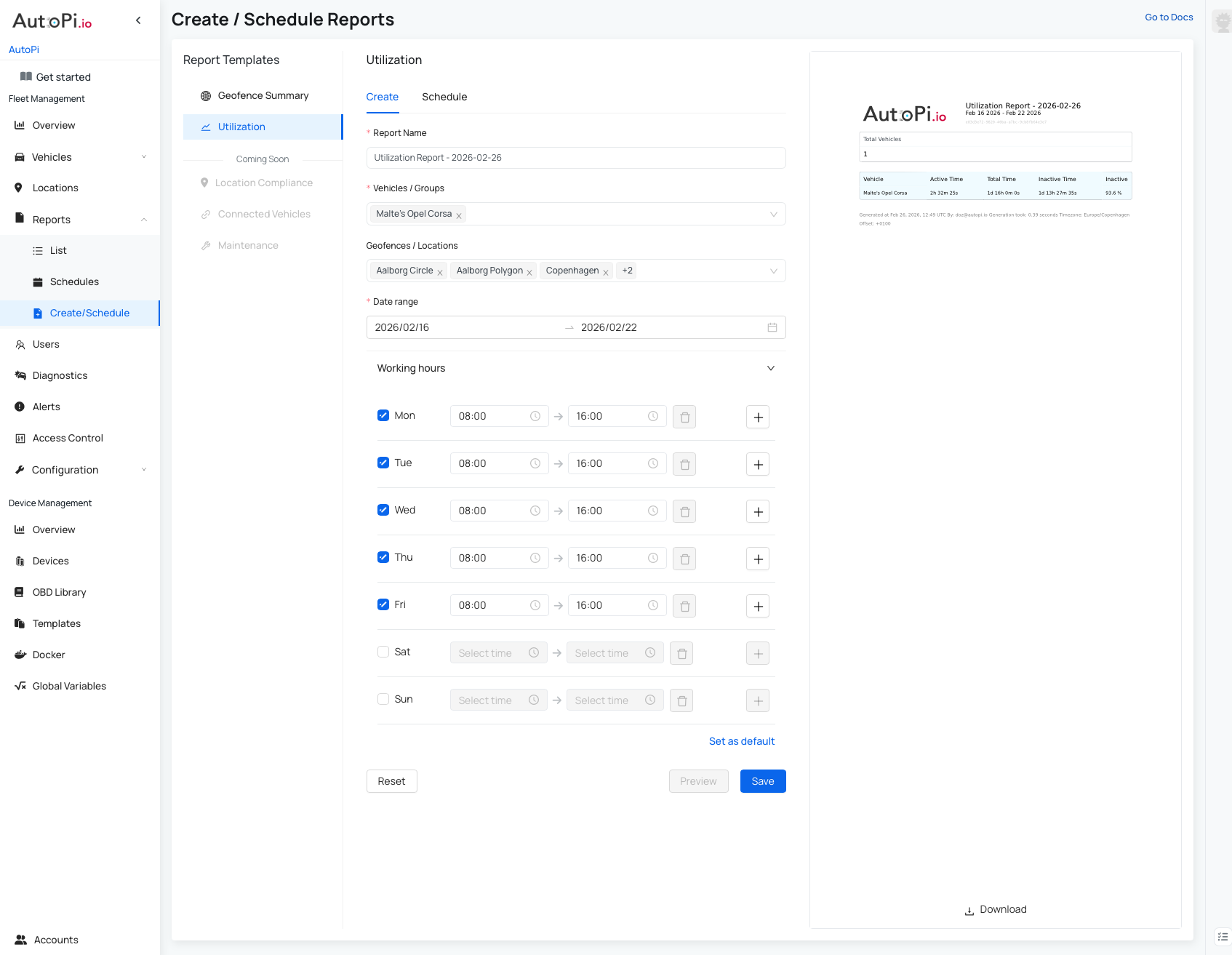
Your report is now created and will appear under Reports → List.
Schedule a Utilization Report
To automatically generate utilization reports on a recurring basis:
- Navigate to Reports → Create / Schedule.
- Select Utilization.
- Go to the Schedule tab.
- Fill in the following fields:
- Schedule name – name your scheduled report.
- Vehicles / Groups – select which vehicles or groups to include.
- Geofences / Locations (optional) – Include all vehicles within a selected geofence or location
- Email to users (optional) – enter email addresses that should receive the report.
- The report will still be available in the AutoPi Cloud under Reports → List but a copy will also be sent to the specified email addresses.
- Report frequency – choose Daily, Weekly, or Monthly.
- Day of report generation – select the specific day based on the chosen frequency.
- Working hours – define working hours for utilization calculations.
- Default is 08:00 – 16:00 but you can customize this and optionally Set as default.
- Click Preview to preview the report.
- Click Schedule.
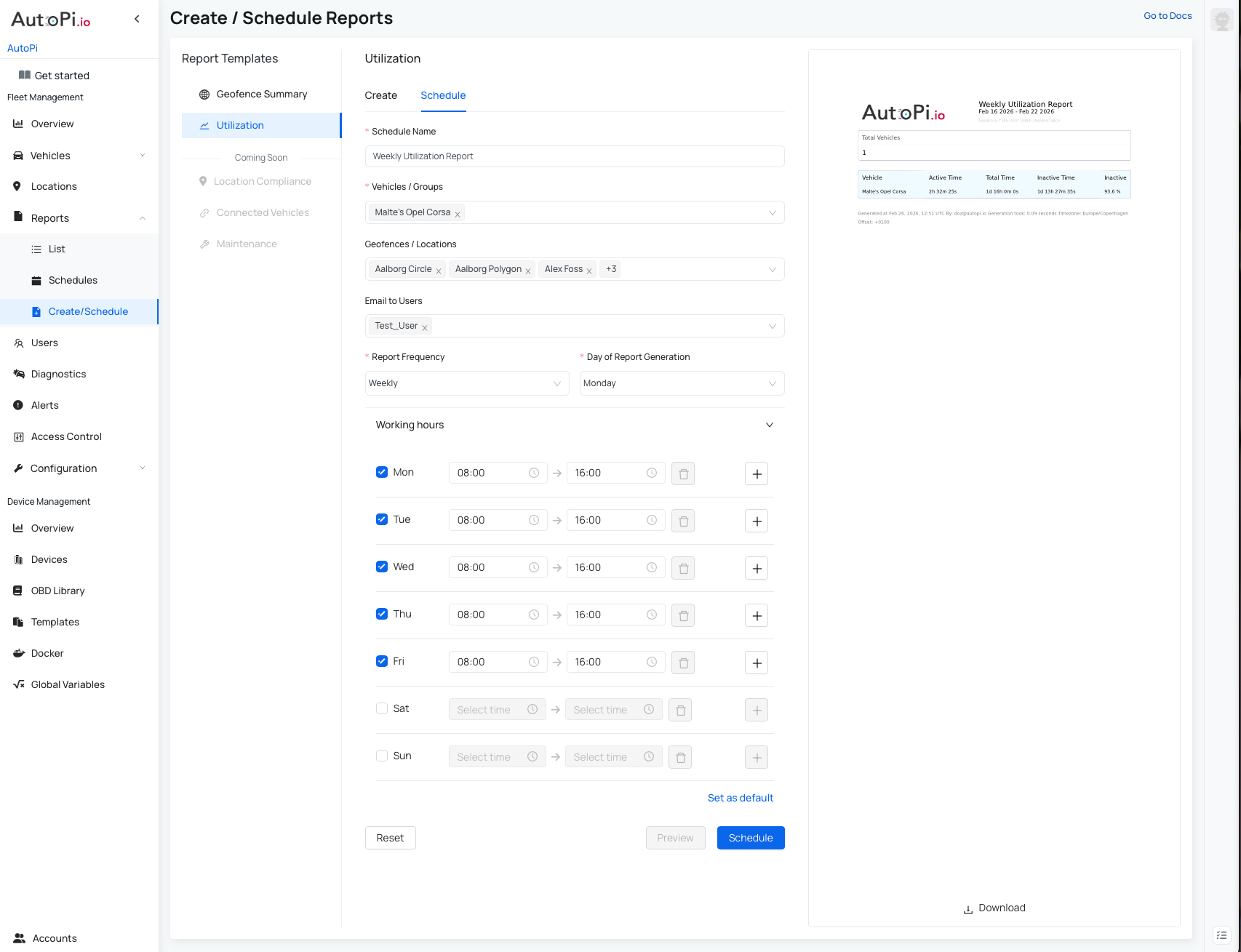
Your report is now scheduled and will appear under Reports → Schedules.
Once generated, it will also be available in Reports → List.
As new report types become available, additional features and enhancements will be added to the platform. Stay tuned for updates to make the most of your AutoPi Cloud Reports.
 Buy AutoPi device
 Compare all AutoPi devices
 Contact our sales team
 Contact our support team