Fault Codes

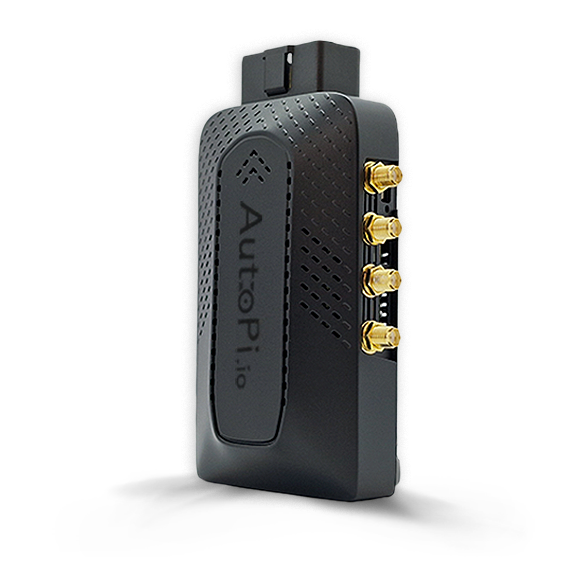
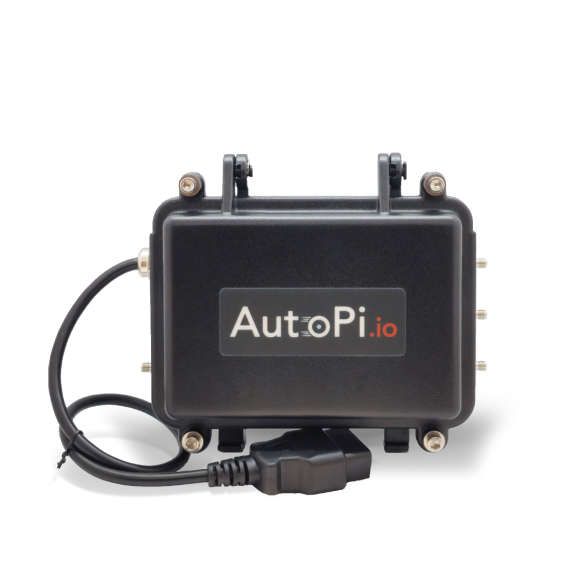
The Fault Codes functionality allows you to define custom fault codes for your vehicles and decide how the system should react when those faults occur. You can specify what constitutes a fault, assign a severity level, and choose how you want to be notified, either through alerts in the AutoPi Cloud or via email notifications. This makes Fault Codes a powerful tool for real-time monitoring of critical vehicle issues, helping you react quickly and manage your fleet more efficiently.
The Fault Codes functionality is available only to users with Account Administrator permission.
Fault Codes Table
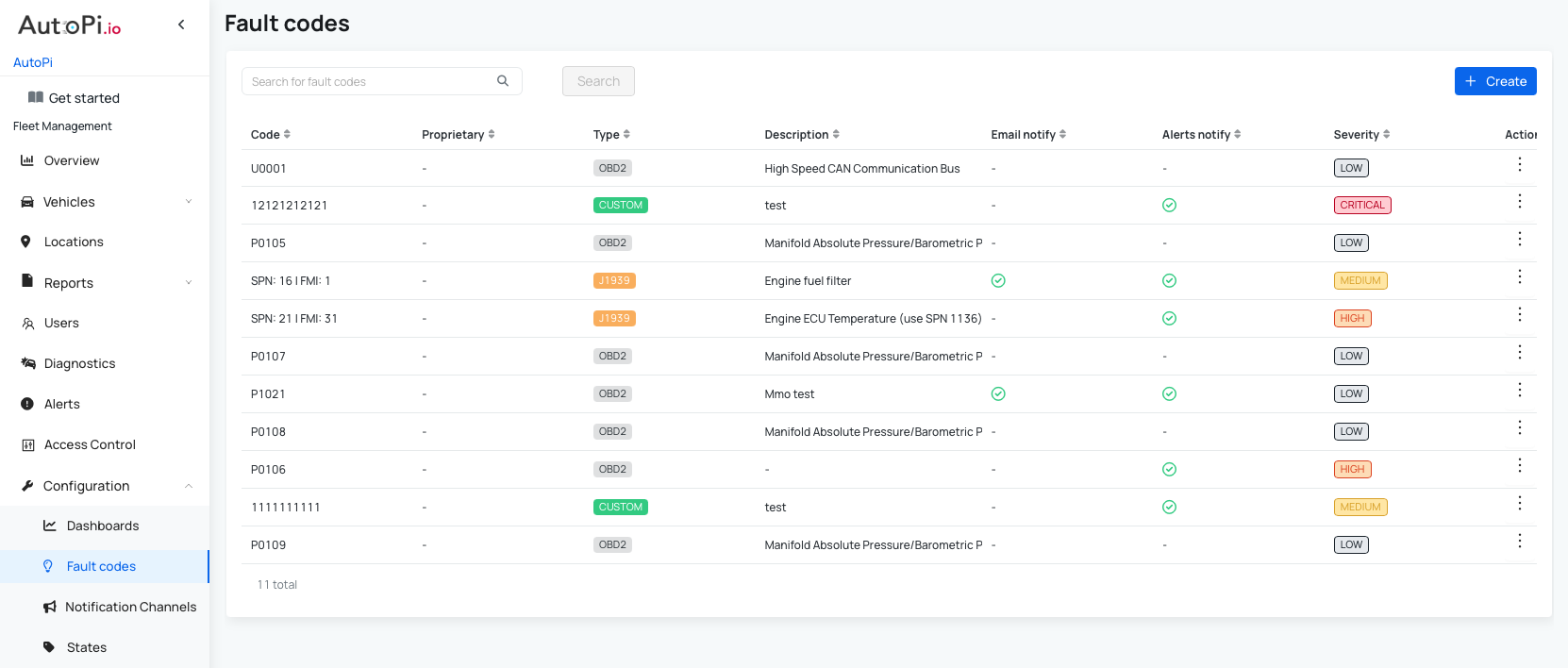
The Fault Codes table provides an overview of all configured fault codes. For each fault code, the following information is displayed:
- Code – the fault code identifier.
- Proprietary – indicates whether the fault code is proprietary.
- Type – the fault code type:
- OBD2
- J1939
- Custom.
- Description – a short explanation of the fault code.
- Email notify – indicates whether email notifications are enabled.
- Alerts notify – indicates whether alerts will be created in AutoPi Cloud.
- Severity – The severity level of the alert:
- Low
- Medium
- High
- Critical.
- Actions – available actions, such as deleting the fault code.
Types of Fault Codes
AutoPi supports three types of fault codes:
- OBD2
- J1939
- Custom
Each type has slightly different configuration requirements, described below.
Create an OBD2 Fault Code
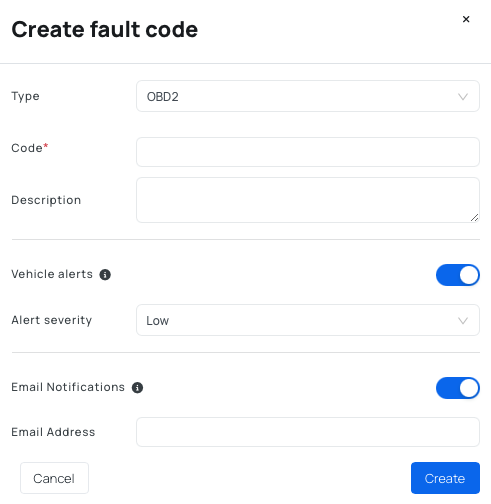
To create an OBD2 fault code, fill in the following fields:
- Type – automatically set to OBD2.
- Code – the OBD2 fault code.
- Description (optional) – additional details about the fault.
- Vehicle Alerts (optional):
- Enable to create an alert in AutoPi Cloud when the fault occurs.
- Alert severity – choose the severity level.
- Email Notifications (optional):
- Enable to receive an email when the fault occurs.
- Email address – specify the recipient email address.
Create a J1939 Fault Code
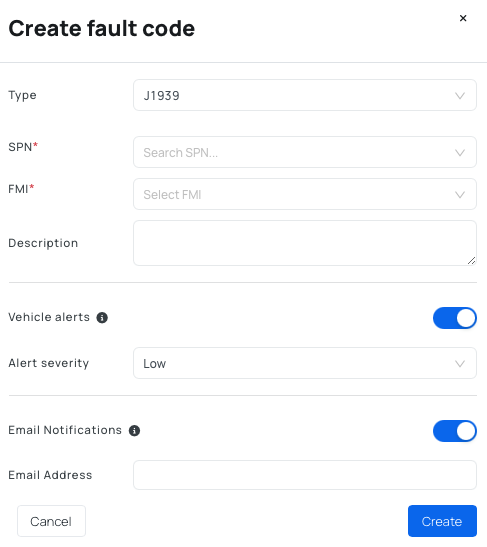
To create a J1939 fault code, provide the following information:
- Type – automatically set to J1939.
- SPN (Suspect Parameter Number) - choose the SPN from the standard options.
- FMI (Failure Mode Identifier) - choose the FMI from the standard options.
- Description (optional) – additional context for the fault.
- Vehicle Alerts (optional):
- Enable to create an alert in AutoPi Cloud.
- Alert severity – select the severity level.
- Email Notifications (optional):
- Enable to receive email notifications.
- Email address – specify the recipient email address.
Create a Custom Fault Code
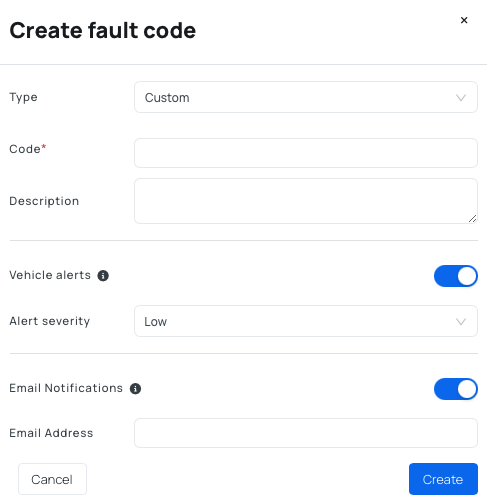
To create a Custom fault code, fill in the following fields:
- Type – automatically set to Custom.
- Code – the custom fault code identifier.
- Description (optional) – description of the fault.
- Vehicle Alerts (optional):
- Enable to create an alert in AutoPi Cloud.
- Alert severity – select the severity level.
- Email Notifications (optional):
- Enable to receive email notifications.
- Email address – specify the recipient email address.
Summary
Once fault codes are configured, AutoPi continuously monitors your vehicles and notifies you whenever a defined fault occurs. Combined with alerts and email notifications, this functionality ensures you stay informed about critical issues in real time allowing you to make faster, better decisions when managing your fleet.
 Buy AutoPi device
 Compare all AutoPi devices
 Contact our sales team
 Contact our support team