Create CAN Signal Loggers
Use a CAN signal logger to passively capture specific raw CAN messages and send them to the AutoPi Cloud. Unlike a PID logger, a CAN signal logger does not send requests on the CAN bus.
This guide explains how to define a CAN message and signal, create the logger, modify its generated worker to preserve raw data, and synchronize the configuration with your device.
Before You Begin
Make sure that:
- You know the header and expected payload length of the CAN message you want to capture.
- Your device is assigned to a vehicle with a vehicle bus configured.
- The configured vehicle bus matches the bus on which the CAN message is transmitted.
If you need help configuring the CAN bus, follow Step 1: Setting Up CAN Bus Protocol.
Step 1: Create a CAN Message and Signal
First, create a CAN message that defines the header the device should listen for.
-
In the AutoPi Cloud, go to OBD Library > My Library.
-
Select Create > CAN.
-
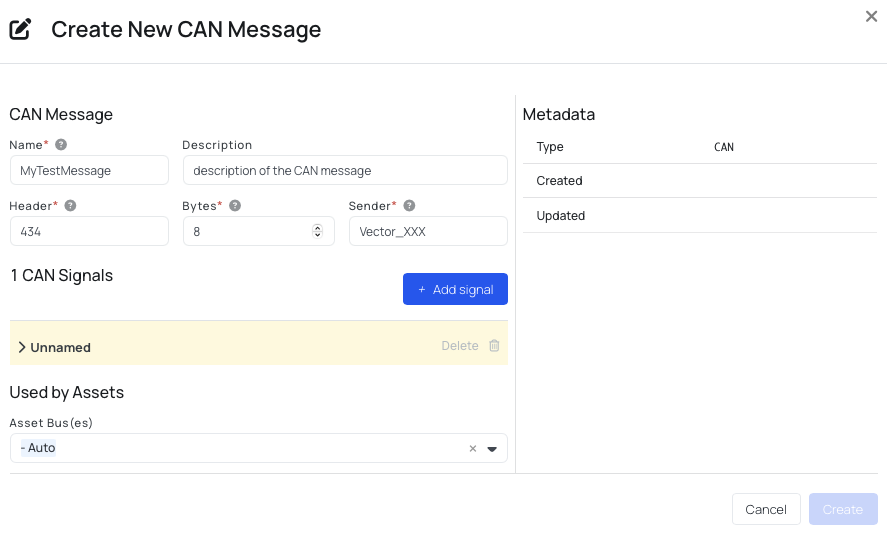
Complete the CAN message fields:
- Name: enter a descriptive, user-readable name.
- Description: enter the description of the CAN message.
- Header: enter the header of the CAN message you want to capture.
- Bytes: enter the expected payload length, which is the number of data bytes after the header.
- Sender: select the ECU that sends the message. If the sender is unknown, use
vector_XXXas a placeholder.
-
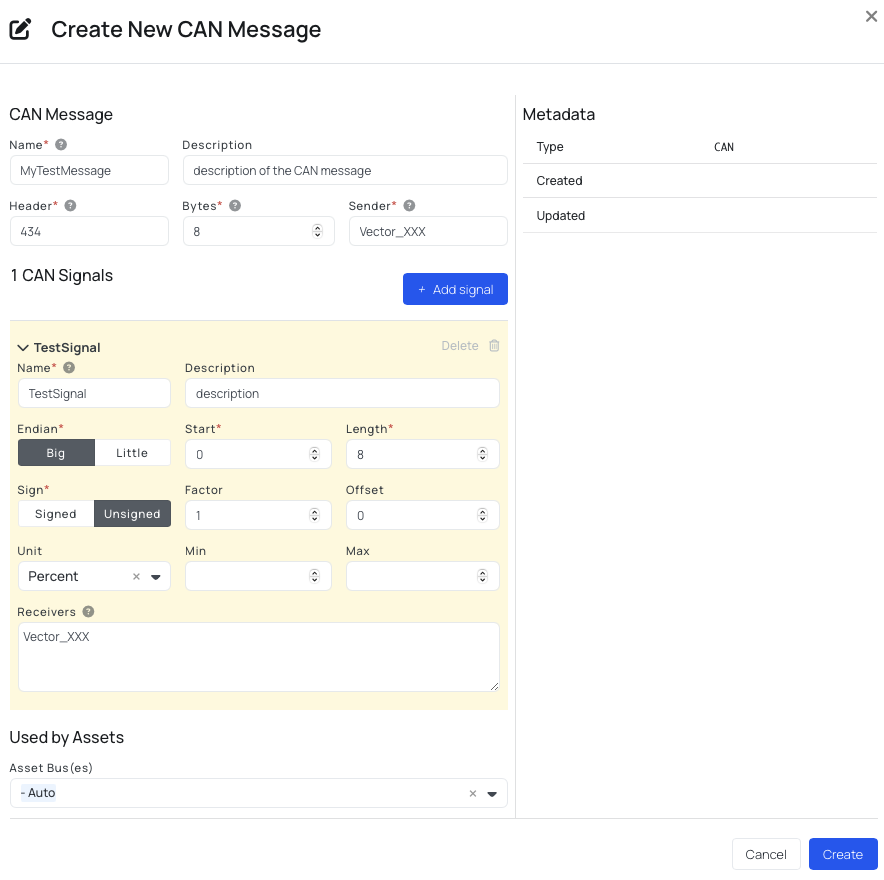
Add a CAN signal to the message. The signal does not need to represent meaningful decoded data. It is required so that the CAN message is valid and can be used to create a logger.
-
At the bottom of the dialog, select the vehicle bus configured for your device.
-
Save the CAN message and signal.
If the correct vehicle bus is not available, configure it for the vehicle before continuing. The logger will only list messages associated with the selected vehicle bus. If you need help configuring the CAN bus, follow Step 1: Setting Up CAN Bus Protocol.
Step 2: Create a CAN Signal Logger
AutoPi devices use OBD filters to determine which messages are accepted and which are dropped. Creating a CAN signal logger adds the selected message to these filters.
The logger is passive and does not transmit anything on the CAN bus. Although CAN signal loggers normally convert raw messages into human-readable values, Step 3 removes that conversion so the raw messages are retained.
-
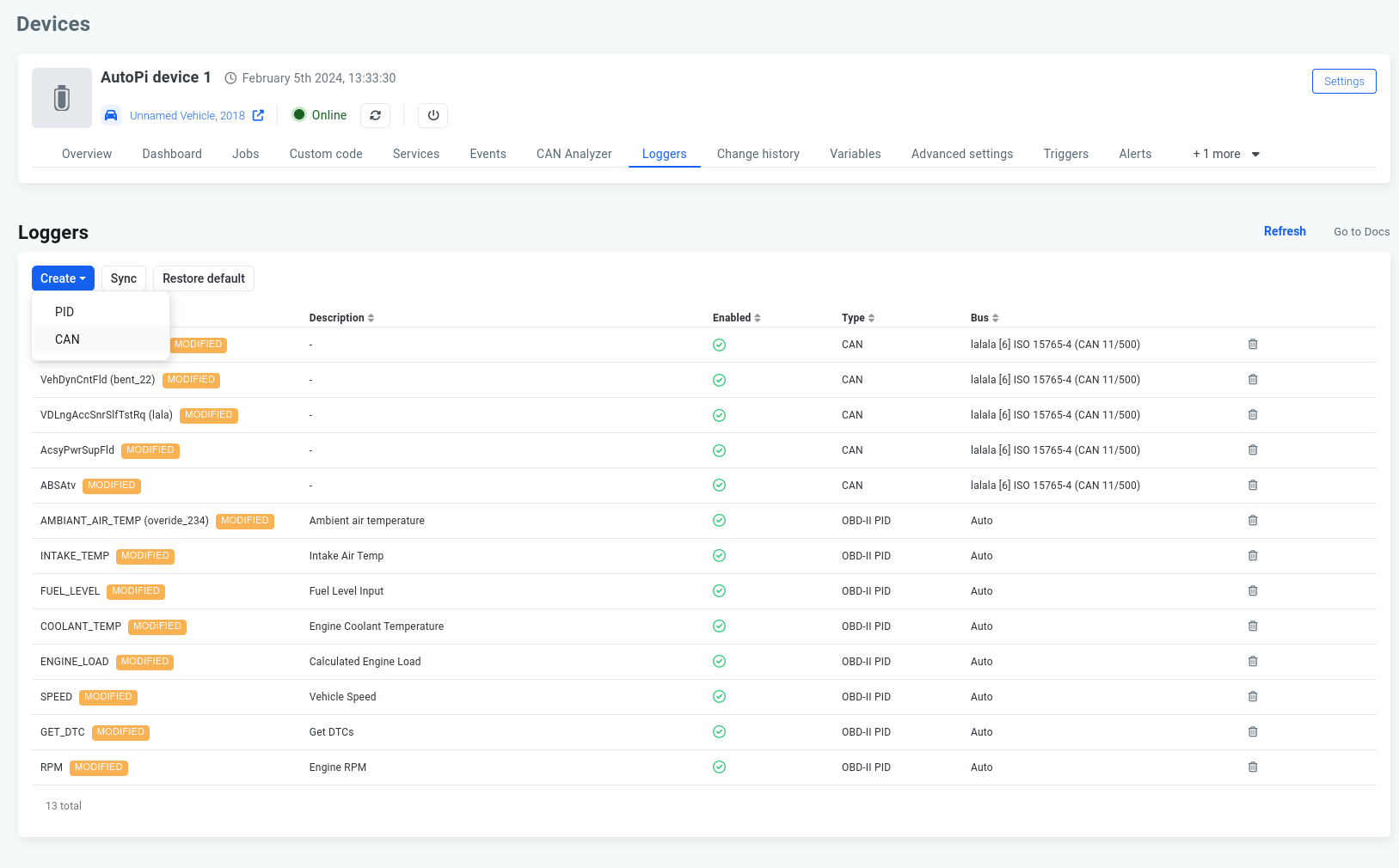
Go to Device > Loggers.
-
Select + Create > CAN.
-
Open the Signal dropdown, and select the CAN signal created in Step 1.
-
Select the CAN bus on which the message is transmitted.
-
Optionally, enter a different name for the logger. Otherwise, it uses the signal name.
-
Save the logger.
If the signal does not appear in the dropdown, confirm that the CAN message is associated with the same vehicle bus as your device.
Step 3: Modify the Default can_logger
When you add the CAN signal logger in Step 2, a default can_logger worker is created. You must modify this worker to return raw CAN messages.
-
Go to Device > Services, and locate
obd_manager. -
Check the Custom column before opening the service.
warningIf
obd_manageris marked as custom, deleting it also removes any existing custom changes to that service. Record any changes you need to preserve before selecting the trash icon. Deleting the custom version restores the defaultobd_managerservice. -
Open the default
obd_managerservice. -
In the Workers section, open
can_logger. -
Modify the worker as follows:
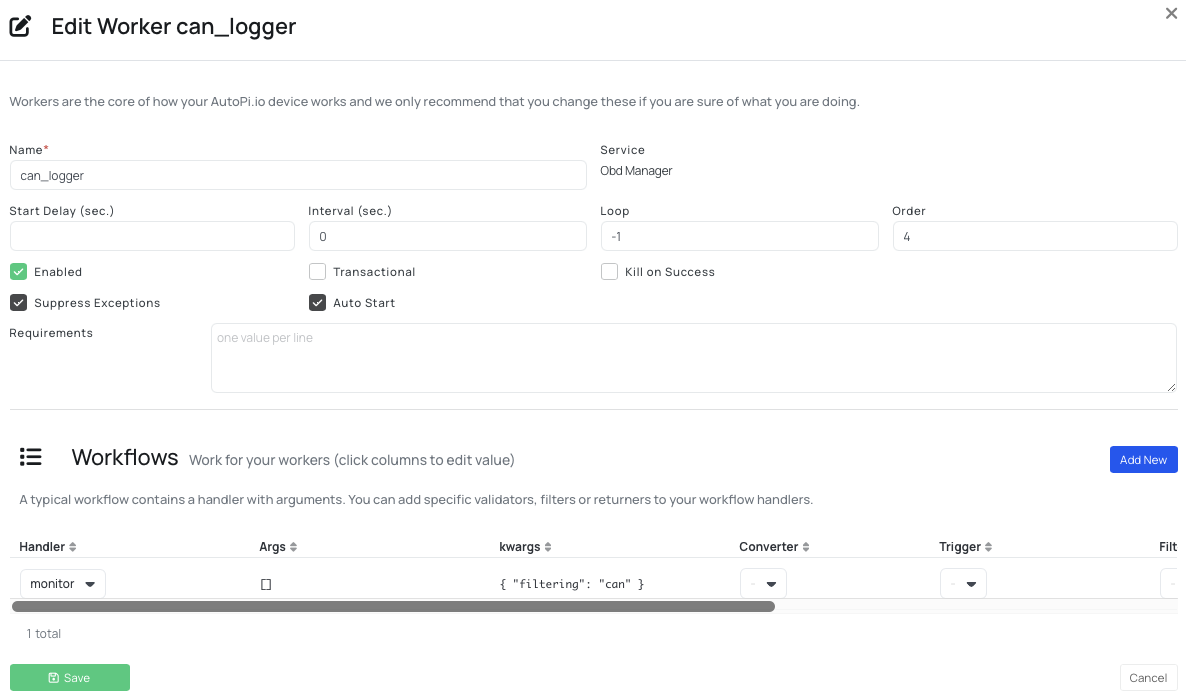
- Clear the Converter field. It is set to
canby default; select the x in the dropdown to remove it. - Remove the
rpm_engine_eventtrigger because it is not needed for this workflow. - To receive repeated messages, remove the
alternating_readoutfilter. When enabled, this filter omits consecutive messages with the same value.
- Clear the Converter field. It is set to
-
Save the worker.
Step 4: Sync the Changes to the Device
Synchronize the configuration with your device. After synchronization, the device will capture matching messages from the CAN bus and send them to the AutoPi Cloud.
Raw CAN messages are sent as strings, while the AutoPi Cloud storage layer typically expects integers or floating-point values. Contact AutoPi Support after completing the setup so that your data storage configuration can be verified.
Test the Logger
You can test the setup by running a command that simulates the can_logger workflow:
obd.manage run handler='monitor' kwargs='{"filtering": "can"}'
The command returns the CAN messages accepted by the configured filters. For optional arguments, such as the monitoring duration or maximum message count, refer to the obd.monitor command documentation.
 Shop AutoPi devices
 Compare devices
 Contact sales
 Contact support